How to Set Up a VPN at Home
How to set up a VPN at home using your router, a device app, or your own server. Simple steps to protect your privacy and secure your home network.
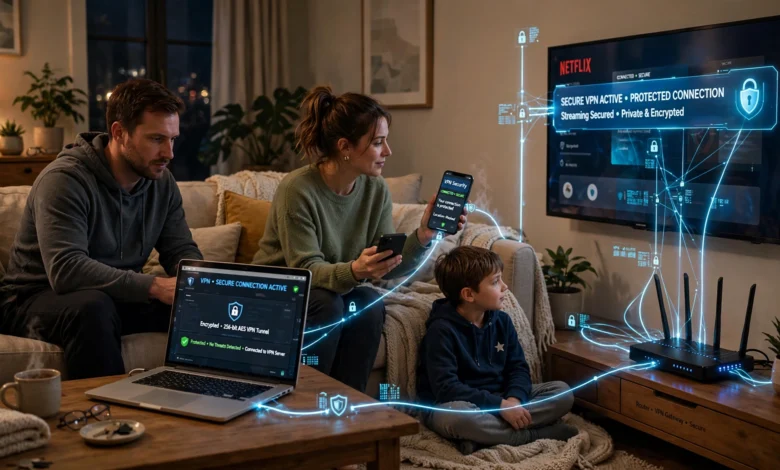
If you want to set up a VPN at home, you are probably after one of two things. Maybe you want more online privacy, so your internet provider and the people running public networks can’t see everything you do. Or maybe you want remote access, so you can reach your home files, cameras, or media server while you’re traveling. The good news is that both goals are well within reach, even if you’ve never touched your router settings before.
A VPN, or virtual private network, creates an encrypted connection between your device and another server. Everything that passes through that tunnel is scrambled, which makes it much harder for anyone in the middle to read or tamper with your traffic. At home, this can protect every phone, laptop, and smart TV on your network at once, depending on how you set it up.
This guide walks you through three practical methods. You’ll learn how to install a VPN client on individual devices, how to configure a VPN router that covers your whole household, and how to run your own VPN server at home using tools like WireGuard and OpenVPN. You’ll also find advice on choosing a protocol, testing your connection, fixing common problems, and keeping everything secure over time.
No matter your skill level, by the end you’ll know exactly which approach fits your needs and how to get it running.
What Is a Home VPN and Why Should You Set One Up?
A home VPN is any VPN arrangement that protects or connects your household network. That sounds simple, but people use the term to describe two quite different setups, and mixing them up is the most common source of confusion.
Type 1: A VPN for Privacy (Outgoing Traffic)
This is what most people picture. You sign up for a commercial VPN provider, and your internet traffic travels through their servers before reaching the wider web. Websites see the provider’s IP address instead of yours, and your internet service provider sees only encrypted data going to one destination.
This type is useful if you want to:
- Keep your browsing history away from your internet provider
- Reduce tracking by advertisers that rely on your IP address
- Protect traffic on shared networks, like a building’s Wi-Fi
- Access content available in other regions, where the service’s terms allow it
Type 2: A VPN for Remote Access (Incoming Traffic)
The second type works in the opposite direction. You run a VPN server at home, and when you’re away, your phone or laptop connects back to it. Once connected, it’s as if you’re sitting on your own couch. You can open files on your network storage, check a security camera, or manage a home server without exposing those devices directly to the internet.
This is also a smart way to stay safe on hotel or airport Wi-Fi. Your traffic travels through an encrypted tunnel back to your home connection, which you trust far more than a random public hotspot.


Which One Do You Need?
Ask yourself one question: do I want to hide my home traffic, or do I want to reach my home from outside? If it’s the first, a commercial VPN on your devices or router is the right call. If it’s the second, you’ll want to host your own server. Plenty of people end up doing both, and that’s perfectly fine.
What You Need Before You Set Up a VPN at Home
Getting a few things ready beforehand will save you a lot of back and forth. Here’s a quick checklist.
- A reliable internet connection. A VPN adds a small amount of overhead, so a stable connection with decent upload speed matters, especially for self-hosting. Your upload speed limits how fast you can pull files from home while traveling.
- Your router’s admin login. You’ll usually find the default address and password on a sticker on the router. Common addresses are 192.168.0.1 or 192.168.1.1. If you changed the password and forgot it, you may need to reset the router.
- A VPN subscription (for privacy setups). Pick a provider with a clear no-logs policy, support for modern protocols, and apps for the devices you use.
- A device to act as a server (for remote access setups). This can be a compatible router, a Raspberry Pi, a spare computer, or a network storage device that supports VPN hosting.
- About 30 to 90 minutes. Device apps take minutes. Router and self-hosted setups take longer the first time.
It also helps to write down your current network settings before you change anything. A quick photo of your router’s settings pages can make it much easier to undo a mistake.
Choosing the Right VPN Protocol for Your Home Network
The protocol is the set of rules your VPN uses to build and protect the tunnel. You don’t need to be an expert, but picking the right one makes a real difference to speed and reliability.
WireGuard
WireGuard is the newer option and, for most people, the best one. Its codebase is small, which makes it easier to audit, and it’s noticeably fast on phones and low-power hardware. It also reconnects quickly when you switch from Wi-Fi to mobile data. You can read about how it works on the official WireGuard website.
OpenVPN
OpenVPN has been around for more than two decades and is supported almost everywhere. It’s a bit slower than WireGuard, but it’s extremely flexible and works well on routers that don’t support newer protocols yet. The OpenVPN community documentation is a solid reference if you run into configuration questions.
IKEv2/IPsec
IKEv2 is built into many phones and operating systems, so it can work without extra apps. It handles network changes well, which makes it popular on mobile devices. It’s a reasonable choice, though setup on self-hosted servers can be more fiddly.
Protocols to Avoid
Skip PPTP entirely. It’s old and has known security weaknesses. L2TP without IPsec offers no real encryption either. Some routers still list these options, but they aren’t worth the risk.
Quick recommendation: use WireGuard if your hardware supports it, and fall back to OpenVPN if it doesn’t.
Method 1: Set Up a VPN at Home on Individual Devices
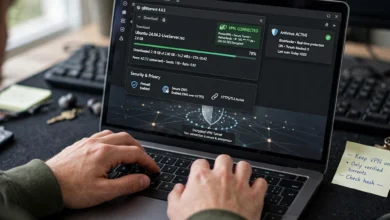
This is the easiest path and the one most people should try first. You install the provider’s VPN client on each device you want to protect.
Step-by-Step Device Setup
- Choose and subscribe to a provider. Compare privacy policies, independent audits, server locations, and how many devices one account covers.
- Download the official app. Get it from the provider’s website or your device’s official app store. Avoid third-party download sites.
- Sign in and pick a protocol. Most apps choose automatically. If there’s a setting, select WireGuard or the provider’s own version of it.
- Turn on the kill switch. This feature blocks internet access if the VPN drops, so your real IP address doesn’t leak.
- Enable auto-connect. Set the app to connect automatically on startup or whenever you join an untrusted network.
- Connect to a server. For the best speed, choose a server close to your real location unless you need a specific region.
Pros and Cons of the Device Method
Pros:
- Takes only a few minutes
- Protects you everywhere, not just at home
- Easy to turn off for a single app or task
Cons:
- Each device needs its own setup
- Smart TVs, game consoles, and smart home gadgets often can’t run VPN apps
- Some plans limit the number of simultaneous connections
If you mainly want privacy on your phone and laptop, this may be all you need.
Method 2: Set Up a VPN Router to Cover Your Whole Home
A VPN router sends all of your household traffic through the VPN automatically. Every device connected to your Wi-Fi is protected, including the ones that can’t run apps. This is the best option for a true whole-house home VPN setup.
Check Whether Your Router Supports a VPN Client
Not every router can do this. Log into your router’s admin panel and look for a section labeled VPN, VPN Client, or Advanced Settings. Many models from brands like ASUS, GL.iNet, and Synology offer built-in VPN client support. Some routers only support hosting a VPN server, not connecting to an outside provider, so read the labels carefully.
If your router lacks support, you have a few options:
- Buy a router that supports WireGuard or OpenVPN clients natively
- Install open firmware such as OpenWrt, if your model is compatible
- Buy a preconfigured VPN router from your provider
Flashing new firmware can void your warranty and, if done wrong, can leave the router unusable. Only go that route if you’re comfortable following technical instructions carefully.
Step-by-Step Router Setup
- Log into your router. Type its address into a browser on a connected device and enter the admin password.
- Update the firmware. Before anything else, install the latest firmware. It often adds VPN features and fixes security holes.
- Download configuration files from your provider. Log into your VPN account online and look for manual or router setup. Download a WireGuard or OpenVPN configuration file for the server location you want.
- Add a VPN client profile. In the router’s VPN section, create a new client profile and upload the configuration file. Enter your VPN username and password if asked.
- Activate the connection. Save the profile and turn it on. The status should change to connected within a minute.
- Enable the router’s kill switch if available. Some firmware calls this “block internet when VPN is down.”
- Set up split tunneling if needed. Some routers let you choose which devices use the VPN. This helps if a streaming box or banking app misbehaves on a VPN connection.
Things to Keep in Mind
Routers have limited processing power, and encryption is demanding work. On older or budget models, your speeds may drop noticeably, especially with OpenVPN. WireGuard helps a lot here. If you have a fast fiber connection, a router with a stronger processor is worth the money.
Also remember that a router VPN only protects you at home. When you leave, your phone goes back to its normal connection unless it also has a VPN app installed.
Method 3: Host Your Own VPN Server at Home
Running your own VPN server at home gives you secure remote access to your network from anywhere. It doesn’t hide your activity from your internet provider the way a commercial VPN does, but it’s excellent for reaching home devices and for protecting yourself on public Wi-Fi.
You have three main ways to do this.
Option A: Use Your Router’s Built-In VPN Server
Many modern routers can host a WireGuard or OpenVPN server with a few clicks.
- Open the VPN Server section of your router’s settings.
- Choose WireGuard if available, otherwise OpenVPN.
- Turn the server on and let the router generate keys.
- Create a client profile for each device and export the configuration file or QR code.
- Install the WireGuard or OpenVPN app on your phone or laptop and import the profile.
- Test the connection from outside your home network, for example with your phone on mobile data.
This is the simplest self-hosted route because the router handles most of the technical details.
Option B: Build a Raspberry Pi VPN Server
A Raspberry Pi VPN is a popular, low-cost project. The Pi uses very little power, so it can run all day without adding much to your electricity bill. A tool called PiVPN automates most of the setup.
Here’s the general process:
- Install Raspberry Pi OS on a microSD card and boot the Pi.
- Give the Pi a fixed local IP address. You can do this with a DHCP reservation in your router so the address never changes.
- Run the PiVPN installer from the terminal and follow the prompts. Choose WireGuard when asked.
- Create client profiles with the built-in command. Each device gets its own profile.
- Set up port forwarding on your router so incoming VPN traffic reaches the Pi.
- Configure dynamic DNS so you can reach your home even when your public IP address changes.
- Import the profiles onto your devices and test from outside your network.
Option C: Use a Spare Computer or NAS
If you already run a network storage device from Synology, QNAP, or similar brands, check its app store for a VPN server package. A spare Linux computer can also run WireGuard or OpenVPN. The steps are similar to the Raspberry Pi method, just on different hardware.
Understanding Port Forwarding
Port forwarding tells your router where to send certain incoming traffic. Without it, your router blocks VPN connection attempts from outside because it doesn’t know which device should receive them.
To set it up:
- Find the port your VPN uses. WireGuard defaults to UDP port 51820, and OpenVPN defaults to UDP port 1194.
- In your router, create a forwarding rule that sends that port to your VPN server’s local IP address.
- Forward only the single port you need. Never open a wide range of ports.
If you use your router’s built-in VPN server, it usually handles this step for you.
Setting Up Dynamic DNS
Most home internet plans give you a public IP address that changes from time to time. When it changes, your devices lose track of where home is. Dynamic DNS solves this by giving you a fixed hostname, such as yourname.ddns.net, that always points to your current address.
Many routers include a free dynamic DNS service. Otherwise, services like No-IP or Duck DNS work well. Once it’s set up, use that hostname in your client profiles instead of a raw IP address.
A Note About CGNAT
Some internet providers place customers behind carrier-grade NAT, which means you share a public IP address with other customers. If that’s your situation, port forwarding won’t work no matter what you do. Signs include a WAN IP address in your router starting with 100.64 through 100.127. Your options are to ask your provider for a public IP address, which some offer for a small fee, or to use a mesh VPN service like Tailscale that works around this limitation.
How to Test Your Home VPN Setup
Don’t assume everything works just because the app says connected. A few quick checks will confirm your secure home network is doing its job.
- Check your IP address. Visit an IP lookup site with the VPN off, note the address, then turn the VPN on and check again. The address should change to your provider’s server (for privacy setups) or your home IP (for remote access).
- Run a DNS leak test. Your DNS requests should go through the VPN, not your regular provider. Search for a DNS leak test tool and confirm only your VPN’s servers show up.
- Test the kill switch. While connected, disconnect the VPN manually or switch networks. Your internet should stop working briefly rather than falling back to an unprotected connection.
- Test remote access from outside. Turn off Wi-Fi on your phone, connect to the VPN over mobile data, and try opening a device on your home network.
- Measure your speed. Run a speed test with and without the VPN. Some slowdown is normal. A drop of more than half suggests a hardware or protocol issue.
Common Home VPN Problems and How to Fix Them
Even a careful home VPN setup can hit a snag. Here are the problems people run into most often.
The VPN Won’t Connect
- Double-check your login details and configuration file
- Try a different server or protocol
- Restart the router and the device
- For self-hosted servers, confirm the port forwarding rule points to the correct local IP
Internet Is Very Slow
- Switch to WireGuard if you’re using OpenVPN
- Pick a server closer to your location
- If using a router VPN, your router’s processor may be the bottleneck
- Check your home upload speed if you’re connecting to a self-hosted server
Some Websites or Apps Block You
Banks, streaming services, and some shopping sites flag VPN traffic. Use split tunneling to exclude those apps or devices, or switch to a different server.
Remote Access Stops Working After a While
This usually means your public IP address changed and your dynamic DNS didn’t update. Check that the dynamic DNS service is active and that your router or server is sending updates.
Smart Home Devices Stop Responding
Some smart devices rely on local network discovery, which can break when traffic is routed through a VPN. Exclude them from the VPN using split tunneling on your router.
Tips to Keep Your Home VPN Secure Over Time
Setting things up is only half the job. A VPN is only as safe as the system around it.
- Keep firmware and software updated. Enable automatic updates on your router, Raspberry Pi, and VPN apps where possible.
- Change default passwords. Your router’s admin password should be long and unique. Weak router passwords are one of the most common ways home networks get compromised.
- Use one profile per device. If you lose a phone, you can revoke that single profile without affecting the others.
- Disable remote management of your router. Unless you truly need it, turn off admin access from the internet.
- Review connected clients now and then. Check your server’s list of active profiles and remove anything you don’t recognize.
- Choose a trustworthy provider. For privacy setups, look for independent audits and a published no-logs policy rather than marketing claims.
- Don’t treat a VPN as a complete security solution. It protects your connection, not your accounts. Strong passwords, two-factor authentication, and careful clicking still matter.
Frequently Asked Questions
Is it legal to set up a VPN at home?
In most countries, yes. VPNs are widely used by businesses and individuals. A few countries restrict or ban them, so check local laws if you’re unsure. Using a VPN to do something illegal is still illegal.
Will a VPN slow down my internet?
A little, usually. Encryption takes processing power, and your traffic may travel further. With WireGuard and a nearby server, most people barely notice the difference.
Can I use a free VPN?
You can, but be careful. Free services often cap speed and data, and some make money by collecting user data, which defeats the purpose. A paid provider or a self-hosted server is a safer bet.
Do I need both a router VPN and device apps?
Only if you want protection both at home and on the go. A router VPN covers your house, while device apps cover you everywhere else.
Is self-hosting harder than using a provider?
It takes more setup, but tools like PiVPN and built-in router servers have made it far more approachable than it used to be. Most people can finish in an afternoon.
Conclusion
Learning how to set up a VPN at home comes down to knowing what you want from it: privacy for your outgoing traffic, secure remote access to your network, or both. Installing a VPN client on your devices is the quickest start, a VPN router protects every device in your household at once, and hosting your own VPN server at home with WireGuard or OpenVPN gives you a private tunnel back to your network from anywhere in the world.
Whichever method you choose, pick a modern protocol, test for leaks, keep your firmware updated, and treat your VPN as one layer of a secure home network rather than the whole plan, and you’ll have a setup that protects your online privacy for years to come.