Website Cookies: 7 Essential Truths About Whether You Should Accept Them
Website cookies explained in plain English: what they are, what they track, the risks involved, and when you should accept or reject the cookie pop-up.
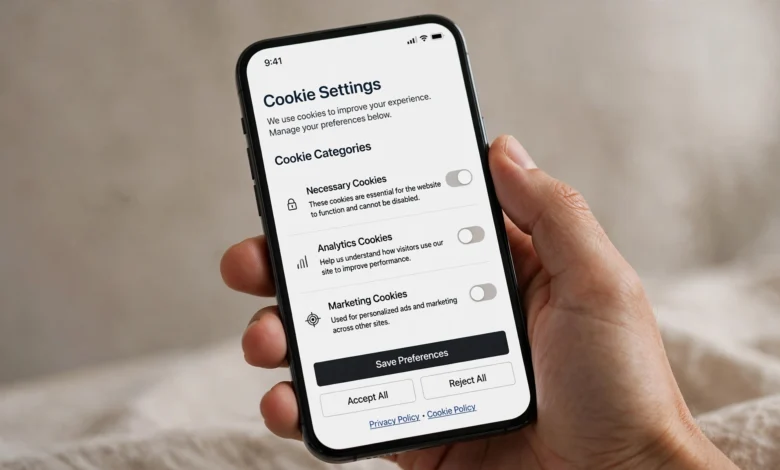
Website cookies are behind that pop-up you see on almost every site now. You land on a page to read a recipe or check a price, and a box slides up asking you to “Accept All” or “Manage Preferences.” Most people click whatever makes it go away fastest. That’s understandable, but it also means most of us are agreeing to things we’ve never really looked at.
So what are you actually agreeing to? A cookie is a small text file a website saves in your browser. Some cookies are harmless and genuinely useful. They keep you logged in, remember your shopping cart, and save your language settings. Others exist mainly to follow you around the internet so advertisers can build a picture of your interests, habits, and spending.
The tricky part is that the banner rarely tells you which is which in plain language. “Accept All” and “Reject All” sound like opposite ends of the same choice, but the real difference is mostly about tracking cookies and advertising, not whether the site works.
This guide breaks it down without the jargon. You’ll learn what is a cookie, how the different types work, which ones pose real online privacy risks, and a simple way to decide should you accept cookies on any given site. You’ll also see how to check, block, and clear cookies in your browser, so you’re making the call instead of the pop-up making it for you.
What Is a Cookie? Website Cookies Explained Simply
A cookie is a tiny piece of text that a website asks your browser to store on your device. It usually holds an identifier (a random string of letters and numbers) plus a few details like when it expires and which website it belongs to.
Think of it like a coat check ticket. When you hand over your coat, you get a numbered ticket. The ticket itself doesn’t contain your coat. It just lets the attendant match you to your stuff when you come back. Website cookies work the same way. The cookie holds a number, and the website’s server uses that number to remember who you are and what you were doing.
The name comes from “magic cookie,” an older programming term for a small packet of data passed between programs. Netscape started using them in browsers in 1994 so online shopping carts could remember what you’d added. The basic idea hasn’t changed much since.
How Website Cookies Work, Step by Step
Here’s what happens behind the scenes when you visit a site that uses browser cookies:
- You type a web address or click a link.
- Your browser requests the page from the website’s server.
- The server sends the page back, along with an instruction to save a cookie.
- Your browser stores that cookie on your device.
- The next time you load a page from that site, your browser automatically sends the cookie back.
- The server reads the cookie and recognizes you, so it can show your cart, keep you logged in, or load your settings.
All of this happens in milliseconds, and you never see it unless you go looking.


What a Cookie Can and Can’t Do
It helps to clear up a few common misunderstandings:
- A cookie can’t run code. It’s plain text, not a program. It can’t install software, scan your files, or give you a virus.
- A cookie can’t read your hard drive. It only stores what the website puts into it.
- A cookie can hold personal data indirectly. Usually it stores an ID, and the website links that ID to information it keeps on its own servers, like your account or browsing history on the site.
- A cookie can be read by whoever set it. Your browser only sends a cookie back to the domain that created it. That rule matters a lot once we get to third-party cookies.
So cookies aren’t dangerous in the way malware is. The concern is less about what a cookie does to your device and more about what companies do with the information cookies help them collect.
The Main Types of Website Cookies
Not all website cookies are created equal. They’re usually grouped in three ways: who sets them, how long they last, and what they’re used for. Knowing these categories makes cookie banners much easier to understand.
First-Party Cookies vs Third-Party Cookies
This is the most important distinction for your privacy.
First-party cookies are set by the website you’re actually visiting. If you’re on an online bookstore and it saves a cookie to remember your cart, that’s first-party. These cookies mostly serve you directly: logins, preferences, carts, and basic site analytics.
Third-party cookies are set by a different domain than the one in your address bar. This happens when a site loads content from outside companies, like ad networks, social media share buttons, or embedded videos. Those outside companies can drop their own cookies on your browser.
Here’s why that matters. Say an ad company has code on a news site, a shoe store, and a travel blog. Every time you visit any of them, the ad company’s cookie gets sent back to the ad company. Over time, it can connect those visits and build a profile: you read about marathons, looked at running shoes, and searched for flights to Boston. That’s how ads seem to follow you from site to site.
Browsers have been pushing back. Safari and Firefox block most third-party cookies by default. Chrome has discussed phasing them out for years but, as of now, still allows them unless you change your settings.
Session Cookies vs Persistent Cookies
The second way to sort cookies is by lifespan.
- Session cookies are temporary. They live only while your browser is open and disappear when you close it. A site might use one to keep track of the pages you’ve moved through during a single visit, or to hold items in a cart before you log in.
- Persistent cookies stick around until a set expiration date, which could be days, months, or even years. These are what let a site remember you next week, keep you signed in, or recall your dark mode setting. Tracking cookies are usually persistent, since their whole purpose is long-term recognition.
Cookies Sorted by Purpose
This is the grouping you’ll see most often in a cookie banner, so it’s worth knowing well:
- Strictly necessary cookies: Required for the site to function. They handle logins, security, and checkout. Sites don’t need your consent for these, and you usually can’t turn them off.
- Preference or functionality cookies: Remember choices like language, region, font size, or layout. Handy but not essential.
- Analytics or performance cookies: Help the site owner understand how people use the site, such as which pages are popular and where visitors leave. Often these are first-party and fairly low risk, though some analytics tools share data with the tool’s provider.
- Marketing or advertising cookies: Used to show you targeted ads and measure whether those ads worked. These are the ones most likely to be third-party and to track you across different websites.
When you open “Manage Preferences” on a banner, these are usually the toggles you’ll see.
Why Every Website Asks for Cookie Consent
A decade ago, cookie pop-ups were rare. Now they’re everywhere. The reason is regulation, mostly from Europe.
The European Union’s ePrivacy Directive, often called the “cookie law,” requires websites to get a visitor’s permission before storing non-essential cookies. The GDPR (General Data Protection Regulation), which took effect in 2018, raised the bar for what counts as valid consent. Under GDPR, consent has to be freely given, specific, informed, and clear. Pre-ticked boxes don’t count, and you should be able to withdraw consent as easily as you gave it. If you want the details, this overview of cookies and GDPR compliance lays out what websites are required to do.
Because the internet is global, many sites show consent banners to everyone rather than figuring out who’s in Europe. Other laws have added to the pressure, including California’s CCPA and CPRA, the UK’s version of GDPR, and privacy laws in countries such as Brazil, Canada, and Japan.
Why Cookie Banners Often Feel Designed to Make You Click “Accept”
You may have noticed that the “Accept All” button is often big and bright, while “Reject” is gray, tiny, or hidden behind two extra clicks. That’s not an accident. These design tricks are often called “dark patterns,” and they nudge people toward the choice that benefits the website’s ad revenue.
European regulators have fined several major companies over banners that made rejecting cookies harder than accepting them. The rule of thumb regulators use is simple: saying no should be as easy as saying yes. When a banner makes rejecting a chore, that’s a signal the site cares a lot about collecting your data.
Are Website Cookies Safe? The Real Risks
Cookies themselves are not viruses or spyware. But “not malware” doesn’t mean “no risk.” The risks fall into two buckets: privacy and security.
Privacy Risks from Tracking Cookies
The biggest issue is tracking. Tracking cookies, especially third-party ones, let companies watch your activity across many sites. Combined with other data, this can reveal a lot:
- Your interests and hobbies
- Health concerns you’ve searched for
- Your approximate location and daily patterns
- Financial situation, based on the products you browse
- Political or religious leanings, based on what you read
This information can be shared with or sold to data brokers, who combine it with records from other sources. You may never know who holds it. For most people, the result is just eerily specific ads. But the same profiles can affect things like the prices you’re shown, and they create a large pile of personal data that could be exposed in a breach.
Security Risks You Should Know About
The security risks are less common but worth understanding:
- Session hijacking: Login cookies prove you’re you. If someone steals yours, they may be able to access your account without your password. This is one reason to be careful on unsecured public Wi-Fi.
- Cross-site scripting (XSS): If a website has a security flaw, attackers can sometimes inject scripts that read cookies. Well-built sites protect sensitive cookies with settings like “HttpOnly” and “Secure,” which make them much harder to steal.
- Shared devices: On a library or office computer, persistent cookies can keep you logged in for the next person. Always log out and close the browser on shared machines.
Common Myths About Browser Cookies
A few beliefs come up often and are simply wrong:
- “Cookies give you viruses.” They can’t. They’re text files.
- “Cookies let websites see everything on my computer.” They don’t. Each cookie is readable only by the domain that set it.
- “Deleting cookies makes me anonymous.” Not quite. Sites can also identify you through your IP address, your account logins, and a technique called browser fingerprinting, which uses details about your device and settings.
Should You Accept Cookies? A Practical Answer
Here’s the honest answer: you rarely need to click “Accept All,” and you almost never need to accept everything to use a website normally. A good middle ground is to accept only what’s necessary and decide on the rest based on the site.
When Accepting Cookies Is Usually Fine
Accepting is reasonable when:
- It’s a site you trust and use often, like your bank, email provider, or a store you shop at regularly.
- You want the convenience of staying logged in and having your settings remembered.
- The banner shows the cookies are mainly first-party and functional.
- You’re on your own private device, not a shared one.
Even then, the strictly necessary and preference cookies are what give you the convenience. Marketing cookies don’t make the site work better for you.
When You Should Reject Cookies
Clicking “Reject” or “Necessary Only” makes sense when:
- You’re on a site you don’t know or won’t visit again.
- You’re researching something sensitive, like a medical condition, legal problem, or financial trouble.
- The site lists dozens or hundreds of “partners,” which is common on news and entertainment sites. Each partner is a company that may receive your data.
- You’re using a public or shared computer.
- The banner feels pushy or makes rejecting unusually hard.
The Smartest Option: Customize Your Cookie Settings
If the banner offers a “Manage” or “Settings” button, this is often the best choice. A quick approach that takes about five seconds:
- Click “Manage Preferences” or “Cookie Settings.”
- Leave strictly necessary cookies on (you usually can’t turn them off anyway).
- Turn on preference cookies if you want the site to remember your choices.
- Turn off marketing and advertising cookies.
- Decide on analytics based on how much you trust the site.
- Save your choices.
If a site has a “Reject All” button right on the banner, that’s even easier and gets you nearly the same result.
What Happens If You Reject Website Cookies?
A lot of people worry that saying no will break the site. In practice, rejecting non-essential website cookies usually changes very little. Here’s what you can expect:
- The site still works. Necessary cookies stay active, so logins and checkouts function normally.
- You’ll still see ads. They’ll just be less personalized, often based on the page you’re reading rather than your history.
- Some settings may not stick. If you rejected preference cookies, you may need to choose your language or region again.
- The banner may come back. Ironically, a site needs a cookie to remember that you rejected cookies. If you clear your cookies, you’ll see the banner again.
- Embedded content may not load. Some videos, maps, or social media posts from other platforms need their own cookies, so the site may show a placeholder instead.
If you block all cookies at the browser level (including necessary ones), that’s a different story. Many sites will stop letting you log in or shop. That’s why blocking only third-party cookies is usually the better balance.
How to Manage and Clear Cookies in Your Browser
You don’t have to rely on each website’s banner. Every major browser lets you view, block, and clear cookies yourself.
Clearing Cookies in Popular Browsers
The steps are similar across browsers:
- Google Chrome: Open Settings, go to Privacy and security, then choose “Delete browsing data” and tick “Cookies and other site data.” Google’s own guide on how to clear, allow, and manage cookies in Chrome walks through every option.
- Mozilla Firefox: Open Settings, go to Privacy & Security, then under Cookies and Site Data click “Clear Data.”
- Safari (Mac): Go to Safari, then Settings, then Privacy, and click “Manage Website Data.” You can remove individual sites or all of them.
- Microsoft Edge: Open Settings, go to Privacy, search, and services, then choose what to clear under “Clear browsing data.”
- Mobile browsers: On iPhone, go to Settings, then Safari, then “Clear History and Website Data.” On Android Chrome, open the menu, go to History, then “Delete browsing data.”
Keep in mind that clearing cookies will sign you out of most websites.
Blocking Third-Party Cookies
For a set-it-and-forget-it option, turn on third-party cookie blocking:
- Chrome: Settings, then Privacy and security, then Third-party cookies, then “Block third-party cookies.”
- Firefox: Enhanced Tracking Protection is on by default. Switching to “Strict” blocks more.
- Safari: “Prevent cross-site tracking” is on by default in Privacy settings.
- Edge: Tracking prevention can be set to “Balanced” or “Strict.”
This single change blocks much of the cross-site tracking without breaking the sites you log into.
Simple Habits for Better Online Privacy
Managing cookie consent is one piece of protecting your online privacy. A few other habits make a real difference:
- Use private or incognito mode for sensitive searches. Cookies from that session get deleted when you close the window.
- Try a privacy-focused browser or extension. Firefox, Brave, and Safari all block a lot of tracking out of the box. Extensions like uBlock Origin or Privacy Badger add more protection.
- Log out of accounts you’re not using. Staying logged into big platforms lets them connect more of your activity.
- Review your cookie settings every few months. Clear out old cookies from sites you no longer use.
- Use a VPN on public Wi-Fi. It helps protect your login cookies from anyone snooping on the network.
- Be careful with “Accept All” on sites with hundreds of partners. That’s where most of your data sharing happens.
None of these require technical skill, and together they cut down a large share of the tracking most people experience every day.
Frequently Asked Questions About Website Cookies
Do I have to accept cookies to use a website?
No. Under GDPR and similar laws, websites in covered regions must let you use the site without accepting non-essential cookies. Only strictly necessary cookies are allowed without consent.
Is it better to accept or reject cookies?
For most sites, rejecting non-essential cookies is the better default for privacy. Accept them on trusted sites where you want convenience features.
Can cookies steal my passwords?
Cookies don’t store your password in plain text. However, login cookies can be misused if stolen, which is why secure sites protect them and why public Wi-Fi calls for extra care.
How often should I clear my cookies?
There’s no fixed rule. Clearing them every month or two is reasonable, and you should always clear them after using a shared computer.
Conclusion
Website cookies are small text files that help sites remember you, and most of them are useful rather than harmful: they keep you logged in, save your cart, and remember your settings. The real concern is tracking cookies, especially third-party cookies, which follow your activity across the web to build advertising profiles. Knowing the difference between first-party and third-party, session and persistent, and necessary versus marketing cookies makes every cookie banner much easier to handle.
website cookies, what is a cookie, should you accept cookies, browser cookies, third-party cookies, first-party cookies, cookie consent, tracking cookies, online privacy, clear cookies
The practical rule is simple: accept necessary and preference cookies on sites you trust, reject marketing cookies by default, use “Reject All” or custom settings whenever they’re offered, and back that up by blocking third-party cookies in your browser and clearing old cookies regularly. That way you keep the convenience cookies were built for without handing over more of your online privacy than you intended.