How to Block Ads Without Extensions
Block ads without extensions using built-in browser tools, private DNS, hosts files, and router settings. Simple steps for Chrome, Android, and iPhone.
If you want to block ads without extensions, you are not alone. A lot of people are tired of add-ons that slow down their browser, ask for permission to “read and change all your data on all websites,” or quietly stop working after a browser update. Some extensions have even been caught selling browsing data or injecting their own ads. That is a strange trade to make just to get rid of banners.
The good news is that you do not need an add-on at all. Modern browsers, phones, and home routers already include tools that can filter out most ads before they ever reach your screen. Some of these are switches you can flip in under a minute. Others take ten or fifteen minutes to set up but then protect every device in your house, including smart TVs and game consoles that could never run an extension anyway.
In this guide, I will walk you through nine practical ways to block ads without extensions, starting with the easiest and moving to the most powerful. You will learn how to use browser settings, DNS ad blocking, the hosts file, router-level filters, and phone settings on Android and iPhone. For each method, I will explain what it blocks, what it misses, and who it suits best. By the end, you will know exactly which setup fits your devices, your comfort level, and how much effort you want to put in. No coding skills needed, and nothing to install unless you choose to.
Why Block Ads Without Extensions?
Extensions are the most common way to filter ads, but they come with real downsides. Before we get into the methods, it helps to understand why so many people now prefer ad blocking without extensions.
Privacy and Permission Concerns
Most ad-blocking add-ons need permission to see every page you visit. That is how they work, but it also means you are trusting a third party with your entire browsing history. Popular extensions have been bought by new owners in the past and updated with tracking code. When you block ads without extensions, you remove that middleman completely.
Manifest V3 Changed the Game in Chrome
Google moved Chrome extensions to a new system called Manifest V3. It limits how many filtering rules an extension can use and how it can inspect network traffic. Many users noticed that their favorite blockers became weaker or were removed. Built-in and network-level methods are not affected by these rules, which makes them a more stable long-term option.
Speed and Battery Life
Every extension adds a small amount of memory use and processing to each page load. On older laptops and phones, that adds up. Methods like DNS ad blocking stop ad requests before the browser even tries to load them, so pages often load faster and use less data.
Devices That Cannot Run Extensions
Smart TVs, streaming sticks, game consoles, and many phone apps have no extension support at all. If you want to block ads without extension support on these devices, a network-wide filter is the only realistic choice.
Method 1: Block Ads in Chrome Without Extensions Using Built-In Settings
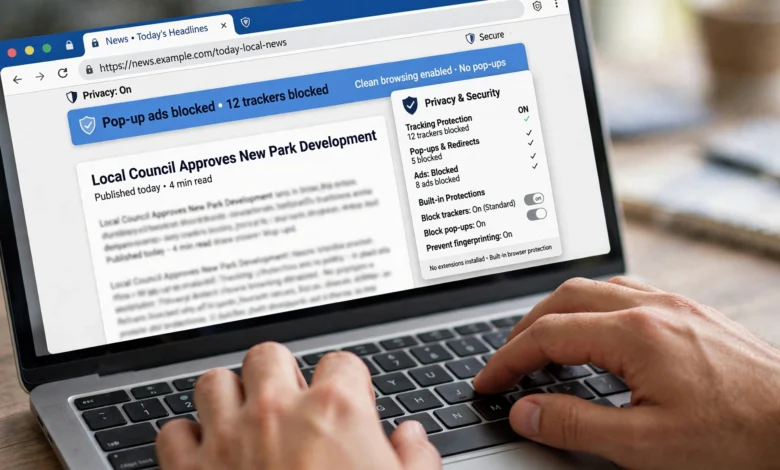
Chrome has a built-in ad blocker, though it is modest. It removes ads on sites that break the Better Ads Standards, such as full-screen pop-ups, autoplay video with sound, and countdown ads that hide the page. It will not remove normal banner ads, but it cleans up the worst offenders. To block ads in Chrome without extensions:


- Open Chrome and click the three-dot menu in the top-right corner.
- Go to Settings, then Privacy and security, then Site settings.
- Scroll to Additional content settings and open Intrusive ads.
- Select the option that blocks ads on sites showing intrusive or misleading ads.
- Go back to Site settings, open Pop-ups and redirects, and make sure sites are not allowed to send pop-ups.
While you are there, open Notifications and turn off site notifications. Many spammy “ads” today are actually push notifications that sites trick you into allowing.
Method 2: Switch to a Browser With a Built-In Ad Blocker
The fastest way to block ads without extensions is to use a browser that does it for you. Several popular browsers include a native filter that works right after installation.
Brave Browser
Brave blocks ads and trackers by default through a feature called Brave Shields. You can click the lion icon in the address bar to adjust it per site, or set it to “Aggressive” in Settings for stronger filtering. It is built on Chromium, so your Chrome bookmarks and passwords import easily. Brave also blocks many ads on YouTube in the browser.
Opera and Opera GX
Opera has a free ad blocker built in. Open Settings, go to Privacy protection, and turn on Block ads. You can add exceptions for sites you want to support.
Microsoft Edge
Edge includes Tracking prevention under Settings > Privacy, search, and services. Setting it to Strict blocks most trackers and a good share of ads, although some sites may break. Edge also blocks intrusive ads in the same way Chrome does.
Method 3: Use Firefox’s Enhanced Tracking Protection
Firefox does not have a full ad blocker built in, but its tracking protection removes many ads because so many ads rely on trackers. Go to Settings > Privacy & Security and choose Strict under Enhanced Tracking Protection. Mozilla explains exactly what each level blocks in its Enhanced Tracking Protection guide. Pair it with Reader View (the page icon in the address bar) and most articles become completely ad-free.
Method 4: Block Ads Without Extensions Using DNS Ad Blocking
DNS ad blocking is one of the most effective ways to block ads without extensions, and it works on almost any device. Here is the idea in plain terms. Every time a page loads an ad, your device asks a DNS server for the address of the ad server. An ad-blocking DNS service simply refuses to answer for known ad and tracking domains. The ad never loads, and the page shows a blank space or just closes the gap.
Popular Ad-Blocking DNS Services
- AdGuard DNS: Free public servers that block ads and trackers. The AdGuard DNS public server page lists the addresses and hostnames for every platform.
- NextDNS: Lets you pick your own blocklists and see logs of what was blocked. The free tier covers a generous number of queries each month.
- Mullvad DNS and Control D: Both offer free ad-blocking resolvers with a focus on privacy.
How to Set DNS on Windows
- Open Settings > Network & internet and select your Wi-Fi or Ethernet connection.
- Click Hardware properties, then Edit next to DNS server assignment.
- Switch to Manual, turn on IPv4, and enter the ad-blocking DNS addresses.
- If available, set DNS over HTTPS to On for encrypted lookups.
How to Set DNS on macOS
- Open System Settings > Network, then click your active connection and choose Details.
- Go to the DNS tab, remove the existing entries, and add the new server addresses.
- Click OK and reload a few websites to confirm the change.
Using Secure DNS Inside Chrome or Edge
If you only want the filter in your browser, Chrome and Edge let you set a custom secure DNS provider. In Chrome, go to Settings > Privacy and security > Security, find Use secure DNS, choose Add custom DNS service provider, and paste the DNS-over-HTTPS address from your chosen service. This is a neat way to block ads in Chrome without extensions while leaving the rest of your system untouched.
Method 5: Hosts File Ad Blocking on Windows, Mac, and Linux
Hosts file ad blocking is an old-school trick that still works well. Your computer checks a small text file called the hosts file before it asks any DNS server for an address. If you list an ad domain there and point it to 0.0.0.0, your computer treats that domain as a dead end.
Where to Find the Hosts File
- Windows: C:\Windows\System32\drivers\etc\hosts
- macOS and Linux: /etc/hosts
Steps to Edit It
- Back up the original hosts file by copying it somewhere safe.
- Download a trusted, well-maintained blocklist. The Steven Black hosts list on GitHub is one of the most widely used.
- On Windows, open Notepad as administrator, then open the hosts file. On Mac or Linux, open Terminal and run sudo nano /etc/hosts.
- Paste the blocklist entries below the existing lines and save.
- Flush your DNS cache. On Windows, run ipconfig /flushdns in Command Prompt. On Mac, run sudo dscacheutil -flushcache.
Pros and Cons
- Pros: Free, private, works in every browser and app on that computer, and needs no software.
- Cons: It only protects one device, it does not update itself, and very large lists can slightly slow down lookups on older machines. Some security software also flags hosts file edits, so you may need to allow the change.
This method suits people who want to block ads without extensions on a single laptop and do not mind updating a text file every few months.
Method 6: Network-Wide Ad Blocking Through Your Router
If you want one setting that covers every phone, laptop, and TV in your home, change the DNS on your router. This is network-wide ad blocking in its simplest form.
- Type your router’s address into a browser. It is usually 192.168.0.1 or 192.168.1.1, and it is often printed on a sticker on the router.
- Log in with the admin username and password.
- Look for DHCP, LAN, or Internet settings with a DNS field.
- Replace the default DNS servers with your ad-blocking DNS addresses.
- Save, restart the router, and reconnect your devices.
From then on, anything that joins your Wi-Fi is filtered automatically. Guests get the benefit too, and kids’ tablets are cleaner without any extra setup. Some routers from Asus, GL.iNet, and others even ship with AdGuard Home or similar filters built in.
Method 7: Build Your Own Blocker With Pi-hole or AdGuard Home
For people who like a small project, Pi-hole is the gold standard. It is free software that runs on a Raspberry Pi, an old PC, or even a Docker container, and it acts as your home’s private DNS server with ad filtering baked in. AdGuard Home does the same job with a slightly friendlier interface.
What You Get
- A dashboard showing how many requests were blocked, often 15 to 30 percent of all traffic in a typical home.
- Custom blocklists and allowlists, so you can unblock a site in two clicks.
- Protection for smart TVs, consoles, and apps that no extension could ever reach.
Getting Started
The official Pi-hole documentation walks you through installation step by step. After installing, you point your router’s DNS to the Pi-hole’s IP address, and every device on your network is covered. It is the most complete way to block ads without extensions at home.
Method 8: Block Ads on Android With Private DNS
Android has one of the best hidden features for anyone who wants to block ads on Android without installing anything. Since Android 9, phones include a Private DNS setting that works system-wide, across browsers and many apps.
- Open Settings and go to Network & internet (on Samsung, Connections > More connection settings).
- Tap Private DNS.
- Choose Private DNS provider hostname.
- Enter the hostname from your chosen service, for example dns.adguard-dns.com.
- Tap Save.
That is it. Open a few news sites and games and you will notice far fewer banners. If an app stops working, come back and switch Private DNS to Automatic to test. Samsung Internet users can also turn on its built-in content blocking and pop-up blocker in the browser settings.
Method 9: Block Ads on iPhone Without Extensions
Apple is stricter, but you can still block ads on iPhone with the tools already there.
Turn On Safari’s Built-In Protections
- Go to Settings > Apps > Safari and turn on Block Pop-ups.
- Turn on Prevent Cross-Site Tracking and set Advanced Tracking and Fingerprinting Protection to all browsing.
- Use Reader mode (the icon in the address bar) for clean, ad-free articles.
- Recent versions of Safari also include a Distraction Control option that lets you hide pop-ups and sticky elements on a page by hand.
Install a DNS Profile
Services like AdGuard DNS and NextDNS offer configuration profiles for iOS. You download the profile from their site, then approve it in Settings > General > VPN & Device Management. Once active, it filters ads across Safari and many apps, much like Private DNS on Android.
This gives iPhone users a clean way to block ads without extensions while keeping everything inside Apple’s own settings.
Which Method to Block Ads Without Extensions Should You Choose?
Each option has a sweet spot. This quick comparison should help you pick.
| Method | Setup time | Covers | Blocking strength | Best for |
|---|---|---|---|---|
| Chrome settings | 1 minute | Chrome only | Low | Quick cleanup of pop-ups |
| Brave or Opera | 5 minutes | That browser | High | Most everyday users |
| Firefox Strict mode | 1 minute | Firefox only | Medium | Privacy-focused users |
| DNS on one device | 5 minutes | Whole device | Medium to high | Laptops and desktops |
| Hosts file | 15 minutes | Whole device | Medium to high | Tinkerers on one PC |
| Router DNS | 10 minutes | Every home device | Medium to high | Families and shared homes |
| Pi-hole or AdGuard Home | 30 to 60 minutes | Every home device | High, customizable | Power users |
| Android Private DNS | 2 minutes | Whole phone | Medium to high | Android owners |
| iPhone Safari plus DNS profile | 5 minutes | Whole phone | Medium | iPhone owners |
A smart combination for most people is a built-in blocker browser such as Brave on your computer, plus private DNS on your phone. If you share Wi-Fi with family, add router-level DNS on top.
Limitations You Should Know About
No method is perfect, and it is better to know the gaps up front.
- YouTube and Facebook ads: These are served from the same domains as the videos and posts, so DNS ad blocking usually cannot touch them. A browser with a built-in blocker like Brave handles them better.
- Broken sites: Strict filters sometimes block login pages, payment forms, or video players. Keep your allowlist handy.
- Sponsored content: Native ads written into an article, or sponsor segments in a video, are part of the content itself and will stay.
- Anti-adblock walls: Some sites detect blocking and ask you to turn it off. You can allow them or simply leave.
Practical Tips for Better Results
- Layer your methods. A DNS filter plus a blocking browser catches far more than either alone.
- Keep blocklists updated. Pi-hole and AdGuard Home update automatically, but a manual hosts file does not.
- Turn off site notifications. Many modern spam ads come through notifications you allowed by mistake.
- Support sites you value. Allowlisting small publishers you read often keeps good content free.
- Test your setup. Visit a few ad-heavy sites before and after a change so you can see what actually improved.
Conclusion
You really can block ads without extensions, and in many cases the result is faster, more private, and more reliable than an add-on. Start small by turning on Chrome’s intrusive ads filter or switching to a browser like Brave, Opera, or Firefox in Strict mode. Then go deeper with DNS ad blocking on your computer, Private DNS on Android, or a DNS profile on iPhone.
If you want every device in your home covered, change your router’s DNS or set up Pi-hole or AdGuard Home. Each method has limits, especially with YouTube and social media ads, but layering two or three of them will remove the vast majority of ads you see today without handing your browsing data to a third-party extension.