How to Set Up Parental Controls Online
Parental controls made simple. Step by step setup for iPhone, Android, Windows, Mac, routers, YouTube, and gaming consoles to protect kids online.
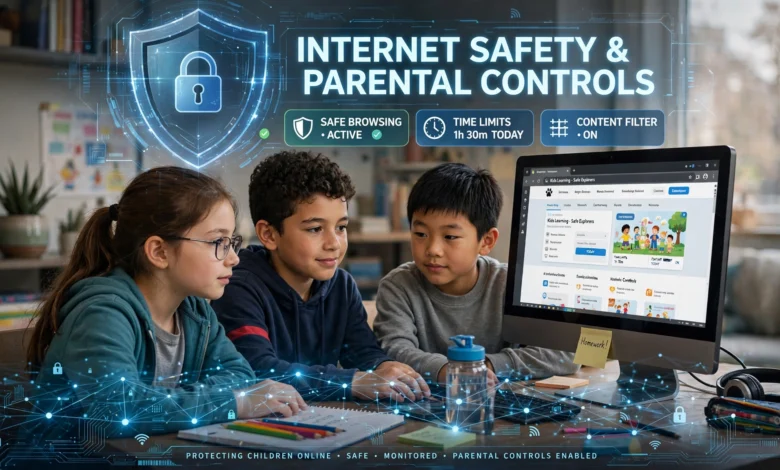
Parental controls are one of the simplest tools parents have for managing what kids see and do online, yet many families never turn them on. Sometimes it’s because the settings are buried in menus. Sometimes it’s because each device, app, and game console has its own system, and the whole thing feels like a part-time job.
The good news is that you don’t need to be a tech expert. Most of the work happens once, and after that the settings run quietly in the background. You set screen time limits, block adult content, require approval for app downloads, and get a weekly report on how your child is spending time online.
This guide walks you through how to set up parental controls on every device your kids are likely to use: iPhones and iPads, Android phones, Windows PCs, Macs, your home Wi-Fi router, YouTube, gaming consoles, streaming services, and social media apps. You’ll also find advice on choosing the right settings for different ages, mistakes that parents commonly make, and how to talk to your kids so the rules actually stick.
One thing to keep in mind before you start: no filter is perfect. Kids are clever, and friends’ phones exist. Parental control settings work best as one layer of protection alongside honest conversations and clear family rules. Think of them as a seatbelt, not a guarantee. With that said, let’s get your family’s devices set up properly.
Why Parental Controls Matter More Than Ever
Kids are getting their first devices younger, and the internet they’re stepping into isn’t built with them in mind. Social feeds are designed to keep people scrolling, in-app purchases are a tap away, and inappropriate content can show up through a harmless search.
Parental controls help with a few specific problems:
- Exposure to adult or violent content through search engines, video sites, and apps
- Contact from strangers via games, chat apps, and social media
- Overuse, especially late at night when sleep should come first
- Surprise charges from in-app purchases and game currencies
- Privacy risks, like sharing location or personal details without realizing it
The FTC’s consumer guide to parental controls makes a useful point: these tools work best when they match your child’s age and maturity and when you revisit them as your child grows. That’s the approach this guide follows.
Step 1: Decide What You Want Parental Controls to Do
Before touching any settings, take five minutes to decide what you’re trying to achieve. Parents who skip this step often end up with settings that are too loose to help or so strict that the child spends all day asking for exceptions.
Questions to Ask Yourself
- How much daily screen time feels reasonable for school days and weekends?
- Should devices be off at bedtime, during homework, or at meals?
- Which apps and games are allowed, and which need your approval first?
- Do you want to see browsing history, or just block the worst content?
- Should your child be able to buy anything without asking?
Match Settings to Your Child’s Age
Here’s a rough starting point for age-appropriate content and supervision:


- Ages 5 to 8: Tight filters, approved apps only, short daily limits, no chat features, and devices used in shared spaces.
- Ages 9 to 12: Content filtering stays on, app downloads need approval, limited messaging with known contacts, and set bedtime cutoffs.
- Ages 13 to 15: Looser filters, more freedom with apps, but downtime at night and location sharing stay on. Use social media supervision tools.
- Ages 16 to 17: Light touch. Focus on privacy settings and conversations more than blocking.
Write your answers down. You’ll use them in every step that follows.
Step 2: Set Up Parental Controls on iPhone and iPad
Apple’s built-in tool is called Apple Screen Time, and it’s one of the more complete options available. It works best when your child has their own Apple Account linked to yours through Family Sharing.
Create a Child Account with Family Sharing
- On your own iPhone, open Settings and tap your name.
- Tap Family, then the add member option, and choose to create a child account.
- Follow the prompts to enter your child’s name and birth date.
Once your child is in your family group, you can manage their settings from your own phone.
Turn On Apple Screen Time Features
Go to Settings > Screen Time, select your child’s name, and work through these options:
- Downtime: Schedules time away from the screen, like 9 p.m. to 7 a.m. Only apps you allow will work.
- App Limits: Sets daily time caps for categories like games or social media.
- Communication Limits: Controls who your child can call or message.
- Content & Privacy Restrictions: Blocks explicit content, limits websites, restricts app ratings, and prevents changes to privacy settings.
- Ask to Buy: Sends you a request whenever your child tries to download or buy something.
Set a Screen Time Passcode
This part is easy to forget, and it’s the most important one. Set a Screen Time passcode that’s different from the device passcode, and don’t use a number your child could guess. Without it, a curious kid can simply turn the restrictions off.
Apple’s official guide on using parental controls on your child’s iPhone or iPad covers each setting in more detail if you get stuck.
Step 3: Set Up Parental Controls on Android Phones and Tablets
For Android, the main tool is Google Family Link. It’s free, and it lets you manage your child’s device from your own phone, whether you use Android or iPhone.
Install and Link Google Family Link
- Download the Google Family Link app on your phone.
- Create a Google Account for your child (or link an existing one) through the app.
- On your child’s device, sign in with their account and follow the pairing prompts.
You can read more about what it can do on the official Google Family Link page.
Key Family Link Settings
- Daily limits and bedtime: Set how long the device can be used each day and when it locks for the night.
- App approvals: Your child has to request permission before installing apps from Google Play.
- Content filters: Control what shows up in Google Play, Chrome, and Google Search.
- Location: See where your child’s device is on a map.
- Activity reports: Get a breakdown of which apps are used and for how long.
Google Play Parental Controls
Even without Family Link, you can add a layer of protection in the Play Store. Open Google Play, tap your profile picture, go to Settings > Family > Parental controls, turn them on, create a PIN, and set rating limits for apps, games, movies, and books.
Step 4: Set Up Parental Controls on Windows PCs
Microsoft’s tool is Microsoft Family Safety, and it covers Windows computers, Xbox consoles, and the Edge browser.
Create a Family Group
- Go to family.microsoft.com and sign in with your Microsoft account.
- Add a family member and create a child account, or invite an existing one.
- On the PC, sign your child in with their own account. Don’t let them use yours or an admin account.
Configure Microsoft Family Safety
- Screen time: Set daily schedules for the whole device or for specific apps and games.
- Content filters: Block inappropriate websites and search results. Note that web filtering applies in Microsoft Edge, so you’ll want to block other browsers.
- Spending: Require approval for purchases in the Microsoft Store.
- Activity reporting: Get weekly emails with apps used, sites visited, and search terms.
A quick tip: make sure your child’s account is a standard user, not an administrator. Admin accounts can uninstall filters and change system settings.
Step 5: Set Up Parental Controls on a Mac
Macs use the same Apple Screen Time system as iPhones, which makes life easier if your family is on Apple devices.
How to Turn It On
- Create a separate user account for your child in System Settings > Users & Groups.
- Open System Settings > Screen Time and select your child from the menu.
- Turn on Downtime, App Limits, and Content & Privacy.
- Lock the settings with a Screen Time passcode.
If your child’s account is part of Family Sharing, the settings sync across their iPhone, iPad, and Mac, so you don’t have to configure each one separately.
Step 6: Set Up Router Parental Controls for Your Whole Home
Device-level settings only protect the devices you’ve configured. Router parental controls protect every device on your home Wi-Fi, including smart TVs, friends’ phones, and that old tablet in the drawer.
Check Your Router’s Built-In Options
Most modern routers include some form of parental controls. You can usually find them by:
- Typing your router’s address (often 192.168.0.1 or 192.168.1.1) into a browser.
- Logging in with the admin password printed on the router or in its manual.
- Looking for a section called Parental Controls, Access Control, or Family.
Many routers from companies like Eero, Netgear, TP-Link, and Asus also have companion apps that make this much easier than the web interface.
Common Router Features
- Internet schedules that turn off Wi-Fi for specific devices at bedtime
- Website blocking by category or specific address
- Device pausing so you can cut off a device with a tap
- Usage reports by device
Use Family-Friendly DNS
If your router doesn’t have good filters, you can change its DNS settings to a free filtering service. Two reliable options:
- Cloudflare for Families: 1.1.1.3 and 1.0.0.3 (blocks malware and adult content)
- OpenDNS FamilyShield: 208.67.222.123 and 208.67.220.123
Enter these in your router’s DNS settings, save, and restart. It’s one of the fastest ways to add content filtering across your entire network.
Keep in mind that router controls only work on your Wi-Fi. Once a phone switches to mobile data, device-level controls are what protect it.
Step 7: Turn On SafeSearch and YouTube Controls
Search engines and video sites are where kids most often stumble onto content they weren’t looking for.
Google SafeSearch
SafeSearch filters explicit images, videos, and websites from Google results. Turn it on by visiting Google’s SafeSearch settings page and choosing the Filter option. For children under 13 with a supervised account, Family Link can lock SafeSearch so it can’t be switched off.
Bing has a similar feature under its settings menu, and you can set it to Strict.
YouTube Options
YouTube offers several paths depending on age:
- YouTube Kids: A separate app with content picked for younger children. You can limit it to approved videos only.
- Supervised experience: For tweens, a supervised YouTube account set up through Family Link, with content settings like Explore, Explore More, or Most of YouTube.
- Restricted Mode: A basic filter you can turn on at the bottom of YouTube’s settings. It’s useful but not airtight.
Also consider turning off autoplay. A lot of trouble on YouTube starts three or four videos after the one your child actually chose.
Step 8: Set Up Parental Controls on Gaming Consoles
Games often include voice chat, text messaging, and online stores. Each major console has its own parental control settings.
Xbox
Use the Xbox Family Settings app on your phone. You can set screen time, restrict games by age rating, manage who your child can chat with, and require approval for purchases. It connects to your Microsoft Family Safety group.
PlayStation
Sign in to your PlayStation account online or on the console, go to Family Management, and select your child’s account. From there you can set play time, age-level restrictions, monthly spending limits, and communication settings.
Nintendo Switch
Download the Nintendo Switch Parental Controls app and link it to the console. It’s one of the most parent-friendly apps available, with daily play timers, game restrictions by rating, and a daily summary of what was played.
Settings Worth Checking on Every Console
- Turn off or limit voice and text chat with strangers.
- Set a spending limit, or require a password for every purchase.
- Block games above your chosen age rating.
- Set a bedtime cutoff.
Step 9: Secure Streaming Services and Social Media
Streaming Services
Netflix, Disney+, Prime Video, and most other services let you create kids’ profiles with maturity ratings. The weak spot is that kids can often just switch to an adult profile. Fix that by:
- Adding a profile lock PIN to adult profiles
- Setting maturity ratings on each child’s profile
- Checking viewing history now and then
Social Media Apps
Most major platforms now offer supervision tools for teens:
- Instagram: Teen Accounts are private by default, with built-in limits on who can message them. Supervision is available through Meta’s Family Center.
- TikTok: Family Pairing lets you link accounts and control screen time, content filtering, and direct messaging.
- Snapchat: Family Center shows you who your teen is friends with and messaging, though not the content of messages.
Most platforms require users to be at least 13. If your child is younger, the honest answer is usually to wait rather than try to supervise an account they shouldn’t have yet.
Step 10: Talk to Your Kids and Review Settings Regularly
This is the step that makes the other nine work. Kids who understand why rules exist are far less likely to go looking for ways around them.
How to Have the Conversation
- Explain the reason, not just the rule. “Sleep matters for how you feel at school” lands better than “Because I said so.”
- Be upfront about what you can see. Secret monitoring tends to backfire when kids find out.
- Agree on a plan for what happens if they see something upsetting. They should know they can come to you without losing their device.
- Create a family tech agreement that covers screen time, where devices charge overnight, and what happens when rules are broken.
Review Every Few Months
Put a reminder in your calendar to check parental controls every three to six months, and after every birthday. A setting that fit a 9-year-old will frustrate a 12-year-old. Also check after system updates, since they occasionally reset or change options.
Common Parental Controls Mistakes to Avoid
Even well-organized parents slip up here. Watch out for these:
- Sharing the passcode or using one your child can guess, like a birthday
- Forgetting secondary devices such as old phones, e-readers, and smart TVs
- Relying only on Wi-Fi filters, which stop working on mobile data
- Letting kids use admin accounts on computers
- Setting it and forgetting it for years at a time
- Blocking everything, which pushes kids to use friends’ devices instead
- Skipping the conversation and treating software as a substitute for parenting
Do You Need Third-Party Parental Control Apps?
For most families, the free built-in tools from Apple, Google, and Microsoft are enough. Third-party apps like Qustodio, Bark, or Norton Family can make sense if:
- Your family uses a mix of Apple, Android, and Windows devices and you want one dashboard
- You want alerts about possible signs of bullying or self-harm in messages
- You need more detailed web filtering than the built-in tools offer
The downside is cost, and some apps collect a lot of data about your child. Read the privacy policy before signing up, and start with the free tools to see if they cover your needs.
Conclusion
Setting up parental controls doesn’t have to be overwhelming if you take it one device at a time: decide what you want the controls to do, then configure Apple Screen Time on iPhones and Macs, Google Family Link on Android, and Microsoft Family Safety on Windows PCs, add router-level filtering or family-friendly DNS to cover everything on your home network, lock down SafeSearch and YouTube, and check the family settings on gaming consoles, streaming services, and social media apps.
Use strong passcodes, match your settings to your child’s age, and revisit them every few months as your child grows. Most importantly, pair these tools with open, honest conversations about online safety, because the goal isn’t to control every click forever but to help your kids build the judgment they’ll need once the training wheels come off.