Best Browsers for Slow Internet Connections
Best browsers for slow internet in 2026, compared on data saving, ad blocking and speed, plus simple tips to load pages faster on weak connections.
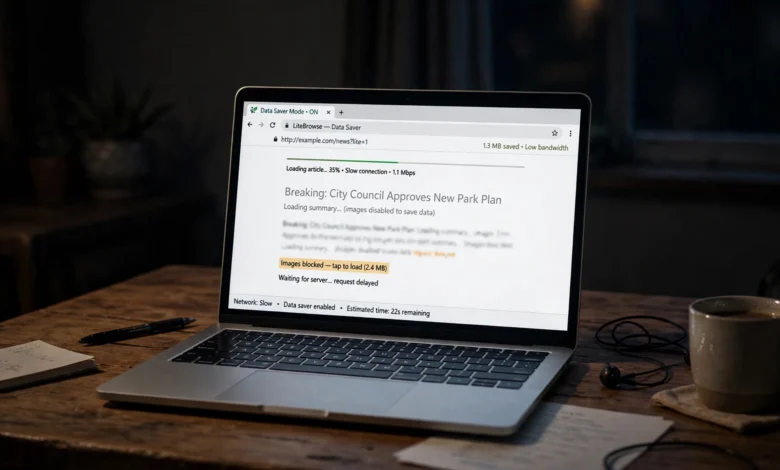
The best browsers for slow internet are the ones that send less data down the line, block the junk you never asked for, and stay light enough that an older phone or laptop does not choke. If you have ever watched a news page crawl in line by line on a patchy mobile signal, a crowded café Wi-Fi, or a rural connection that tops out at a couple of megabits, you already know how much the browser matters.
Most people assume a slow connection is purely an internet problem. It is partly that, but a modern web page can pull in several megabytes of scripts, trackers, autoplay video and ads before you see a single paragraph. A lightweight browser with built-in ad blocking and a data saver mode can cut that load dramatically, which means pages appear sooner and your data plan lasts longer.
The tricky part is that the options have changed a lot. Chrome dropped its Lite mode years ago, Opera removed Turbo from its desktop browser, and a few privacy-focused browsers quietly became some of the fastest choices for low bandwidth users.
In this guide, we compare eight browsers that actually hold up on slow internet connections, covering Android, iPhone, Windows and Mac. You will see what each one does well, where it falls short, and which settings to switch on. We also share practical tweaks that make any browser feel quicker, so you can pick the right tool and get more out of the connection you have.
Why Slow Internet Makes Browsing So Painful
A slow connection hurts in two ways: it limits how much data can arrive per second, and it often adds lag (latency) to every request. Modern pages make dozens of separate requests, so even small delays stack up fast.
Here is what usually eats your bandwidth on a typical page:
- Ads and trackers. Many sites load scripts from 20 or more third-party servers. Each one needs its own connection before anything useful shows up.
- Autoplay video. A muted video banner can burn more data than the article you came to read.
- Large images. Photos are often sent at full resolution even when your screen shows them as thumbnails.
- Heavy JavaScript. Frameworks, chat widgets and analytics tools can add several megabytes on their own.
The browser you use decides how much of that gets downloaded. Some browsers compress pages on their own servers before sending them to you. Others block ads and trackers at the source, so those requests never happen. A few stay small and simple, which helps when your device is as slow as your connection. That is why switching to a fast browser for slow internet can feel like upgrading your plan without paying a cent.
Bandwidth vs. latency: why it matters for your choice
If your problem is low bandwidth (say, 1 to 3 Mbps), you want a browser that shrinks what gets sent, such as one with data compression. If your problem is high latency, like satellite internet or a congested mobile tower, cutting the number of requests matters more, and ad blocking does the heavy lifting. Most people deal with a mix of both, so the best choices do a bit of each.
What to Look For in the Best Browsers for Slow Internet
Not every “fast” browser is fast on a bad connection. A browser can score well in benchmarks on fiber and still struggle on 3G. These are the features that actually make a difference when bandwidth is tight.


- Data compression. The browser routes pages through its own servers, shrinks images and text, then sends you the lighter version. This is the single biggest saver on very slow mobile networks.
- Built-in ad and tracker blocking. Fewer requests means faster loading. Built-in blockers also tend to use less memory than add-on extensions.
- Small install size and low memory use. On budget phones and older laptops, the device itself can be the bottleneck. A lightweight browser keeps things responsive.
- Image and video controls. The ability to turn off images, pause autoplay, or lower video quality gives you manual control when the signal drops.
- Offline and save-for-later options. Saving pages while you have Wi-Fi lets you read them later without using any data.
- Reader mode. Stripping a page down to text and key images is a quick way to read articles without the extra weight.
- Privacy trade-offs. Compression often means your traffic passes through the browser company’s servers. That is fine for reading the news, but worth knowing about for banking or private work.
Keep these seven points in mind as you read the reviews below. The right pick depends on which of them matters most to you.
8 Best Browsers for Slow Internet Connections in 2026
Each pick below was chosen for how it handles weak signals and limited data, not for how it performs on a gigabit line. We cover what it does well, where it falls short, and who should use it.
1. Opera Mini: Best Overall for Very Slow Mobile Data
Opera Mini has been the go-to data saving browser for over a decade, and it still earns the top spot. It sends pages through Opera’s cloud servers, where they are compressed before reaching your phone. According to Opera’s data savings page, the browser can save up to 90% of data, although average savings in everyday use are closer to 15% per month since many sites are already optimized.
The real benefit shows up on congested networks. On a weak 2G or 3G signal, Mini often loads a readable page while other browsers are still showing a blank screen. It also includes a built-in ad blocker, video compression, offline page saving and a dashboard that shows how much data you have saved.
Good for: prepaid data users, travelers on roaming, and anyone in areas with patchy coverage.
Watch out for: the heavier compression setting can break interactive sites like web apps and some shopping carts. Your traffic also passes through Opera’s servers, so switch compression off for sensitive tasks.
Platforms: Android, iOS.
2. Brave: Best for Speed and Privacy Together
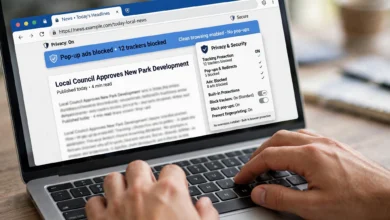
Brave takes a different route. Instead of compressing pages, it blocks ads, trackers and many third-party scripts by default through its Shields feature. On ad-heavy news sites, that alone can cut the number of requests by more than half, which makes a huge difference when latency is high.
Because it is built on Chromium, nearly every site works as expected. You also get the same Chrome extensions on desktop, so you do not lose your usual tools. Brave is a strong choice if you want a fast browser for slow internet that does not route your traffic through someone else’s servers.
Good for: people who want speed and privacy without fiddling with settings.
Watch out for: optional extras like the crypto wallet, rewards and AI assistant. You can turn them off, and it is worth doing so for a cleaner experience.
Platforms: Windows, macOS, Linux, Android, iOS.
3. Mozilla Firefox with uBlock Origin: Best Desktop Setup
Firefox on its own is a solid browser with Enhanced Tracking Protection. Pair it with the free uBlock Origin extension, and it becomes one of the leanest ways to browse on a slow home connection. Firefox still fully supports uBlock Origin on desktop and Android, while Chrome’s move to newer extension rules has limited what blockers can do there.
You can also go further. Firefox lets you disable autoplay, block images on specific sites through extensions, and increase cache size, all of which help on a low bandwidth line.
Good for: desktop users on rural broadband, satellite, or shared Wi-Fi.
Watch out for: it takes a few minutes to set up properly. Out of the box it does not block ads.
Platforms: Windows, macOS, Linux, Android, iOS (iOS version cannot use uBlock Origin).
4. Firefox Focus: Best Minimal Mobile Browser
Firefox Focus is a stripped-down mobile browser that blocks trackers and many ads by default and wipes your history when you close it. It has no tabs clutter, no sync, and very few extras, which keeps it light on memory.
Because trackers and ad scripts are blocked, pages load with fewer requests. It is ideal for quick searches and one-off reading when you are on a slow signal and do not want to waste data.
Good for: quick lookups, low-storage phones, and people who value privacy.
Watch out for: it is not built for long sessions with many tabs or saved logins.
Platforms: Android, iOS.
5. Opera (Standard Browser): Best Free All-Rounder
The full Opera browser for desktop and Android includes a built-in ad blocker and tracker blocker, plus a free browser VPN. Opera removed its old Turbo compression feature from the desktop version years ago, so do not expect Mini-style savings here. What you get instead is a Chromium browser that loads fewer ads out of the box.
Good for: users who want a familiar, full-featured browser with blocking built in.
Watch out for: the built-in VPN can slow things down on an already weak link. Keep it off unless you need it.
Platforms: Windows, macOS, Linux, Android, iOS.
6. Microsoft Edge: Best for Older Windows PCs
If your laptop is old and your connection is slow, Edge handles both problems better than most people expect. Efficiency mode and sleeping tabs cut memory and CPU use, which keeps things responsive on budget hardware. Setting tracking prevention to Strict blocks a good share of trackers and some ads.
Good for: Windows users on low-spec machines who do not want to install anything new.
Watch out for: Edge does not block ads by default and pushes Microsoft services. Adding uBlock Origin Lite helps.
Platforms: Windows, macOS, Linux, Android, iOS.
7. Samsung Internet: Best Built-In Android Option
Samsung Internet comes preinstalled on Galaxy phones and is available for other Android devices too. It supports content blockers you can add in a couple of taps, has a solid privacy mode, and can hide autoplay videos and pop-ups. It also runs smoothly on mid-range hardware.
Good for: Android users who want a capable browser without extra downloads.
Watch out for: you need to install a blocker add-on yourself to get the full speed benefit.
Platforms: Android.
8. Lynx: Best for Extremely Slow or Unstable Connections
Lynx is a text-only browser that runs in a terminal window. No images, no scripts, no styling. That sounds extreme, but on a connection measured in kilobits, it is sometimes the only thing that works. Pages that weigh several megabytes in a normal browser load as a few kilobytes of text.
Good for: technical users on satellite links, remote sites, or emergency connections.
Watch out for: most modern web apps simply will not work, and there is a learning curve.
Platforms: Windows, macOS, Linux.
Quick Comparison: Browsers for Slow Internet at a Glance
Opera Mini is the only pick here that still compresses pages on its servers; the rest save bandwidth mainly by blocking ads, trackers and scripts.
| Browser | Data compression | Built-in ad blocking | Best platform | Best for |
|---|---|---|---|---|
| Opera Mini | Yes, up to 90% | Yes | Android, iOS | Very slow mobile data |
| Brave | No | Yes | All | Speed plus privacy |
| Firefox + uBlock Origin | No | Via free extension | Desktop, Android | Slow home broadband |
| Firefox Focus | No | Trackers and many ads | Android, iOS | Quick, private lookups |
| Opera | No | Yes | Desktop, Android | Everyday all-rounder |
| Microsoft Edge | No | Trackers only | Windows | Older PCs |
| Samsung Internet | No | Via add-on | Android | Galaxy phone owners |
| Lynx | Text only | Not needed | Desktop terminal | Extremely weak links |
Simple Tips to Speed Up Browsing on a Slow Connection
Even the best browsers for slow internet work better with a few smart settings. These tweaks take minutes and help with almost any browser.
Block ads and trackers everywhere
If your browser does not block ads by default, add a trusted blocker such as uBlock Origin. This is the most effective single change for faster page loads, because it removes requests before they ever start.
Turn off autoplay and lower video quality
Set videos to click-to-play in your browser settings. On YouTube and similar sites, pick 360p or 480p manually instead of leaving it on auto, which often guesses too high and then buffers.
Use reader mode for articles
Firefox, Safari, Edge and Brave all offer a reader view. It strips out sidebars, ads and pop-ups so you get the text and main images only.
Keep fewer tabs open
Background tabs can keep refreshing, pulling data and slowing down the tab you are actually using. Close what you do not need, or use a browser that puts inactive tabs to sleep.
Switch on your phone’s data saver
Both Android and iPhone have system-level settings that limit background data. On iPhone, turn on Low Data Mode; on Android, enable Data Saver. These stop apps from using your connection while you browse.
Clear out extensions you do not use
Every extension adds a bit of weight. Remove the ones you have not used in a month. Keep only a blocker and the tools you truly need.
Try a faster DNS
Switching your DNS to a well-known public resolver like Cloudflare (1.1.1.1) or Google (8.8.8.8) can shave time off the first connection to each site. It will not raise your speed, but it can make pages start loading sooner.
Save pages for later on Wi-Fi
Use offline reading features in Opera Mini, Chrome or your read-later app. Download long articles when you have a good signal, then read them anywhere without using data.
How to Choose the Best Browser for Your Slow Internet
There is no single winner for everyone. The right choice depends on your device, your connection type and what you do online. Use this quick guide to narrow it down.
- You are on a limited mobile data plan or a weak 2G/3G signal: start with Opera Mini. Compression gives you the biggest savings here.
- You want speed and privacy without extra setup: go with Brave. It blocks ads out of the box and works on every platform.
- You use a desktop on rural broadband or satellite: Firefox with uBlock Origin gives you the most control over what loads.
- You have an older Windows laptop: try Edge with efficiency mode on and tracking prevention set to Strict.
- You own a Samsung phone: Samsung Internet with a content blocker is already on your device and works well.
- Your connection barely works at all: keep Lynx as a backup for reading text-heavy pages.
Why keeping two browsers makes sense
Many people on slow connections do best with two browsers. Use a compression browser like Opera Mini for reading news and social media on the go, and a blocking browser like Brave or Firefox for logins, banking and anything interactive. That way you get the data savings where they help and full compatibility where you need it.
Test before you commit
Connection quality varies a lot by location and time of day. Install two options, load the same five sites you visit most, and see which feels faster. A free tool like Speedtest by Ookla can help you understand your baseline speed and latency before and after.
Conclusion
Choosing among the best browsers for slow internet comes down to how your connection fails you: if data is scarce or the signal is weak, Opera Mini’s compression delivers the biggest savings, while Brave, Firefox with uBlock Origin and Firefox Focus speed things up by blocking the ads and trackers that clog every page; Edge and Samsung Internet are practical picks for older PCs and Galaxy phones, and Lynx remains a reliable last resort when a connection barely works, so pair the right browser with a few simple habits like turning off autoplay, using reader mode and keeping fewer tabs open, and even a slow line can feel far more usable.