Best Free Photo Editing Apps for Mobile
Discover the best free photo editing apps for mobile in 2026, from Snapseed to Lightroom, and find the right one for your phone today.
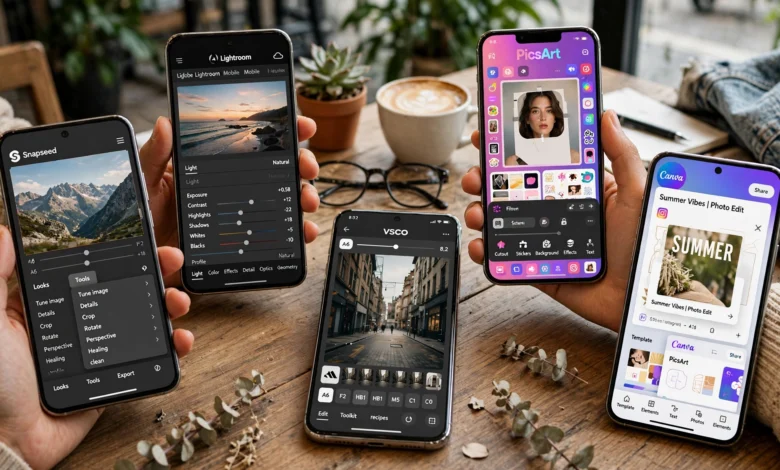
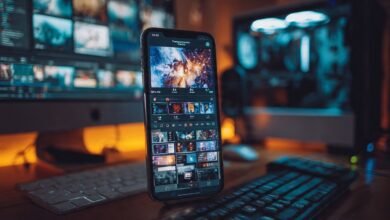
Finding the best free photo editing apps for mobile used to mean settling for clunky filters and watermarked exports. That’s no longer the case. Your phone camera is already good enough to shoot photos worth sharing, and the editing apps sitting in the App Store or Google Play right now can take those shots from “fine” to genuinely impressive, without costing you a cent.
The tricky part isn’t finding an app. It’s finding one that’s actually free, not just free-to-download-then-nag-you-forever. A lot of apps advertise themselves as free photo editing apps and then lock the tools you actually want behind a paywall the moment you try to export. So this guide focuses on apps that give you real editing power without the bait and switch.
Below, you’ll find a breakdown of the best free mobile photo editing apps for iPhone and Android, what each one does well, who it’s best suited for, and a few honest notes on where the free tier starts to feel tight. Whether you’re a casual Instagram poster, a small business owner editing product shots, or someone who just wants their vacation photos to look less flat, there’s an app on this list for you.
What to Look For in a Free Photo Editing App
Before jumping into the list, it helps to know what actually separates a good free mobile photo editor from a frustrating one. Here’s what to check before you commit to an app:
- No watermarks on export. Some apps let you edit for free but stamp a logo on your final image unless you pay. Always check this first.
- Real adjustment tools, not just filters. Filters are fun, but exposure, contrast, white balance, and selective adjustment tools are what actually improve a photo.
- RAW file support, if your phone shoots RAW or DNG files. This matters more for people using higher-end phones like the iPhone Pro line or flagship Android devices.
- Reasonable save limits. A few apps restrict free users to a small number of saves or exports per day, which gets old fast if you’re editing in batches.
- Clean, ad-light experience. Some free apps are genuinely ad-supported rather than freemium, and the difference in daily usability is huge.
- Cross-platform availability, especially if you switch between an iPhone and an Android tablet, or edit on your phone and finish on a computer.
Keep these criteria in mind as you read through the picks below, because “free” means something different for almost every app on this list.
The Best Free Photo Editing Apps for Mobile in 2026
1. Snapseed (iOS and Android)
If you only install one app from this list, make it Snapseed. It’s consistently named one of the best free photo editing apps for mobile by reviewers, and for good reason: there’s no subscription, no watermark, and no ad interruptions. <cite index=”4-1″>PCMag has named Snapseed its pick for best free mobile photo editing app for 2026, following decades of testing photo software.</cite>
What makes Snapseed stand out is how much control it gives you for a completely free app. The Selective tool lets you tap a specific point in a photo, like a shadowed face, and adjust only that area’s brightness and contrast, without touching the rest of the image. The Healing tool removes small distractions. There’s also a genuinely excellent Double Exposure feature for anyone experimenting with layered, artistic edits.
- Best for: Anyone who wants granular, desktop-style control without paying anything
- Downsides: It doesn’t have the newer AI automation features, like one-tap background removal, that some paid apps now offer
- Cost: 100% free, no in-app purchases
2. Adobe Lightroom Mobile (iOS and Android)
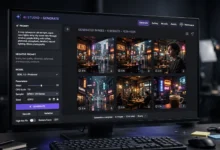
Lightroom Mobile might be the most surprising entry on a “free” list, because most people associate it with a Creative Cloud subscription. But the mobile app itself is free to download and use for meaningful editing, including RAW and DNG files shot directly on your phone.
The free version gives you access to Lightroom’s signature tools: exposure, tone curve, color grading, selective masking, and healing brushes. You won’t get the newer generative AI tools like sky replacement or object removal without a subscription, but the core editing engine, the same one professional photographers rely on, is available at no cost.
- Best for: People who want professional-grade color and light control on a budget
- Downsides: Cloud storage and some AI tools require a paid plan
- Cost: Free with optional premium upgrade
3. Adobe Photoshop Express (iOS and Android)
Photoshop Express is the faster, lighter sibling of full Lightroom, built for quick fixes rather than deep editing sessions. It includes exposure and color adjustments, a Heal tool for removing blemishes or small distractions, collage tools, and basic layer editing.
It won’t replace a dedicated retouching app, but for someone who wants a quick, reliable edit before posting a photo, it does the job well and stays free for the core toolkit.
- Best for: Quick edits, collages, and social-ready photos
- Downsides: Advanced features nudge you toward a subscription
- Cost: Free with optional premium tier
4. PicsArt (iOS and Android)
PicsArt leans more creative than technical. It’s built around templates, stickers, AI tools, and social content creation rather than precise color correction. If you’re editing photos for Instagram, TikTok, or YouTube thumbnails, PicsArt’s library of templates and AI features can save real time.
That said, the free version does restrict how much you can save or export daily, and the app frequently prompts you to upgrade. It’s worth using for its creative tools, just go in expecting some friction if you’re a heavy daily user.
- Best for: Social media content and creative, template-driven edits
- Downsides: Daily save limits on the free tier, frequent upgrade prompts
- Cost: Free with limitations, paid tier removes restrictions
5. Canva (iOS and Android)
Canva isn’t a traditional photo editor, but it deserves a spot on this list because of how useful it is for turning an edited photo into something shareable, a flyer, an invitation, a social post, or a printed card. The free version includes access to hundreds of thousands of templates and several gigabytes of cloud storage, which is more than enough for most casual users.
If your editing needs go beyond a single photo and into designing something with that photo, Canva fills a gap none of the other apps on this list cover.
- Best for: Turning photos into designed content, not just adjusting the image itself
- Downsides: Not built for detailed pixel-level editing
- Cost: Free, with a paid Pro tier for extra assets
6. Google Photos (Magic Editor)
If you already use Google Photos to back up your images, you’re sitting on a surprisingly capable free editor. The Magic Editor tools let you adjust lighting, remove objects, and even replace a flat gray sky with something more dramatic. It’s not as granular as Snapseed or Lightroom, but for someone who just wants a quick, automatic improvement, it’s hard to beat the convenience.
- Best for: Fast, automatic fixes without downloading a separate app
- Downsides: Less manual control than dedicated editors
- Cost: Free, built into an app most Android users already have
7. Apple Photos (iOS)
For iPhone users, the built-in Photos app has quietly become a legitimate editing tool. The Clean Up tool removes small distractions, Photographic Styles let you adjust warmth and tone after the shot is taken without shifting skin tones unnaturally, and Copy Edits makes it easy to apply one edit across dozens of photos from the same shoot.
Because it’s already installed, this is often the fastest way to make a photo look better before you even think about downloading a separate app.
- Best for: iPhone users who want solid edits without downloading anything new
- Downsides: Limited compared to dedicated third-party apps
- Cost: Free, built into iOS
8. VSCO (iOS and Android)
VSCO built its reputation on film-inspired presets, and it remains one of the better free options if your priority is a consistent, stylized look rather than technical precision. The free tier gives you access to a solid set of filters and basic adjustment tools, with the option to unlock more presets through a subscription.
- Best for: A consistent, film-like aesthetic across your photos
- Downsides: The best presets are behind a paywall
- Cost: Free with limited presets, subscription unlocks the full library
9. Photoroom (iOS and Android)
Photoroom specializes in one thing and does it exceptionally well: background removal. If you’re editing product photos, portraits, or anything where isolating the subject matters, Photoroom’s AI handles tricky edges like hair and fur far better than most general-purpose editors.
- Best for: Background removal and product photography
- Downsides: Narrower focus than a full editing suite
- Cost: Free with a paid tier for advanced features
10. Pixlr (iOS and Android)
Pixlr is aimed at people who want something closer to Photoshop on their phone. It includes layer support, a wide range of filters, and AI tools for object removal. Like a few other apps on this list, the free tier does limit daily saves, so it’s better suited to occasional use than a daily editing habit.
- Best for: Users who want Photoshop-style tools without the Adobe subscription
- Downsides: Daily export limits on the free version
- Cost: Free with limitations, subscription removes them
Free vs Paid: What You’re Actually Giving Up
Almost every app above offers a paid tier, and it’s worth understanding what you lose by sticking with free before you decide an app “isn’t good enough.”
Generally, paid subscriptions unlock:
- Generative AI tools, like object removal, sky replacement, or expanding an image beyond its original borders
- Unlimited cloud storage and sync across your phone, tablet, and computer
- Unlimited daily exports, on apps like PicsArt and Pixlr that cap free users
- Premium presets and filters, especially on apps like VSCO
- Batch editing for applying the same adjustments across many photos at once
For most casual users, none of that is essential. The core editing tools, exposure, color, cropping, healing, and selective adjustments, remain free on apps like Snapseed, Lightroom Mobile, and Apple Photos. You’d only need to pay if you’re editing professionally, working with RAW files from a dedicated camera regularly, or relying heavily on AI generation tools.
How to Choose the Right App for Your Needs
With ten solid options, picking one can feel overwhelming. Here’s a simple way to narrow it down based on what you actually do with your photos:
- If you want one all-purpose app: Start with Snapseed. It covers the most ground for free and has no watermark, ads, or export limits.
- If you shoot RAW photos on your phone: Use Lightroom Mobile. Its color and exposure tools are built for exactly this kind of editing.
- If you’re editing for social media daily: Try PicsArt or Canva for their templates, though be mindful of PicsArt’s save limits.
- If you need product photos with clean backgrounds: Photoroom will save you the most time.
- If you want a consistent aesthetic across your feed: VSCO’s presets, even the free ones, give your photos a recognizable style.
- If you’d rather not download anything new: Apple Photos or Google Photos will cover basic edits right out of the box.
A lot of people end up using two apps together rather than one, a general editor for exposure and color, plus a specialist app for backgrounds or presets. There’s nothing wrong with that approach, and it’s actually how a lot of experienced mobile photographers work.
Quick Tips for Better Mobile Editing
A good app only gets you halfway there. A few habits make a real difference in how your final photos turn out:
- Edit in natural light when possible. It’s easier to judge color and exposure accurately compared to editing under artificial lighting.
- Don’t over-sharpen. Mobile screens can hide oversharpening that becomes obvious on a larger display.
- Adjust exposure before color. Getting the brightness and contrast right first makes color adjustments more predictable.
- Use selective tools instead of global ones when only part of the photo needs fixing, like a shadowed face or a blown-out sky.
- Save a copy of the original. Most apps do this automatically, but it’s worth double-checking so you can always start over.
- Keep exports high resolution. Some free apps quietly reduce export quality unless you check the settings first.
For more detail on getting the most out of specific tools, resources like <cite index=”1-1″>Amateur Photographer’s photo app testing, which evaluates interface intuitiveness, advanced AI features, and export options across each app</cite>, and Adobe’s own Lightroom mobile documentation are both solid places to dig deeper into any single app’s full feature set.
Conclusion
The best free photo editing apps for mobile in 2026 give you far more than filters and stickers. From Snapseed’s no-cost, no-compromise toolkit to Lightroom Mobile’s professional-grade color controls, Photoroom’s precise background removal, and the built-in editors already sitting on your iPhone or Android device, there’s a genuinely capable free option for nearly every kind of photo you want to edit.
The right choice depends less on which app is “best” overall and more on what you actually shoot and share, so start with one general-purpose app like Snapseed, add a specialist app if your needs call for it, and you’ll get results that look far more polished than a free price tag would suggest.