Top Free Video Editing Software for Beginners
Looking for free video editing software for beginners? Compare 8 top picks by ease of use, features, and export quality.
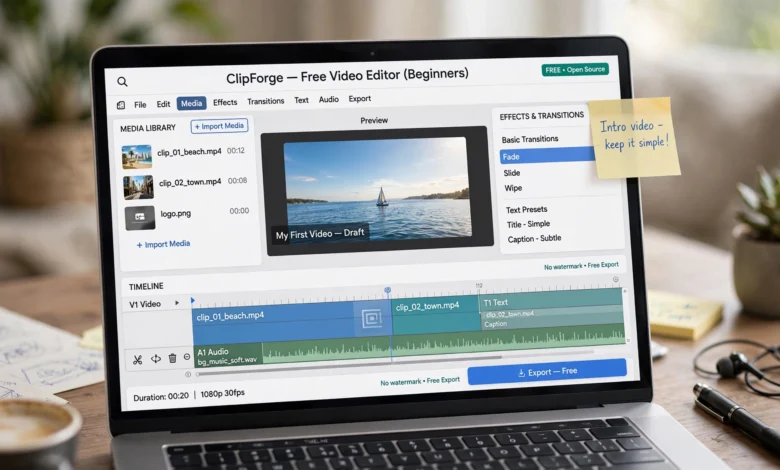
If you’ve just recorded your first video and have no idea what to do next, you’re not alone. Picking free video editing software for beginners can feel harder than the actual editing. Search “best video editor” and you’ll get a dozen “top 10” lists, most of them pushing whatever app pays the highest affiliate commission, without telling you which ones actually export without a watermark or a 30-day trial wall.
This guide skips the fluff. We’re covering the tools that real beginners can pick up in an afternoon, that won’t slap a logo across your export, and that will actually grow with you as your skills improve. Whether you’re making YouTube tutorials, TikToks, a wedding video for a friend, or a school project, there’s a free option here that fits.
We’ll walk through what actually matters when you’re choosing an editor, break down the strongest free tools available right now, and cover a few practical tips so your first project doesn’t turn into a three-hour headache. By the end, you’ll know exactly which app to download today and why.
What to Look for in Free Video Editing Software for Beginners
Before jumping into any download, it helps to know what separates genuinely useful free video editing software from apps that only look free on the surface. A lot of tools advertise “free” and then bury the real cost in export limits or watermarks.
Here’s what to check before you commit:
- No watermark on exports. Some apps let you edit for free but stamp a logo across your finished video unless you pay. Always check the export screen before building a full project.
- Reasonable export quality. Look for at least 1080p, ideally 4K, without a paywall.
- Platform compatibility. Confirm the software actually runs on your operating system (Windows, Mac, or Linux) or your phone (iOS or Android).
- A manageable learning curve. As a beginner, you want an interface that doesn’t require a certification course just to trim a clip.
- Room to grow. The best beginner tools scale with you, so you’re not forced to relearn a whole new program once you outgrow the basics.
- Active support and updates. Free doesn’t mean abandoned. Check that the software gets regular updates and has a community or documentation you can lean on.
Keeping these points in mind will save you from installing three different apps before finding one that actually works for your project.
Top Free Video Editing Software for Beginners in 2026
Below are the strongest options currently available, ranked by how approachable they are for someone picking up video editing for the first time.
1. DaVinci Resolve — Best for Beginners Who Want to Grow Into Pro Editing
DaVinci Resolve by Blackmagic Design is widely considered the most powerful free video editor on the market, full stop. The free version includes a complete timeline editor, professional color grading tools, an audio suite (Fairlight), and even a visual effects compositor (Fusion). There’s no watermark, no export time limit, and no trial period that quietly expires.
The catch is the learning curve. Resolve’s interface is built around a professional workflow with several workspace tabs, and it can feel overwhelming the first time you open it. But if you’re willing to spend a weekend learning the basics, you end up with skills and a toolset that many professional studios use for actual film and TV productions.
Best for: beginners who are serious about learning real editing skills and don’t want to switch software later.
- Platforms: Windows, Mac, Linux
- Export: Free, watermark-free, up to 4K
- Learn more directly from Blackmagic Design’s DaVinci Resolve page
2. CapCut — Best for Social Media and Short-Form Video
CapCut is the fastest way to go from raw footage to a finished TikTok, Reel, or Short. It’s built specifically around social-first workflows, with a huge library of templates, transitions, and effects designed to make videos look polished with minimal effort.
What makes CapCut stand out for beginners is its AI toolkit. Auto-captions generate subtitles with impressive accuracy, auto-reframe intelligently converts horizontal footage into vertical formats, and the built-in text-to-speech voiceover sounds surprisingly natural. The free tier covers 4K export, unlimited projects, and most core effects, though a handful of premium templates and assets are reserved for the paid tier.
Best for: beginners making content for TikTok, Instagram Reels, or YouTube Shorts.
- Platforms: Windows, Mac, iOS, Android, web
- Export: Watermark-free, up to 4K
3. Clipchamp — Best for Windows Users Who Want Zero Setup
Clipchamp is Microsoft’s built-in video editor, already installed on Windows 10 and 11. If you’re on a Windows machine and just need to trim a clip, add some text, and export quickly, there’s nothing to download.
The interface is drag-and-drop simple, with a timeline that supports multiple video and audio tracks, along with basic transitions, filters, and stock content. It’s not designed for complex projects, but for quick presentation videos, social clips, or straightforward edits, it gets the job done without any friction.
Best for: Windows beginners who want the absolute simplest starting point.
- Platforms: Windows (built-in), web
- Export: Watermark-free, up to 1080p on the free plan
4. iMovie — Best for Mac and iPhone Users
iMovie is Apple’s free editor, pre-installed on every Mac, iPhone, and iPad. It’s often cited as one of the easiest true beginner editors available because the interface strips away anything that isn’t essential: trim, add titles, apply transitions, adjust color, and add voiceovers.
One handy feature is the ability to start an edit on your iPhone and finish it on your Mac, which is useful if you shoot on your phone but prefer editing on a bigger screen. The tradeoff is that iMovie is limited to two video tracks and doesn’t offer advanced color grading, so it’s really designed as a stepping stone toward Apple’s paid Final Cut Pro.
Best for: Apple users who want the gentlest possible learning curve.
- Platforms: Mac, iPhone, iPad
- Export: Watermark-free, up to 4K
5. Shotcut — Best Open-Source Option With No Strings Attached
Shotcut is a free, open-source video editor that runs on FFmpeg, meaning it can open almost any video format without needing separate codec installs. It’s built for people who want genuinely free software with no upsells, no data collection gimmicks, and no feature gating.
The interface takes some getting used to, especially if you’re coming from Premiere or Final Cut, since it doesn’t organize panels the same way. But once you’re familiar with the layout, it handles multi-track timelines, audio filters, and video effects impressively well for a completely free tool.
Best for: editors who want format flexibility and don’t mind a slightly steeper first-week learning curve.
- Platforms: Windows, Mac, Linux
- Export: Watermark-free, up to 4K
- Download it directly from Shotcut’s official site
6. Canva Video Editor — Best Browser-Based Option
If you don’t want to install anything at all, Canva’s video editor runs entirely in your browser. It’s built around templates, so you can drag in your own clips, swap out text and colors, and export a finished video in minutes.
Canva isn’t designed for frame-level precision editing, but for marketers, students, and beginners who want their videos to look consistent with other brand or social content, it’s an efficient choice. The free plan covers most templates and basic editing tools, with premium assets locked behind Canva Pro.
Best for: beginners whose videos are part of a broader social or marketing workflow.
- Platforms: Any browser
- Export: Watermark-free on most free templates
7. OpenShot — Best for Simple, No-Frills Editing
OpenShot is built for beginners who just want to trim clips, add music, insert transitions, and export quickly, without a steep learning process. The interface is refreshingly straightforward, and most new users can start producing content within minutes rather than sitting through hours of tutorials.
It doesn’t have the advanced color grading or compositing tools that Resolve offers, but for students, hobbyists, and first-time creators who just want a clean, functional editor, it covers the essentials well.
Best for: absolute beginners who want the shortest path from download to finished export.
- Platforms: Windows, Mac, Linux
- Export: Watermark-free, up to 1080p/4K depending on source footage
8. Kdenlive — Best for Linux Users Who Want Pro-Level Depth
Kdenlive has been around since 2002 and has built a strong reputation in the open-source community. It supports multi-track timelines, keyframe animation, a full effects library, and proxy editing, which helps performance on slower machines.
The Windows and Mac builds have improved a lot in recent versions, though it’s still most polished on Linux. It’s not quite as refined as DaVinci Resolve, but as a free, open-source tool, it competes well with mid-tier paid software.
Best for: Linux users and anyone who wants open-source software with real editing depth.
- Platforms: Linux, Windows, Mac
- Export: Watermark-free, up to 4K
How to Choose the Right Free Video Editing Software for Your Needs
With eight solid options above, the right pick really comes down to what you’re making and where you’re editing. Here’s a quick way to narrow it down:
- Making TikToks, Reels, or Shorts? Start with CapCut. Its templates and AI tools are built exactly for this.
- On a Windows PC and want zero setup? Clipchamp is already on your machine.
- Editing on a Mac or iPhone? iMovie is the simplest, most polished option.
- Planning to take editing seriously long-term? DaVinci Resolve gives you room to grow into color grading, audio mixing, and visual effects without ever hitting a paywall.
- Want to avoid any templates or brand ecosystem? Shotcut, OpenShot, or Kdenlive are all genuinely open-source with no strings attached.
- Need something browser-based with no install? Canva covers that, especially if your videos are tied to other marketing or social content.
There’s no universal “best” answer here. The right free video editing software for beginners is the one you’ll actually sit down and use consistently, not the one with the longest feature list.
Free vs Paid Video Editing Software: What’s the Difference
A common question beginners ask is whether free tools can really compete with paid software like Adobe Premiere Pro or Final Cut Pro. The honest answer: for most beginner and even intermediate projects, yes.
What free tools typically cover well:
- Trimming, cutting, and arranging clips on a timeline
- Adding titles, text overlays, and basic transitions
- Color correction and filters
- Basic audio mixing and voiceovers
- Exporting at 1080p or 4K
Where paid software tends to pull ahead:
- Advanced multi-cam editing with more than a couple of camera angles
- Deep integration with other professional apps (like Adobe’s Creative Cloud suite)
- Certain plugin ecosystems built specifically for studio pipelines
- Dedicated customer support and enterprise licensing
For a beginner, none of these gaps matter much on day one. It’s far more useful to master the fundamentals on free software first and upgrade only once a specific limitation is actually blocking your work, rather than paying for tools you won’t fully use for months.
Tips for Beginners Getting Started with Free Video Editing Software
Once you’ve picked your tool, a few habits will make your first few projects go a lot smoother:
- Start with a short project. A 30-second clip is a better first test than a 10-minute video. You’ll learn the interface faster with lower stakes.
- Organize your footage before you start editing. Rename files, sort them into folders, and remove anything you know you won’t use. This alone saves hours later.
- Learn keyboard shortcuts early. Even just split, undo, and play/pause shortcuts will speed up your workflow dramatically.
- Don’t chase every effect at once. Focus on solid cuts, clean audio, and readable text before experimenting with transitions and filters.
- Export a test version before your final export. Watch it back on the device your audience will actually use, whether that’s a phone screen or a TV.
- Back up your project file, not just your final export. If you ever want to make changes later, you’ll need the editable project, not the finished video.
- Watch one full tutorial for your chosen tool before diving in. Even a 10-minute walkthrough will save you from getting stuck on basic navigation.
None of this requires expensive gear or advanced knowledge. Good habits, more than good software, are what actually make early edits look clean.
Frequently Asked Questions
Is free video editing software good enough for YouTube?
Yes. Many successful YouTube channels are edited entirely on free software like DaVinci Resolve or Shotcut. What matters more than the software is steady pacing, clean audio, and consistent uploads.
Which free video editor has no watermark?
DaVinci Resolve, iMovie, Clipchamp, Shotcut, OpenShot, and Kdenlive all export without a watermark on their free tiers. Always double-check the export screen before finishing a project, since some apps change their policies by plan or region.
What is the easiest free video editor for a complete beginner?
iMovie (Mac) and Clipchamp (Windows) are generally considered the easiest starting points, since both strip away complexity and focus on basic trimming, titles, and transitions.
Can I edit videos for free on my phone?
Yes. CapCut, Canva, and several other mobile apps offer capable free editing directly on iOS and Android, which is useful if you shoot and edit entirely from your phone.
Do I need a powerful computer to run free video editing software?
Lighter tools like Clipchamp, iMovie, and OpenShot run fine on modest hardware. DaVinci Resolve and Kdenlive benefit from a stronger graphics card, especially for 4K footage or color grading work.
Conclusion
Choosing the right free video editing software for beginners doesn’t have to be complicated once you know what to actually look for: no watermark, a reasonable learning curve, and enough room to grow as your skills improve. Whether you land on DaVinci Resolve for long-term depth, CapCut for fast social content, iMovie or Clipchamp for the gentlest start, or an open-source option like Shotcut or Kdenlive, every tool on this list can get you from a raw clip to a finished, watermark-free video without spending a dollar.
Start with the one that matches your device and your content type, build a few real projects, and upgrade only when a specific limitation actually gets in your way.