Best Password Managers Ranked and Reviewed
Best password managers compared for security, price, and ease of use. See our 2026 rankings before you pick one for your accounts.
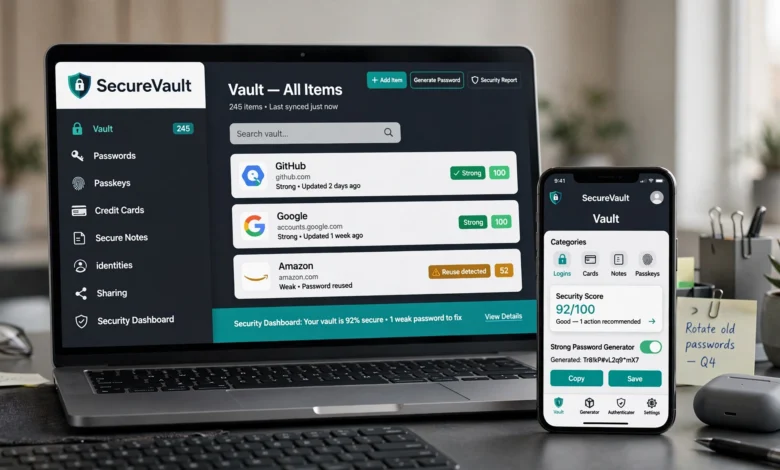
If you’re reusing the same password across a dozen different accounts, you’re not alone, and you’re also one data breach away from a very bad week. The best password managers solve this problem in a pretty simple way: they generate a unique, complicated password for every account you have, lock them all behind one master password, and then autofill them whenever you need to log in. You stop trying to remember 40 different passwords, and your accounts actually become harder to break into.
We looked at the top-rated password managers on the market right now, including RoboForm, NordPass, 1Password, Bitwarden, Proton Pass, Keeper, and Dashlane, and compared them on security architecture, pricing, ease of use, and the extra features that actually matter day to day. Some of these tools lean toward budget-friendly simplicity. Others are built for families who need to share logins, or small businesses that need access controls. A few are aimed squarely at people who care about privacy first and convenience second.
This guide breaks down how each one performs, what it costs, and who it’s actually a good fit for, so you’re not stuck guessing. Whether you’re switching from browser-based autofill, recovering from a breach notification, or just tired of hitting “forgot password” every other day, there’s a manager on this list that fits. Let’s get into it.
What Is a Password Manager and Why You Need One
A password manager is an app that stores your login credentials in an encrypted digital vault, then fills them in automatically when you visit a site or open an app. Instead of memorizing (or reusing) dozens of passwords, you remember one strong master password, and the manager handles the rest.
Here’s why this matters more than it might seem:
- Password reuse is the single biggest driver of account takeovers. If one site you use gets breached and you’ve reused that password elsewhere, attackers will try it on your email, banking, and social accounts almost immediately. This is called credential stuffing, and it’s automated at massive scale.
- Humans are bad at generating random passwords. Left to our own devices, we pick things that are easy to guess, birthdays, pet names, keyboard patterns. A password manager generates long, random strings that would take centuries to brute-force.
- You save time. Autofill means you’re not typing or copy-pasting passwords all day, and most tools also fill in addresses, payment cards, and other form data.
- Good ones flag weak or reused passwords. Most of the top password managers include a security dashboard that scans your vault and tells you exactly which passwords need to be changed.
The U.S. Cybersecurity and Infrastructure Security Agency recommends using a password manager as a baseline step for protecting personal accounts, alongside enabling multi-factor authentication wherever it’s offered, a recommendation you can read in more detail on CISA’s guidance for strong passwords.
How We Evaluated the Best Password Managers
Before ranking anything, we looked at what actually separates a good password manager from a mediocre one. Our evaluation focused on:
- Encryption and security architecture — whether the provider uses AES-256 or newer standards like XChaCha20, and whether it follows a zero-knowledge model (meaning even the company itself can’t see your vault).
- Track record — has the provider ever been breached, and how did it respond?
- Cross-platform support — does it work smoothly on Windows, macOS, Linux, iOS, Android, and every major browser?
- Ease of use — how good is the autofill, and how much friction is there in daily use?
- Pricing and value — is there a usable free tier, and does the premium plan actually justify its cost?
- Extra features — breach monitoring, passkey support, secure sharing, emergency access, and built-in authenticator tools.
With that framework in mind, here’s how the top contenders stack up.
The Best Password Managers of 2026, Ranked
1. RoboForm — Best Overall
RoboForm has quietly become one of the most recommended password managers this year, and for good reason. It combines AES-256 encryption with a zero-knowledge model, so your vault stays unreadable to anyone but you, and it backs that up with millions of PBKDF2 iterations to make brute-force attacks impractical.

What sets RoboForm apart isn’t just security, though. It’s genuinely excellent at the boring, practical stuff:
- Best-in-class autofill and form filling, even on complicated multi-step web forms.
- Batch logins, which let you open and log into multiple sites at once.
- Built-in TOTP authenticator, so you don’t need a separate two-factor authentication app.
- Security Center dashboard that flags weak, reused, or breached passwords.
- Support for local-only storage, useful if you don’t want anything touching the cloud.
RoboForm’s premium plan is one of the most affordable on this list, often landing under $1 per month, which makes it an easy recommendation for individuals, families, and small teams that want strong security without a steep price tag.
Best for: People who want fast, accurate autofill and don’t want to overpay for solid protection.
2. NordPass — Best for Ease of Use and Modern Encryption
NordPass, backed by the team behind NordVPN, has built a reputation for being clean, fast, and genuinely simple to use. Instead of the older AES standard, NordPass uses XChaCha20 encryption paired with Argon2id for password hashing, both of which are considered more resistant to modern brute-force and side-channel attacks.
Key features include:
- A free tier limited to one device, useful for testing before you commit.
- Premium plans that unlock unlimited devices, breach scanning, emergency access, and a few gigabytes of encrypted file storage.
- Passkey support and built-in email masking.
- Apps across Windows, macOS, Linux, iOS, Android, and all major browsers.
- Regular feature updates, including improved vault search and better autofill for payment and contact details.
NordPass has never disclosed a breach, is independently audited, and holds SOC 2 certification, which matters if you want third-party verification rather than just a company’s word.
Best for: Anyone who wants a modern, well-designed password manager without a steep learning curve.
3. 1Password — Best for Families and Polished Design
1Password has been a go-to recommendation from tech reviewers for years, and it still holds up. It layers a standard master password with a 128-bit Secret Key, meaning even if someone somehow guessed your master password, they’d still need this second key, generated on your device, to unlock your vault.
Standout features:
- Watchtower, a dashboard that continuously monitors for breached, weak, or reused passwords.
- Travel Mode, which temporarily hides sensitive vaults when you cross a border, a feature almost no competitor offers.
- Easy, well-organized secure sharing between family members or team accounts.
- A genuinely polished interface across desktop, mobile, and browser extensions.
1Password doesn’t offer a free tier, and pricing sits a bit above budget options like Bitwarden or RoboForm, but the design quality and family-sharing tools are hard to match.
Best for: Families and users who want the most refined day-to-day experience and don’t mind paying for it.
4. Bitwarden — Best Free Password Manager
If you don’t want to pay anything, Bitwarden is the clear answer. Its free plan includes unlimited passwords and unlimited devices, something most competitors restrict behind a paywall. That alone makes it the most generous free option available right now.
Why people stick with Bitwarden:
- Fully open-source code, meaning security researchers can (and do) audit it publicly.
- AES-256 encryption with PBKDF2 hashing.
- A low-cost premium tier that adds a built-in TOTP authenticator, advanced two-factor options, and encrypted file storage.
- Strong community trust, it’s consistently the top recommendation in privacy and security forums.
The trade-off is polish. Bitwarden’s interface is functional rather than beautiful, and it doesn’t have the visual refinement of 1Password or NordPass. But for pure value, it’s tough to beat.
Best for: Budget-conscious users and anyone who prioritizes open-source transparency.
5. Proton Pass — Best for Privacy
Built by the same team behind Proton Mail, Proton Pass operates under Swiss privacy law and, like Bitwarden, publishes its code as open source. That combination, strict jurisdiction plus public auditability, makes it a favorite among privacy-focused users.
Notable features:
- Built-in email aliasing (hide-my-email), so you can create disposable addresses without a separate service.
- Integration with Proton Sentinel, an advanced threat-detection layer available on paid plans.
- Regular third-party security audits.
- A genuinely usable free tier alongside affordable Plus and Family plans.
Best for: Users who want their password manager tied to a privacy-first company with a transparent, auditable codebase.
6. Keeper — Best for Security-Conscious Users
Keeper is built for people who want every possible security layer available, even if some of them cost extra. It stores passwords, personal information, and payment details, and now includes passkey management, letting you store and use passkeys directly from your vault.
What makes Keeper stand out:
- Remote log-out, so you can kill an active session on a lost or stolen device instantly.
- Pricing that doesn’t increase after your first year, unlike some competitors that hike renewal costs.
- A genuinely useful (if limited) free tier for single-device use.
- Strong family and business plans with granular access controls.
Best for: Users and small teams who want advanced security controls and predictable long-term pricing.
7. Dashlane — Best All-in-One Security Suite
Dashlane has positioned itself as more than just a password manager, it’s trying to be a full personal security suite. Premium plans bundle dark web monitoring, real-time phishing alerts, and on higher tiers, a built-in VPN.
Highlights:
- AES-256 encryption with a zero-knowledge architecture.
- AI-powered scam and phishing protection added in 2026.
- Secure credential sharing, including with people who don’t use Dashlane themselves.
- Clean, straightforward apps across platforms.
The catch is price. Dashlane discontinued its free plan, so the entry point is noticeably higher than Bitwarden, NordPass, or RoboForm. If you want the extra security tooling bundled in, though, it’s a reasonable trade.
Best for: Users who want dark web monitoring and phishing protection bundled directly into their password manager.
8. Enpass — Best for Offline-First Storage
Enpass takes a different approach entirely: your vault never touches Enpass’s own servers. Instead, you sync it yourself via Google Drive, iCloud, Dropbox, or a local Wi-Fi connection, all secured with AES-256 encryption and a heavy number of PBKDF2-SHA512 rounds.
Why it’s worth considering:
- No subscription required — you can buy a one-time license and own it outright.
- Full control over where your encrypted data actually lives.
- Family and business plans available for those who want them.
The trade-offs are real: sharing passwords with others is more cumbersome, there’s no emergency access feature, and the code isn’t open source (though it is independently audited).
Best for: DIY security enthusiasts who want full control and no recurring subscription.
9. Apple Passwords — Best for Apple-Only Households
If every device in your house has a fruit logo on it, Apple’s built-in Passwords app is free, private, and already installed. It syncs through iCloud Keychain, supports passkeys natively, and integrates directly with Face ID and Touch ID.
The limitation is obvious: it works best inside the Apple ecosystem, and cross-platform support for Windows or Android is far more limited than dedicated apps like Bitwarden or 1Password.
Best for: Households fully committed to Apple hardware who don’t need cross-platform sharing.
10. Zoho Vault — Best Free Option for Small Teams
For small businesses that need to share credentials across a team without paying for enterprise tools, Zoho Vault offers free shared vaults for up to five users, a rare find in this space.
Best for: Small teams or startups that need basic shared-vault functionality without a big software budget.
Best Password Managers Compared at a Glance
| Password Manager | Free Plan | Starting Premium Price | Standout Feature |
|---|---|---|---|
| RoboForm | Limited | Under $1/month | Fast, accurate autofill |
| NordPass | 1 device | ~$1.38/month (2-yr term) | XChaCha20 + Argon2id encryption |
| 1Password | None | ~$2.99/month | Travel Mode, Watchtower |
| Bitwarden | Unlimited devices | ~$1.65/month | Open-source, generous free tier |
| Proton Pass | Yes | ~$4.99/month (Plus) | Email aliasing, Swiss privacy law |
| Keeper | Limited | ~$1.79/month | Remote log-out, passkey vault |
| Dashlane | None | ~$4.99/month | Dark web monitoring, built-in VPN |
| Enpass | Trial only | One-time $99.99 or $23.99/yr | Offline-first, self-managed sync |
| Apple Passwords | Free | Free | Native Apple ecosystem integration |
| Zoho Vault | Yes (up to 5 users) | Varies | Free shared vaults for teams |
Pricing changes frequently, always check the provider’s site for current rates before subscribing.
Key Features to Look for in a Password Manager
Not every password manager is built the same way, and the differences matter more than they might seem at first glance.
Encryption Standard
Look for AES-256 encryption at minimum, though newer options like XChaCha20 with Argon2id hashing offer stronger resistance to brute-force and side-channel attacks. Either standard is considered secure by today’s standards, so this shouldn’t be a dealbreaker on its own, but it’s worth knowing what you’re getting.
Zero-Knowledge Architecture
This means the company storing your encrypted vault cannot actually read its contents, even if they wanted to, even under legal pressure. Every reputable password manager on this list uses some version of this model. If a provider can’t clearly explain their zero-knowledge approach, that’s a red flag.
Two-Factor Authentication and Passkey Support
Your vault should be protected by more than just a master password. Look for support for two-factor authentication (2FA) methods like authenticator apps or hardware keys (YubiKey), and increasingly, native passkey support, which lets you log into supported sites without a password at all.
Cross-Platform Compatibility
A password manager is only useful if it works everywhere you actually log in. Check that your choice supports:
- Windows, macOS, and Linux desktop apps
- iOS and Android mobile apps
- Browser extensions for Chrome, Firefox, Safari, and Edge
Breach and Dark Web Monitoring
The stronger password managers now include built-in monitoring that alerts you if your email or credentials show up in a known data breach. This is a meaningful upgrade over finding out secondhand, months later, from a news headline.
Secure Sharing and Emergency Access
If you’re managing passwords for a family or a small team, look for tools that let you share specific logins securely, ideally without exposing the actual password text, and an emergency access feature that lets a trusted contact into your vault if something happens to you.
Free vs. Paid Password Managers: Which Should You Choose?
A genuinely capable free password manager exists (Bitwarden is the clearest example), so cost alone isn’t a reason to skip using one. That said, free tiers typically come with real limitations:
- Device caps — many free plans limit you to a single device.
- No breach monitoring — this feature is almost always locked behind a paid tier.
- Limited sharing — free plans rarely support secure sharing with family or teammates.
- No emergency access or advanced 2FA options.
If you’re an individual with modest needs, a solid free plan is genuinely fine. If you’re managing a household, running a small business, or you just want breach monitoring and priority support, the jump to a paid tier is usually worth the few dollars a month.
How to Switch to a New Password Manager
Moving your existing passwords over is less painful than people expect. Most tools follow roughly the same steps:
- Export your current passwords. Most browsers (Chrome, Firefox, Safari, Edge) let you export saved logins as a CSV file from their settings menu.
- Import into your new password manager. Nearly every major provider, including all of the ones ranked above, has a dedicated import tool that reads standard CSV formats.
- Run a security audit. Once imported, use the built-in health check to find weak, reused, or breached passwords.
- Update the worst offenders first. Prioritize your email, banking, and any account tied to financial information.
- Delete the exported CSV file. This file is unencrypted plain text, so leaving it sitting on your desktop defeats the purpose. Delete it securely once the import is complete.
- Turn on two-factor authentication for your new vault itself, not just the accounts stored inside it.
Common Mistakes People Make With Password Managers
- Using a weak master password. Your master password is the one thing standing between your entire vault and an attacker. Make it long, unique, and not reused anywhere else. The National Institute of Standards and Technology recommends prioritizing length over complexity when creating strong passwords, guidance you can review in NIST’s digital identity guidelines.
- Skipping two-factor authentication on the vault itself. A password manager without 2FA turned on is a single point of failure.
- Storing the master password somewhere insecure, like a sticky note or an unencrypted notes app.
- Ignoring breach alerts. If your manager flags a compromised password, change it immediately rather than dismissing the notification.
- Never auditing old passwords. Run the security dashboard periodically, not just once when you first sign up.
Frequently Asked Questions
Is it actually safe to store all my passwords in one place? Yes, as long as the provider uses zero-knowledge encryption and you protect your master password with 2FA. The alternative, reusing weak passwords across dozens of sites, is statistically far riskier.
What happens if the password manager company gets breached? With a properly implemented zero-knowledge architecture, attackers who steal encrypted vault data still can’t read it without your master password, which the company never stores. That said, always choose a provider with a clean security track record and independent audits.
Do I need a paid plan, or is free enough? For a single person managing a modest number of accounts, a strong free option like Bitwarden is genuinely sufficient. Paid plans make more sense once you need breach monitoring, family sharing, or multi-device support beyond what the free tier allows.
Can I use a password manager without an internet connection? Most cloud-synced managers need connectivity to sync across devices, but tools like Enpass offer offline-first storage, and most apps still let you access a locally cached vault even without a connection.
Are browser-based password managers (like Chrome’s) good enough? They’re better than nothing, but they generally lack dedicated security dashboards, cross-browser support, and the kind of independent security audits that dedicated password managers go through.
Final Thoughts
Picking from the best password managers available right now really comes down to what you value most. If you want the best overall mix of speed, security, and price, RoboForm and NordPass are hard to beat. If money is tight, Bitwarden’s free plan is genuinely excellent and shouldn’t be treated as a compromise. Families who want polish and easy sharing should look at 1Password, while privacy purists will feel most at home with Proton Pass.
Whatever you land on, the real win isn’t picking the “perfect” tool, it’s finally retiring your reused passwords for something a computer generates and remembers for you. Any option on this list beats the status quo of sticky notes and recycled logins, so pick one that fits your budget and platform, set it up today, and start replacing your weakest passwords first.