Best PDF Editors That Are Actually Free
Best PDF editors that don't add watermarks, force sign-ups, or lock features behind a paywall. Nine real options, tested and compared.
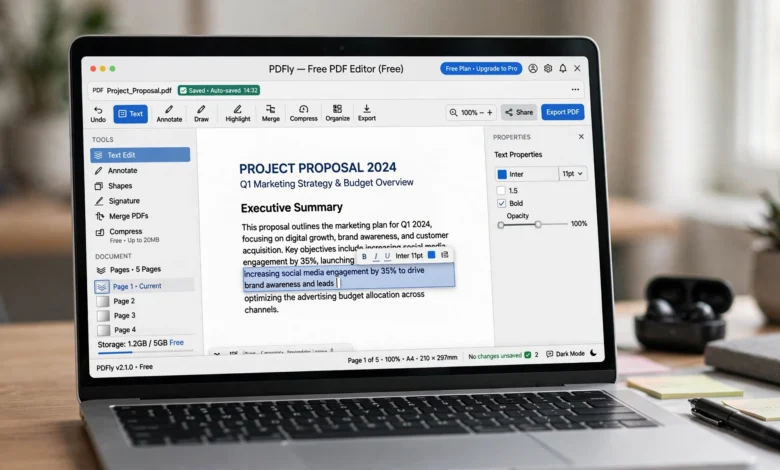
Best PDF editors have a reputation problem, and it’s earned. Search for one and you’ll land on ten tools that call themselves free right up until you try to save your file, at which point a watermark appears or a paywall does. That’s frustrating when all you wanted was to fix a typo on a rental agreement or fill in a form before a deadline.
The good news is that genuinely free PDF editing software does exist. Some of it lives in your operating system already. Some of it runs in a browser tab with no install and no account. The trick is knowing which tools actually let you edit PDF files for free without trading your privacy or your patience for the privilege.
This guide breaks down nine of the best free PDF editors available right now, organized by what you’re actually trying to do: edit text on Windows, mark up a contract on a Mac, fill out a form on your phone, or run something entirely in your browser without uploading a sensitive file anywhere. Along the way, we’ll cover what “free” really means for each one, where the limits kick in, and how to pick the right tool instead of the first one Google shows you.
What “Actually Free” Means for a PDF Editor
Before comparing tools, it helps to define the term, because PDF software companies stretch it in a few predictable ways.
A genuinely free PDF editor should meet most of these conditions:
- No forced watermark on exported or saved files
- No mandatory account just to open and edit a document
- No daily task limit that quietly resets your workflow mid-project
- Core editing included, not just viewing and highlighting
- No hidden trial period disguised as a permanent free plan
A lot of “free” PDF tools fail at least one of these. Adobe Acrobat Reader, for example, is free to download and great for viewing, filling forms, and adding basic comments, but real text editing sits behind a paid Acrobat Pro subscription. That’s not a flaw exactly, it’s just not the same category of tool as something like LibreOffice Draw or PDF24 Creator, which let you rewrite a paragraph without asking for a credit card.
Keep that distinction in mind as you read through the list. Some tools here are free PDF editors in the full sense. Others are excellent free tools for a narrower job, like merging or annotating, and are worth including because most people don’t need a full editor for every task.
Best Free PDF Editors for Windows
Windows users have more genuinely free, full-featured options than any other platform, largely because of two long-running open-source and freemium projects.
PDF24 Creator
PDF24 Creator is a downloadable Windows program that handles editing, page merging, splitting, and compression without watermarks or time limits. It’s built around a simple toolset: open a PDF, click into a text block, and edit it directly. It also includes built-in OCR, so scanned documents that would normally be uneditable images can be converted into text you can actually change.

What makes it worth listing first for Windows is that there’s no catch. There’s no premium tier nagging you to upgrade, no watermark stamped across your export, and no artificial cap on how many files you can process in a day. It’s a lightweight, no-frills tool, which is exactly what most people need for occasional PDF editing.
Good for: everyday editing, merging, and OCR on scanned files Limitation: interface feels a bit dated, and complex layouts with heavy formatting can shift slightly after editing
PDF-XChange Editor
PDF-XChange Editor is the other major free option for Windows, and it’s the closest thing to a professional editor you’ll get without paying. The free version lets you modify existing text (not just add annotations on top of it), insert images, and use a genuinely capable set of markup tools. There’s a small watermark added specifically when merging documents, but general text editing stays clean.
It has a steeper learning curve than PDF24 because the interface exposes a lot of options at once, but for anyone doing regular document work, that depth is a strength once you’re past the first few sessions.
Good for: users who want closer-to-Acrobat editing power without the subscription Limitation: watermark appears specifically on merged files in the free tier
Best Free PDF Editors for Mac
Mac users already have a genuinely useful editor built into the operating system, plus one excellent cross-platform option.
Preview (Built Into macOS)
Preview doesn’t get enough credit as a free PDF editor. It ships with every Mac, and it can annotate, add text boxes, insert signatures using your trackpad or camera, reorder pages, and merge PDFs by simply dragging one file’s pages into another’s sidebar. It won’t let you edit existing body text in the way a dedicated editor can, but for signing, marking up, and reorganizing documents, it’s often all you need.
Good for: signatures, quick markup, page reordering, zero setup Limitation: can’t rewrite existing text within the document body
LibreOffice Draw
LibreOffice Draw is available on Windows, Mac, and Linux, and it’s the closest free tool to true desktop-publishing-style PDF editing. Open a PDF through File → Open, and each page loads as an editable canvas. You can click directly into text and change it, drag images to new positions, and use drawing tools to add shapes, callouts, or freehand annotations. When you’re done, exporting back to PDF is a single menu option.
It’s part of the free and open-source LibreOffice suite, so there’s no watermark, no account, and no feature gate of any kind. The trade-off is that PDFs with complex formatting, unusual fonts, or dense layouts don’t always render perfectly, and font substitution can occur if the original typeface isn’t installed on your system.
Good for: genuine text and image editing at zero cost, on any major desktop OS Limitation: formatting fidelity drops on visually complex PDFs
Best Free Online PDF Editors (No Download Required)
If installing software feels like overkill for a five-minute edit, browser-based tools are the faster route. A few stand out for actually delivering on the “free” promise rather than gating everything behind a paywall after the first use.
Sejda
Sejda is a browser-based PDF editor with a genuinely capable free tier. It supports editing existing text, not just adding new annotation layers, which puts it ahead of most competitors in this category. It also has a desktop version for anyone who wants the same editing experience offline.
The free plan caps you at a modest number of tasks per day and a page limit per document, which is reasonable for occasional use but will feel restrictive if you’re editing PDFs constantly.
Good for: occasional text edits without installing anything Limitation: daily task and page-count limits on the free tier
iLovePDF
iLovePDF isn’t the strongest choice for rewriting text, but it’s one of the best free tools for PDF management tasks: merging files, splitting pages, compressing large documents, rotating pages, and converting between formats like PDF, Word, and JPG. The free tier allows a generous number of operations per day, and the interface is about as simple as browser tools get.
Good for: merging, splitting, compressing, and converting Limitation: limited true text-editing capability
Smallpdf
Smallpdf covers similar ground to iLovePDF, with the addition of a clean e-signature tool and solid mobile support. It’s a good pick if you’re bouncing between devices, since the mobile experience is noticeably smoother than most competitors. The free plan does require an account for most actions and limits how many tasks you can run per day before nudging you toward a paid plan.
Good for: signing documents and switching between desktop and mobile Limitation: account required for most features, daily limits apply
PDF Candy
PDF Candy is worth a mention for its breadth of format conversion tools alongside basic editing, page management, and OCR. It’s a solid all-around browser tool if you want one site that handles editing, converting, and organizing without hopping between different services.
Good for: users who want editing and conversion in one browser tab Limitation: heavier feature set can feel cluttered for simple one-off edits
Best Free PDF Editor for Mobile
Xodo
Xodo is a free PDF editor and reader for Android and iOS that handles annotation, form filling, signatures, and basic page management without a subscription wall. It syncs with cloud storage services like Google Drive and Dropbox, which makes it genuinely convenient if you’re reviewing or marking up documents away from a desktop.
Good for: annotating and signing PDFs on a phone or tablet Limitation: not built for heavy text editing, more of an annotation and review tool
Adobe Acrobat Reader (Mobile)
The mobile version of Adobe Acrobat Reader deserves a spot here specifically for form filling and signatures. If you regularly need to fill out and sign PDF forms sent to you, the free app handles that cleanly and remains the most widely compatible option, since recipients trust files that come through Adobe’s ecosystem. You can read more about what’s included in the free tier on Adobe’s own product page.
Good for: form filling and signing on the go Limitation: actual content editing is locked behind a paid Acrobat subscription
Quick Comparison Table
Here’s the whole list side by side, so you can scan for the right fit without reading every section.
| Tool | Platform | True Text Editing | Watermark | Account Needed | Best For |
|---|---|---|---|---|---|
| PDF24 Creator | Windows | Yes | No | No | Everyday editing, OCR |
| PDF-XChange Editor | Windows | Yes | Only on merge | No | Power users, close to Acrobat |
| Preview | Mac | No (annotate only) | No | No | Signing, quick markup |
| LibreOffice Draw | Windows/Mac/Linux | Yes | No | No | Real editing, any desktop OS |
| Sejda | Browser + Desktop | Yes | No | No | Occasional online edits |
| iLovePDF | Browser | No (management only) | No | No | Merging, splitting, converting |
| Smallpdf | Browser + Mobile | Limited | No | Yes | Signing across devices |
| PDF Candy | Browser | Limited | No | No | Editing plus conversion |
| Xodo | Mobile | No (annotate only) | No | No | Reviewing and signing on the go |
| Adobe Acrobat Reader | Mobile/Desktop | No (view/fill/sign) | No | Optional | Filling and signing forms |
A pattern shows up quickly here: true text editing for free is really only available from five of these ten tools. Everything else is excellent at a narrower job, which is fine as long as you know which job you’re hiring it for.
Step-by-Step: Editing a PDF for Free (Using LibreOffice Draw)
If you’ve never used a free PDF editor before, here’s what the actual process looks like using LibreOffice Draw, since it’s free on every major operating system and requires no account.
- Download and install LibreOffice. Grab it from the official site, it’s a one-time install with no license key required.
- Open LibreOffice Draw, then go to File → Open and select your PDF.
- Wait for the page to render as an editable canvas. Each page becomes a collection of separate text and image objects you can click into.
- Click directly on the text you want to change. A text box will activate, letting you edit the content in place, just like a word processor.
- Reposition images or shapes by clicking and dragging them, or use the toolbar to add new elements like callout boxes or highlights.
- Export back to PDF using File → Export As → Export as PDF, which keeps your file in the original format.
The whole process takes under a minute for a simple edit. The one thing to watch for: if the original document uses a font that isn’t installed on your computer, Draw will substitute a similar one, which can shift line spacing slightly on dense pages.
Mistakes People Make When Choosing a Free PDF Editor
A few patterns show up over and over in reviews and forum complaints about free PDF tools, and most of them are avoidable.
- Assuming “free trial” means “free plan.” Several tools marketed as free PDF editors are actually seven-day trials of paid software. Check the pricing page before you invest time learning a new interface.
- Uploading sensitive files to unfamiliar sites. Not every free online editor discloses how long it keeps your files or what it does with them. When in doubt, use a desktop tool instead.
- Ignoring daily limits until they hit mid-project. Browser tools with caps on file size or number of daily tasks can stall a project right when you need it finished. If you’re doing bulk work, a desktop tool with no limit will save you the headache.
- Expecting perfect formatting on complex layouts. Free tools, especially LibreOffice Draw, do a good job with straightforward documents but can shift spacing or substitute fonts on heavily designed PDFs. If pixel-perfect output matters, test on a copy of the file first.
- Overlooking built-in OS tools. macOS Preview and, to a lesser extent, Windows’ built-in PDF viewer already cover basic signing and annotation. There’s no need to download anything for a quick signature.
Free vs. Paid PDF Editors: What You Actually Lose
It’s worth being honest about where free tools fall short, because the gap matters for certain use cases.
- Advanced OCR accuracy. Free tools handle basic scanned documents reasonably well, but paid tools like Adobe Acrobat Pro or Wondershare PDFelement tend to produce cleaner results on low-quality scans or unusual fonts.
- Batch processing at scale. Free plans often cap how many files or pages you can process per day. If you’re editing dozens of documents regularly, that limit becomes a real bottleneck.
- Advanced form and redaction tools. True redaction (permanently removing content, not just covering it visually) is mostly a paid feature, and an important one if you’re handling sensitive information.
- Enterprise integrations. Paid tools tend to plug into document management systems, e-signature workflows, and team collaboration features that free tools skip entirely.
For most personal and small-business use, though, none of these gaps matter. If you’re editing a resume, fixing a typo in a contract, or filling out a form, a free PDF editor covers it completely.
Online vs. Desktop: A Privacy Note Worth Reading
This part gets skipped in a lot of comparison guides, and it shouldn’t be.
Browser-based tools like Sejda, iLovePDF, Smallpdf, and PDF Candy generally upload your file to a server to process it, then return the edited version. For most everyday documents, that’s a non-issue. For anything containing financial details, medical records, legal contracts, or personal identification, it’s worth pausing.
Desktop tools process files locally on your machine. LibreOffice Draw, PDF24 Creator, PDF-XChange Editor, and Preview never send your document anywhere. If you’re editing something sensitive, that’s the safer category to reach for, even if it means an extra minute spent downloading software instead of opening a browser tab.
If you do need to use an online tool for a sensitive file, take thirty seconds to check the provider’s privacy policy for how long files are retained and whether they’re used to train any AI features. Most reputable tools delete uploaded files within a few hours, but policies vary enough that it’s worth confirming rather than assuming.
How to Choose the Right Free PDF Editor
With nine solid options on the table, picking one comes down to answering three quick questions:
- Are you editing existing text, or just adding notes and signatures? If you need to rewrite content, go with LibreOffice Draw, PDF24 Creator, PDF-XChange Editor, or Sejda. If you’re just marking up or signing, Preview, Xodo, or Adobe Acrobat Reader cover it fine.
- Does the document contain sensitive information? If yes, stick to desktop tools that process files locally rather than uploading to a server.
- How often will you be doing this? Occasional edits are fine with browser tools and their daily limits. Regular, ongoing PDF work is better served by a desktop install with no caps.
Answering those three questions narrows the list to one or two realistic picks almost every time.
Frequently Asked Questions
Is there a truly free PDF editor with no watermark?
Yes. PDF24 Creator, LibreOffice Draw, and Sejda all export files without watermarks on their free tiers. PDF-XChange Editor adds one specifically when merging files, but not on standard text editing.
Can I edit PDF text for free without installing anything?
Yes, through Sejda in a browser. It supports editing existing body text, not just layering annotations on top, though the free plan limits how many documents and pages you can process per day.
What’s the best free PDF editor for signing documents?
For quick signatures, Preview on Mac or Adobe Acrobat Reader on any platform are the simplest options. Both let you sign using a trackpad, touchscreen, or your device’s camera without any subscription.
Are free PDF editors safe to use for sensitive documents?
Desktop tools that process files locally, like LibreOffice Draw and PDF24 Creator, are the safer choice for sensitive material since your file never leaves your device. Browser-based tools typically upload files to a server, so it’s worth checking the provider’s data retention policy first.
Do free PDF editors work on scanned documents?
Most of the tools listed here include basic OCR (optical character recognition), which converts scanned image-based PDFs into editable text. PDF24 Creator and PDF Candy both handle this reasonably well for free, though accuracy on messy or low-resolution scans tends to improve with paid tools.
Conclusion
Finding a free PDF editor that doesn’t quietly charge you through watermarks, account walls, or daily limits takes a bit more digging than the top of a search results page usually offers, but the options genuinely exist. PDF24 Creator and PDF-XChange Editor cover Windows users who want real text editing at no cost. LibreOffice Draw and Preview handle Mac and cross-platform needs without ever uploading a file anywhere.
Sejda, iLovePDF, Smallpdf, and PDF Candy fill in the browser-based gaps for quick, no-install tasks, while Xodo and Adobe Acrobat Reader take care of mobile annotation, form filling, and signatures. Match the tool to the task, keep sensitive documents on desktop software that processes locally, and you’ll rarely need to open your wallet just to fix a typo or sign a form.