How to Use Microsoft Teams for Remote Work
Learn how to use Microsoft Teams for remote work with practical setup tips, features, and habits that keep distributed teams connected.
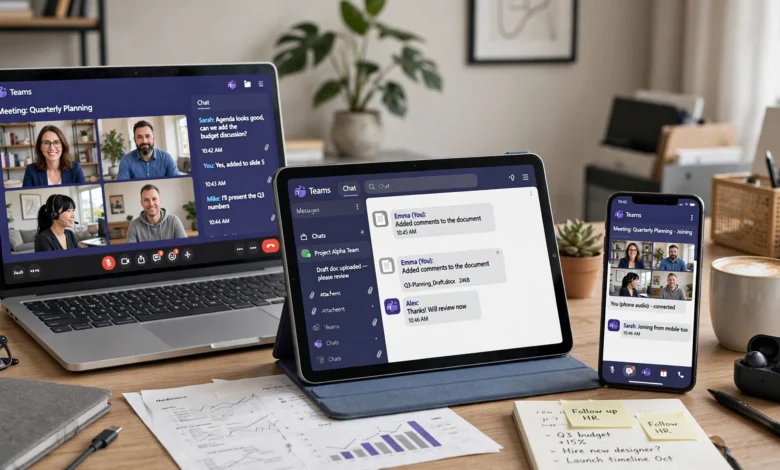
When you’re trying to figure out how to use Microsoft Teams for remote work, the sheer number of buttons, tabs, and settings can feel overwhelming at first. You open the app, see chats, channels, calendars, and a dozen icons you’ve never clicked, and it’s not immediately obvious where to start. That’s a common experience, and it’s exactly why so many remote employees end up using maybe 20% of what the platform actually offers.
Microsoft Teams has grown from a simple chat and video calling app into a full workspace that handles messaging, meetings, file storage, task tracking, and now AI-assisted note-taking through Copilot. For anyone working from home, on the road, or across time zones, that matters. A tool that keeps everything in one place cuts down on the app-switching that quietly eats hours out of every workweek.
This guide walks through everything you need to actually get value out of Microsoft Teams for remote work: setting it up correctly, using its core features the way they’re meant to be used, adopting habits that keep your team productive without burning out, and fixing the most common problems that trip people up. Whether you’re new to remote work entirely or you’ve been doing it for years and just never learned the platform properly, you’ll come away with a clear, practical setup you can use starting today.
Why Microsoft Teams Works So Well for Remote Teams
Before getting into the how-to, it helps to understand why remote teams lean on this platform so heavily in the first place.
Teams isn’t just a video calling app bolted onto a chat window. It’s built on top of Microsoft 365, which means it talks directly to Word, Excel, PowerPoint, and OneDrive. When you’re collaborating remotely, that integration removes a lot of friction. You don’t need to download a file, edit it, and re-upload it. You open it inside Teams, edit it with a colleague in real time, and it saves automatically.
For distributed teams specifically, a few things stand out:
- Centralized communication — chat, calls, and meetings live in one app instead of three separate tools
- Persistent channels — conversations tied to a project or team stay organized and searchable long after the meeting ends
- Built-in file storage — every channel gets its own SharePoint-backed folder automatically
- Scalability — it works the same whether your team has 5 people or 5,000
- Cross-platform access — desktop, browser, and mobile apps stay in sync
If you want a deeper look at what’s included across plans, Microsoft’s official Teams overview breaks down the current feature set and pricing tiers.
Getting Started: Setting Up Microsoft Teams for Remote Work
Getting your setup right in the first week saves you from a lot of small annoyances later. Here’s the order that actually makes sense.
Installing and Signing In
Download the desktop app rather than relying solely on the browser version. The desktop client handles notifications more reliably, supports background blur and virtual backgrounds better, and doesn’t compete with your other browser tabs for memory. Teams is available for Windows, macOS, Linux, iOS, and Android, so install it on your phone too — you’ll want mobile access for quick replies when you’re away from your desk.


Sign in with the work or school account your organization provided. If you’re setting up Teams for a small business without an existing Microsoft 365 subscription, you can start with a free plan and upgrade later as your team grows.
Configuring Your Profile and Notifications
This step gets skipped constantly, and it’s the one that determines whether Teams feels helpful or exhausting.
- Set your profile picture and status message so teammates know when you’re available, in a meeting, or offline
- Go into notification settings and turn off alerts for channels you don’t need to see in real time
- Set your working hours in the calendar settings so Teams knows not to badge you outside those hours
- Enable quiet hours if you’re working across time zones — this silences notifications during your personal time while still letting urgent calls through
- Customize your background and camera settings once, so you’re not fumbling with them right before a client call
Getting notifications right is arguably the single biggest lever for making remote work with Teams sustainable rather than draining.
Core Microsoft Teams Features Every Remote Worker Should Know
Once your account is set up, the real value comes from actually using the features built for collaboration. Here’s a breakdown of the ones that matter most.
Chat and Channels
Chat in Teams works on two levels: one-on-one or group chats for quick, informal conversation, and channels for organized, topic-based discussion tied to a specific team or project.
The mistake a lot of teams make is dumping everything into one general channel. Instead:
- Create separate channels per project, department, or workstream
- Use threads to keep replies attached to the original message instead of scattering the conversation
- Pin important messages (like a shared document link or a key decision) to the top of a channel so people don’t have to scroll back through weeks of history
- Use @mentions sparingly — reserve them for messages that genuinely need someone’s attention
Channels are searchable, so six months from now, when someone asks “didn’t we already decide on this?” you can actually find the answer instead of relying on memory.
Video Meetings and Calls
Video meetings are where most people spend the bulk of their time in Teams, and for good reason — for a distributed team, face-to-face contact (even virtual) still matters for trust and clarity.
A few features worth knowing:
- Together mode and gallery view for a more natural meeting feel with larger groups
- Live captions and transcription, useful for accessibility and for anyone who wants a text record of what was said
- Background blur or custom backgrounds if your home office isn’t camera-ready
- Meeting recordings that save automatically to the channel or your OneDrive, so absent teammates can catch up later
- Breakout rooms for splitting a larger meeting into smaller discussion groups
One habit that genuinely improves remote meetings: always attach an agenda to the calendar invite. Teams lets you build the agenda directly into the meeting details, which keeps calls shorter and more focused.
File Sharing and Real-Time Collaboration
Every channel in Teams automatically gets a Files tab connected to SharePoint. That means when someone uploads a document, the whole team can open, edit, and comment on it without emailing versions back and forth.
Key things to use here:
- Co-authoring in Word, Excel, and PowerPoint directly inside Teams, with changes syncing live
- Version history, so you can roll back if someone accidentally overwrites content
- OneDrive integration for personal files you want to share without cluttering a channel
This is one of the areas where Teams genuinely outperforms tools that treat file sharing as an afterthought — it’s baked into the structure of how channels work.
Task and Project Management
For lightweight project tracking, Teams integrates with Microsoft Planner and To Do, letting you assign tasks, set due dates, and track progress without leaving the app. Add the Planner tab to any channel and your team has a shared task board right next to the conversation about that work.
If your team needs something more robust, Teams also connects with third-party tools like Asana, Trello, and Jira through app integrations, so you’re not forced to abandon existing workflows just to adopt Teams.
Using AI and Copilot to Work Smarter in Teams
One of the biggest shifts in how people use Microsoft Teams for remote work recently has been the rise of AI-assisted features. Microsoft 365 Copilot, where included in your plan, works directly inside chats, calls, and meetings.
Practical ways teams are using it:
- Asking Copilot to summarize a meeting you missed, including decisions and action items
- Generating a first draft of meeting notes instead of writing them manually
- Searching past conversations by asking a question in plain language rather than scrolling through chat history
- Getting a quick recap of a long channel thread before jumping into a related discussion
For remote and hybrid teams specifically, this matters because so much institutional knowledge lives in scattered conversations. Cutting the time it takes to find or summarize that information gives people back real hours each week.
Best Practices for Staying Productive on Microsoft Teams
Knowing the features is one thing. Using them in a way that actually improves your workday is another. Here are the habits worth building.
- Set clear status messages. A quick “Heads down until 2pm, reply if urgent” prevents interruptions and sets expectations without needing a conversation.
- Use channels the way they’re intended. Keep discussions on-topic and resist the urge to turn every channel into a catch-all.
- Mute what you don’t need. You’re allowed to leave a channel on mute if it’s not relevant to your daily work. You can still check in manually.
- Batch your check-ins. Instead of reacting to every notification the second it arrives, check chat and channels at set points during the day.
- Record meetings you can’t attend live. This is especially useful across time zones, where a live meeting for one half of the team is the middle of the night for the other.
- Keep your calendar accurate. Teams pulls availability from your calendar, so an out-of-date calendar makes you look available when you’re not, and vice versa.
- Use keyboard shortcuts. Teams supports customizable shortcuts, including presets that mimic Slack or Zoom if you’re switching from another tool.
Small habits like these compound. A team that’s disciplined about how it uses Teams tends to have fewer unnecessary meetings and clearer written records of decisions.
Managing Work-Life Balance While Working Remotely on Teams
There’s a real risk with any always-on communication tool: it can blur the line between work hours and personal time. This is worth taking seriously, because burnout among remote workers is a documented problem, not a minor inconvenience. According to research summarized by Gallup’s workplace studies burnout risk is closely tied to always-on communication habits and unclear boundaries around availability.
A few ways to protect your time while still using Teams effectively for remote work:
- Turn on quiet hours so notifications stop outside your working window
- Set your status to “Away” or a custom message when you’re offline, and actually honor it
- Avoid sending non-urgent messages late at night — Teams lets you schedule a message to deliver during the recipient’s working hours instead
- Resist the instinct to reply instantly to every message; not everything needs a response within minutes
- Talk to your manager or team about expectations around response times, since ambiguity here is usually what causes stress, not the tool itself
Microsoft Teams gives you the controls to set healthy boundaries. The tool isn’t the problem if work-life balance slips; it’s usually the habits and expectations around how it’s used.
Troubleshooting Common Microsoft Teams Issues
Even a well-configured setup runs into problems occasionally. Here are the ones people hit most often, along with quick fixes.
Audio or video not working in a meeting Check that Teams has permission to access your microphone and camera in your device’s system settings, not just inside the app. Restarting the app resolves this more often than you’d expect.
Notifications not showing up Double-check your notification settings under Settings > Notifications, and confirm quiet hours aren’t accidentally still active.
Slow performance or lagging screen shares Close unused browser tabs and other bandwidth-heavy apps. If you’re on a shared home network, ask others to pause large downloads during your calls.
Can’t find an old message or file Use the search bar at the top of the app with keyword, date, and sender filters rather than scrolling manually. This is one of the most underused features in the entire platform.
Sync issues between desktop and mobile Sign out and back in on both devices. This clears most sync problems related to cached data.
Microsoft Teams vs Other Remote Work Tools
It’s worth briefly addressing how Teams compares to alternatives like Slack, Zoom, or Google Meet, since many remote workers are choosing between them.
| Feature | Microsoft Teams | Slack | Zoom |
|---|---|---|---|
| Native Microsoft 365 integration | Yes | Limited | No |
| Video meeting capacity | Up to 1,000+ (plan dependent) | Requires Zoom/Meet add-on | Up to 1,000 |
| Built-in file co-authoring | Yes | No | No |
| Free plan available | Yes | Yes | Yes |
| Best for | Teams already on Microsoft 365 | Fast, informal chat-first teams | Meeting-first teams |
If your organization already runs on Microsoft 365, Teams is generally the more efficient choice simply because it removes the need to stitch together separate apps for chat, files, and meetings. Teams using other productivity suites may find Slack or Google Workspace tools a more natural fit.
Conclusion
Learning how to use Microsoft Teams for remote work comes down to setting it up properly from day one, using channels and chat with some intention instead of letting everything pile into one place, and leaning on features like Copilot, file co-authoring, and quiet hours to cut down on wasted time. The platform gives distributed teams everything they need to stay connected and organized in a single app, but it only pays off when people actually learn the features beyond basic chat and video calls.
Start with a clean setup, build a few good habits around notifications and meetings, and Teams stops feeling like just another app and starts working the way it was designed to: as the single place your remote team actually gets things done.