What Is Canva and How to Use It Well
What is Canva and how does it work? Here's a clear, practical guide to using Canva well, from templates to AI tools.
What is Canva, really? If you’ve spent any time online in the last decade, you’ve probably seen the name pop up everywhere, from a friend’s Instagram post to a coworker’s slide deck that looked way better than it had any right to. Canva is a browser-based and mobile design platform that lets anyone, regardless of design background, put together graphics, presentations, videos, and printed materials using drag-and-drop tools and a massive library of templates.
What makes Canva different from traditional design software like Photoshop or InDesign isn’t just the price tag. It’s the learning curve. You don’t need to know what a “clipping mask” is or spend a weekend watching tutorials before you can make something usable. Open a template, swap out the text and images, and you have a finished design in minutes.
But knowing what Canva is and knowing how to use Canva well are two different things. A lot of people sign up, poke around for twenty minutes, make one mediocre Instagram post, and never touch it again. That’s usually because they never learned the handful of features that actually separate a Canva design that looks templated from one that looks intentional.
This guide covers both sides: what Canva actually is, who it’s built for, and the practical habits and features that will help you get real value out of it, whether you’re running a small business, managing social media, or just trying to make a resume that doesn’t look like it came from 2009.
What Is Canva? A Straightforward Definition
At its core, Canva is a visual communication tool. It’s built around a simple idea: most people don’t need professional design software, they need a fast way to turn an idea into something that looks good and communicates clearly.
Canva launched in 2013 out of Sydney, Australia, with a mission to make design accessible to people who had never opened a design program in their life. Since then it’s grown into one of the most widely used creative platforms in the world, used by individuals, freelancers, marketing teams, teachers, nonprofits, and large enterprises alike.
Unlike Adobe Photoshop or Illustrator, which are built for trained designers and have a steep learning curve, Canva was designed from day one for non-designers. You work on a canvas (hence the name), drag elements onto it, and everything updates in real time. There’s no need to understand layers, vector paths, or color profiles to get a professional-looking result.
What Can You Actually Make in Canva?
The range of things you can create in Canva is genuinely broad. Some of the most common use cases include:
- Social media posts and stories (Instagram, Facebook, LinkedIn, TikTok, Pinterest)
- Presentations and slide decks
- Posters, flyers, and brochures
- Business cards, invitations, and greeting cards
- Logos and basic brand assets
- Resumes and cover letters
- Infographics and reports
- Short videos and simple video edits
- Websites and landing pages (through Canva’s site builder)
- Printed products like mugs, t-shirts, and stickers, through Canva’s print-on-demand integration
If you can picture it as a flat design or short video, there’s a good chance Canva can help you make it.


How Canva Works: The Basics
Before getting into strategy, it helps to understand the mechanics. Canva runs in your browser (there’s also a desktop app and mobile apps for iOS and Android), and everything is built around a central editing canvas.
Here’s the general workflow:
- Choose a format or template. You can start from a blank canvas with custom dimensions, or pick from Canva’s library of pre-made templates sorted by category (social post, presentation, poster, and so on).
- Customize the design. Swap out text, images, colors, and fonts. Drag elements around, resize them, layer them, or delete what you don’t need.
- Add your own assets. Upload your own photos, logos, or brand colors, or pull from Canva’s built-in library of stock photos, icons, and graphics.
- Download or share. Export your design as a PNG, JPG, PDF, MP4, or GIF, or share a link directly so others can view or edit it.
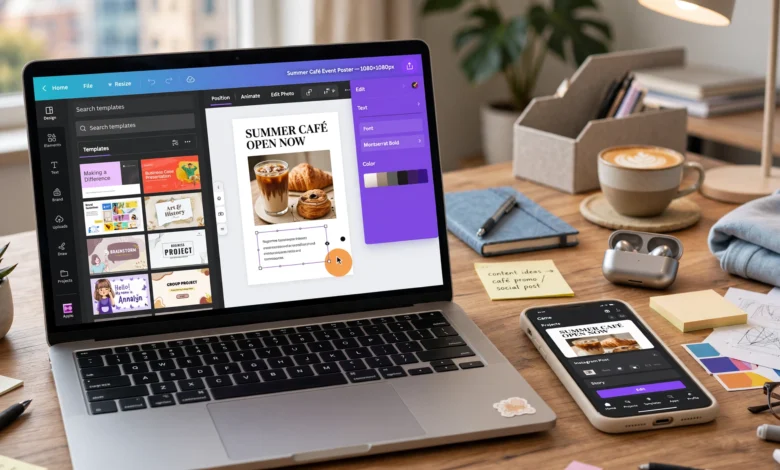
The interface is built around a left-hand sidebar (for templates, elements, uploads, text, and apps), a main canvas in the center, and a top toolbar for alignment, animation, and download options. Once you’ve used it a few times, the layout becomes second nature.
Who Is Canva For?
One of the reasons Canva has grown so fast is that it genuinely serves a wide range of users, not just one type of person.
Small Business Owners and Solopreneurs
If you’re running a small business without a dedicated design team, Canva lets you produce your own marketing materials, social content, and packaging mockups without hiring outside help for every small task. It’s especially useful for maintaining a consistent look across everything you put out.
Content Creators and Social Media Managers
Anyone managing a content calendar knows how much volume matters. Canva’s templates, resizing tools, and content planner make it possible to batch-produce a week or month of posts without starting from scratch every time.
Students and Educators
From class presentations to study guides and posters, Canva has become a go-to tool in classrooms because it’s free for education accounts and doesn’t require any prior design training.
Marketing and Design Teams
Larger teams use Canva for its collaboration features and Brand Kit tools, which keep everyone using the same fonts, colors, and logo files. It won’t replace a dedicated design department for complex work, but it speeds up everyday requests significantly.
Nonprofits and Community Organizations
Canva offers a free nonprofit plan with premium features included, which has made it a popular choice for organizations working with limited budgets.
Canva’s Core Features Explained
To actually use Canva well, it helps to know what’s available beyond the basic editor. Here’s a breakdown of the features that matter most.
Templates
Canva’s template library is arguably its biggest draw. There are millions of pre-designed templates covering nearly every format you can think of, organized by use case, industry, and style. Templates give you a strong starting point, but the key to using them well is customization. A design that keeps the original template’s exact colors, fonts, and stock photo will look generic. Swapping in your own brand colors, fonts, and images turns a template into something that actually looks like yours.
Drag-and-Drop Editor
The editor is the heart of the platform. Every element on the canvas, whether it’s text, a shape, an icon, or a photo, can be moved, resized, rotated, or layered by simply clicking and dragging. There’s no code and no complicated menus. This is what makes Canva approachable for people who’ve never designed anything before.
Elements Library
Canva gives users access to a huge collection of icons, illustrations, shapes, frames, and stock photos and videos that can be dropped directly into a design. Many of these are free, though some premium elements require a paid plan.
Brand Kit
For anyone creating content regularly for a business, the Brand Kit feature is worth setting up early. It lets you save your brand’s logo, color palette, and fonts in one place, so every new design automatically pulls from consistent brand assets instead of you manually re-entering hex codes every time.
Magic Design and AI Tools
Canva has invested heavily in AI-powered features that speed up the design process. Magic Design generates a set of design options based on a text prompt or an uploaded image or photo, giving you a starting point instead of a blank canvas. There are also AI tools for writing copy, generating images, removing image backgrounds, and even converting a still photo into a short video clip. These tools are genuinely useful for getting past a blank page, but they usually need manual refinement afterward to look polished and on-brand.
Content Planner
For social media managers, the built-in content planner lets you schedule posts directly to platforms like Instagram, Facebook, and LinkedIn from within Canva, without needing a separate scheduling tool for basic needs.
Collaboration Tools
Multiple people can work on the same design at once, leave comments, and tag teammates, similar to how Google Docs works for text documents. This makes Canva useful for teams that need quick feedback loops without emailing files back and forth.
Canva Print and Merchandise
Beyond digital design, Canva also offers printing services for business cards, posters, apparel, and other physical products, letting you go from design to a finished, shipped product without leaving the platform.
How to Use Canva Well: 7 Practical Tips
Knowing the features is one thing. Using them in a way that actually produces good results is another. Here are the habits that make the biggest difference.
1. Set Up Your Brand Kit Before You Start Designing
If you’re creating content for a business, brand, or personal project you’ll return to repeatedly, set up your Brand Kit first. Add your logo files, exact brand colors (using hex codes if you have them), and your preferred fonts. This one step saves a huge amount of time later and keeps your output looking consistent, which matters more than most people realize when it comes to building recognition.
2. Don’t Leave Templates Untouched
The fastest way to make a Canva design look generic is to use a template exactly as it comes. Change the color palette to match your brand, swap the default photo for one of your own, and adjust the font pairing if it doesn’t fit your tone. Small changes go a long way toward making a design feel original.
3. Use Canva’s Resize Tool for Multi-Platform Content
Instead of rebuilding the same design from scratch for Instagram, LinkedIn, and email, use Canva’s resize feature to automatically reformat a design for different dimensions. It’s a simple feature, but it saves an enormous amount of repetitive work if you’re publishing across multiple channels.
4. Keep Text Hierarchy Simple
One of the most common design mistakes is using too many fonts, sizes, and colors in a single design. A good rule of thumb is to stick to two fonts (one for headings, one for body text) and use size and weight, not extra fonts, to create emphasis.
5. Use AI Tools as a Starting Point, Not a Final Product
Features like Magic Design and Magic Write are genuinely helpful for breaking through the blank-page problem, but treat the output as a first draft. Adjust the copy so it sounds like you, and tweak the layout so it doesn’t look identical to every other design generated from the same prompt.
6. Build a Simple Design System for Recurring Content
If you’re posting regularly, create a small set of reusable templates for your recurring content types (weekly tips, quote graphics, announcements, and so on). This keeps your output consistent and dramatically speeds up your workflow, since you’re not starting from zero every time.
7. Learn the Keyboard Shortcuts
Once you’re comfortable with the basics, a handful of keyboard shortcuts (like duplicating an element, grouping objects, or aligning items) will noticeably speed up how fast you can work. It’s a small investment that pays off quickly if you’re using Canva often.
Canva Free vs. Canva Pro: What’s the Difference?
Canva offers a free plan that’s genuinely usable on its own, along with paid tiers that unlock more advanced features.
Canva Free includes:
- The full drag-and-drop editor
- Access to a large portion of the template library
- A curated selection of free photos, graphics, and fonts
- Basic AI features with limited monthly usage
- Standard download formats (PNG, JPG, PDF, MP4, GIF)
Canva Pro adds:
- Access to premium templates and elements
- Background remover for photos
- Brand Kit tools for teams
- Transparent background exports
- More generous AI feature limits
- Additional cloud storage
- Resize tool for converting designs between formats
For casual or occasional use, the free plan is often enough. For anyone producing content regularly for a business or brand, Pro tends to pay for itself fairly quickly through the time it saves.
Common Mistakes People Make When Using Canva
Even with such an approachable tool, there are a few habits worth avoiding.
- Overcrowding the canvas. Adding too many elements, colors, or fonts to a single design usually makes it harder to read, not more impressive.
- Ignoring brand consistency. Using a different color scheme or font every time makes your content harder to recognize.
- Relying entirely on stock photos. Original photos, even simple ones taken on a phone, tend to perform better and look more authentic than generic stock imagery.
- Skipping the resize step. Publishing the same dimensions across every platform often means your design gets awkwardly cropped.
- Not checking licensing on premium elements. Some assets require a Pro subscription for commercial use, so it’s worth double-checking before publishing client work.
Is Canva Worth Using for Professional Work?
For a lot of use cases, yes. Canva has become a legitimate tool for professional marketing, internal communication, and small-business branding, not just hobbyist projects. That said, it does have limits. For highly technical design work, complex print production, or projects that need precise control over typography and layout, dedicated tools like Adobe Illustrator or InDesign are still better suited. According to a detailed comparison from Style Factory, Canva’s main competitor is Adobe Express, which offers a similar feature set and integrates closely with Adobe’s professional design ecosystem, while tools like Figma remain the stronger choice for interface prototyping.
The honest way to think about it: Canva is excellent for speed, accessibility, and everyday content needs. It’s not trying to replace a trained designer on a complex brand campaign, and it doesn’t need to in order to be genuinely valuable for the vast majority of people who use it.
Frequently Asked Questions
Is Canva free to use? Yes. Canva has a free plan that includes a full editor, a large template library, and basic AI tools. Paid plans unlock premium templates, more storage, and advanced features like background removal.
Can I use Canva designs commercially? Most templates and elements can be used for commercial purposes, but it’s worth reviewing Canva’s licensing terms for specific stock photos or premium elements before using them in client or business work.
Do I need design experience to use Canva? No. Canva was built specifically for people without a design background. The drag-and-drop editor and pre-made templates make it possible to create polished work without prior training.
What’s the difference between Canva and Adobe Express? Both offer template-based design tools aimed at non-designers, but Adobe Express integrates more closely with Adobe’s professional software, while Canva has a broader template library and a wider range of collaboration and content-planning tools.
Can Canva replace a professional designer? For everyday content like social posts, presentations, and basic marketing materials, Canva often can. For complex branding projects or technical print work, a professional designer or dedicated design software is still the better choice.
Conclusion
Canva has earned its place as one of the most practical design tools available today, not because it replaces professional design software, but because it removes the barriers that used to keep non-designers from creating polished, usable visual content. Understanding what Canva is only gets you halfway there; using it well means setting up your Brand Kit, customizing templates instead of using them as-is, treating AI features as a starting point rather than a finished product, and building simple systems for the content you create regularly.
Whether you’re a small business owner, a student, a social media manager, or just someone trying to make a better-looking resume, Canva gives you the tools to go from a blank canvas to a finished design quickly, and with a bit of intention, the results can look genuinely professional.