How to Use Google Workspace Like a Pro
Learn how to use Google Workspace like a pro with 15 practical tips covering Gmail, Docs, Sheets, Drive, Calendar, and Gemini AI.
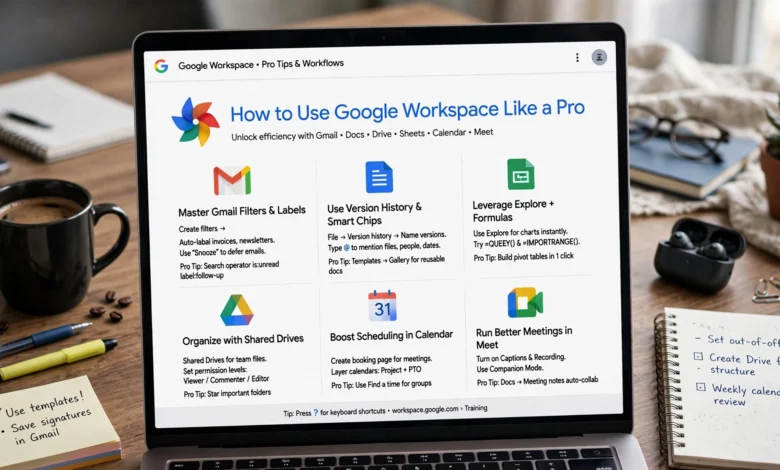
If you want to know how to use Google Workspace like a pro, the truth is most people are only scratching the surface of what this tool can do. You open Gmail, you write a doc, you schedule a meeting, and that’s about it. Meanwhile there’s a whole layer of features sitting right there, unused, that could save you hours every week.
Google Workspace (the suite formerly known as G Suite) now touches nearly every part of daily work, from email and file storage to video calls and AI-assisted writing. Yet a lot of professionals treat it like a basic office kit rather than the connected productivity system it actually is. The gap between casual users and power users usually comes down to a handful of habits and settings that nobody bothers to explain.
That’s what this guide is for. Below, you’ll find fifteen practical, no-fluff tips for getting more out of Gmail, Google Docs, Google Sheets, Google Drive, Google Calendar, Google Meet, and the newer Gemini AI features baked into the suite. Some of these are quick settings changes. Others are habits that take a week to build but pay off for years. Either way, by the end of this article you’ll have a clear, actionable path to working faster, staying more organized, and getting real value out of the tools you’re probably already paying for.
Let’s get into it.
What Is Google Workspace, Exactly?
Before diving into the tips, it’s worth being clear on what Google Workspace actually includes, since a lot of people only know it as “Gmail and Docs.”
Google Workspace is Google’s cloud-based suite of productivity and collaboration apps, built for individuals, small teams, and large enterprises alike. It bundles together:
- Gmail for email
- Google Docs, Sheets, and Slides for documents, spreadsheets, and presentations
- Google Drive for cloud storage and file sharing
- Google Calendar for scheduling
- Google Meet and Chat for video calls and messaging
- Google Forms for surveys and data collection
- Google Keep for notes
- Admin Console and Vault for business-level security and compliance
Individuals can use most of these apps for free with a standard Google account. Businesses pay for Google Workspace plans (Business Starter, Standard, Plus, and Enterprise) to unlock custom email domains, larger storage pools, advanced admin controls, and, increasingly, deeper access to Google’s Gemini AI. Knowing this distinction matters because several of the tips below (like Vault and the Admin Console) only apply if you’re on a paid business plan.
1. Tame Gmail With Filters, Labels, and Snooze
Professionals spend a huge chunk of their day inside their inbox, so this is the best place to start if you want to learn how to use Google Workspace like a pro.
By default, Gmail just dumps every message into one long chronological list. That’s fine for a light inbox, but it falls apart fast once you’re getting 100+ emails a day. Here’s how to fix it:


- Set up filters. Go to Settings > Filters and Blocked Addresses, and create rules that automatically label, archive, or forward emails based on sender, subject, or keywords. Newsletters, automated reports, and recurring notifications should never hit your main inbox.
- Use labels instead of folders. Unlike traditional email folders, Gmail labels let a single email live in multiple categories at once. Label by project, client, or urgency instead of trying to force every message into one bucket.
- Snooze what you can’t act on right now. The snooze feature temporarily removes an email from your inbox and brings it back at a time you choose. It’s a much better system than leaving 40 unread messages sitting there as a guilt trip.
- Turn on Smart Reply and Smart Compose. These AI-assisted features suggest quick replies and finish your sentences as you type, which shaves real time off routine correspondence.
- Schedule Send and Undo Send. Draft an email at midnight but send it at 9 a.m. so you’re not “that person.” And if you hit send too fast, Undo Send gives you a short window to pull it back.
None of these take more than a few minutes to set up, and together they turn Gmail from a firehose into something you actually control.
2. Use Google Docs’ Explore and Voice Typing Features
Google Docs is one of the most widely used tools in the entire suite, but most people only use it as a plain text editor. Two features change that.
Explore
The Explore panel (Tools > Explore, or Ctrl+Alt+Shift+I) opens a sidebar where you can search the web, browse relevant images, and pull citations directly into your document without switching tabs. If you’re writing anything research-heavy, this alone can cut your research time significantly, since you’re not juggling ten open browser tabs and losing your train of thought.
Voice Typing
Under Tools > Voice Typing, Google Docs lets you dictate an entire document out loud. It’s one of the more accurate voice-to-text tools available today, and it’s genuinely useful for drafting quickly, taking notes during a call, or working while you’re away from a keyboard.
Other Docs Habits Worth Building
- Use headings (via the Format menu) consistently so a table of contents can auto-generate.
- Insert smart chips to embed people, files, calendar events, or dates directly into a doc; hover over them to preview info without leaving the page.
- Use Suggesting mode instead of Editing mode when reviewing someone else’s work, so changes are tracked and reversible.
3. Master Google Sheets Beyond Basic Formulas
Google Sheets is often treated as a lightweight Excel substitute, but it has plenty of features that go beyond simple formulas.
- Data validation and dropdown lists. Under Data > Data Validation, you can restrict a cell to a fixed set of options. This keeps shared spreadsheets clean and prevents the classic problem of ten different people typing ten different versions of the same status (“Done,” “done,” “Completed,” “DONE”).
- Pivot tables. If you’re manually summarizing rows of data, stop. A pivot table (Insert > Pivot Table) does it in seconds and updates automatically as your source data changes.
- Conditional formatting. Highlight overdue dates, flag values above a threshold, or color-code by category automatically, no manual formatting required.
- Built-in project tracking. Sheets includes templates for Gantt-style timelines, which is often enough for small teams that don’t need a dedicated project management tool.
- IMPORTRANGE and QUERY functions. These let you pull live data from other spreadsheets and run SQL-like queries inside a sheet, which is genuinely powerful once you get the syntax down.
4. Turn Google Drive Into a Real Filing System
A messy Google Drive is one of the biggest hidden productivity drains in any organization. Here’s how to keep it under control.
- Use shared drives for teams, not just personal folders. Shared drives are owned by the team, not an individual, so files don’t disappear when someone leaves the company.
- Set folder-level permissions. Decide exactly who can view, comment, or edit each folder rather than sharing everything with everyone.
- Star your active projects so they show up in a dedicated, easy-to-scan view instead of getting buried.
- Turn on offline access (in Drive settings) so you can view and edit Docs, Sheets, and Slides even without an internet connection; changes sync automatically once you’re back online.
- Use Drive search operators like
type:,owner:, orbefore:to find files fast instead of scrolling endlessly.
5. Get More Out of Google Calendar
Google Calendar is more than a place to see your next meeting. Used properly, it becomes a genuine scheduling assistant.
- Create multiple calendars for work, personal life, and specific projects, then toggle visibility depending on what you need to see.
- Use Tasks integration. Google Tasks now lives right inside Calendar, so your to-do list and your schedule are in the same view instead of two separate apps competing for your attention.
- Set working hours and location. This tells colleagues when you’re actually available and helps Calendar auto-decline meetings outside those hours.
- Use appointment scheduling to share a booking link, similar to Calendly, so people can grab open slots without the usual back-and-forth email chain.
- Enable event notifications to get your day’s agenda emailed to you each morning, a small habit that keeps surprises to a minimum.
6. Run Better Meetings With Google Meet
Video calls became a permanent part of work life, and Google Meet has quietly added features that most users never touch.
- Live captions and translation. Turn on captions for accessibility, or use real-time translated captions for cross-language teams.
- Breakout rooms. Split a large meeting into smaller discussion groups without needing a separate tool.
- Noise cancellation. Available on paid plans, this filters out background noise like typing or traffic automatically.
- Recording and AI-generated notes. Meet can record sessions and, on supported plans, generate a written summary with action items afterward, so nobody has to scramble to take notes during the call itself.
7. Use Gemini AI Across the Suite
The single biggest shift in Google Workspace over the past couple of years has been the arrival of Gemini, Google’s AI assistant, now embedded directly into Gmail, Docs, Sheets, Slides, and Drive.
Here’s where it actually earns its keep:
- Help Me Write in Gmail and Docs drafts full emails or document sections from a short prompt, which is especially useful for routine correspondence like status updates or meeting recaps.
- Summarize in Drive and Gmail condenses long documents or email threads into a few key points, saving you from reading fifteen pages just to find one number.
- Help Me Visualize in Slides generates custom images directly inside a presentation, so you’re not hunting for stock photos.
- Ask questions about a document directly in the Gemini side panel, such as pulling a specific figure or clause out of a long contract without manually scanning it.
- Smart Fill and formula suggestions in Sheets can predict patterns in your data and suggest formulas, which is a real time-saver for anyone who isn’t a spreadsheet expert.
Gemini access depends on your specific Workspace plan, so check what’s included before assuming a feature is available to you.
8. Automate Repetitive Tasks With Apps Script and Add-ons
If you find yourself doing the same manual task in Google Workspace week after week, there’s a good chance it can be automated.
- Google Apps Script lets you write simple scripts to automate actions across apps, like automatically emailing a spreadsheet report every Monday morning or sending a confirmation email whenever someone submits a Google Form.
- Workspace Marketplace add-ons extend the suite with third-party tools for e-signatures, project management, CRM syncing, and more, all without leaving your Google apps.
- Google Forms itself is worth using more: connect form responses directly to a Sheet, apply conditional logic to skip irrelevant questions, and use it for everything from client intake to internal surveys.
You don’t need to be a developer to get value here. Plenty of Apps Script templates are freely available and only require light editing to fit your use case.
9. Keep Everything Organized With Smart Chips and Google Keep
Small organizational habits add up. Two worth adopting:
- Smart chips (mentioned earlier under Docs) work across Sheets and Gmail too. Type “@” and you can insert a live-updating file, person, or date reference anywhere in the suite.
- Google Keep is the most underrated app in the entire lineup. It syncs notes, checklists, and voice memos across every device, and you can turn any note directly into a Google Doc when it needs to become something bigger.
10. Strengthen Security and Access Control
If you’re running a business on Google Workspace, security settings deserve just as much attention as productivity features.
- Two-step verification should be mandatory for every user in your organization, not optional.
- The Admin Console gives administrators centralized control over user accounts, device management, and security policies.
- Google Vault allows businesses to set data retention policies, place legal holds, and run audit reports, which matters a lot for regulated industries.
- Endpoint management lets an admin remotely lock or wipe a lost or stolen device, protecting company data even outside the office.
- Confidential Mode in Gmail lets you send emails that expire after a set time or require a passcode to open, useful for anything sensitive.
For a deeper technical breakdown of security controls, Google’s own Workspace Admin Help documentation is the most reliable source, since features and settings change fairly often.
11. Collaborate in Real Time Without the Chaos
Real-time collaboration is one of Google Workspace‘s biggest advantages over older desktop office software, but it can get messy without a few ground rules.
- Use comments and suggestions rather than direct edits when you’re not the document owner.
- @mention colleagues directly in a comment to notify them and assign a specific action item.
- Check the version history (File > Version History) any time you need to see who changed what, or roll back to an earlier draft.
- Use Google Chat rooms for project-specific discussions instead of long email threads, and reserve Huddles for quick voice or video check-ins that don’t need a full calendar invite.
12. Learn a Handful of Keyboard Shortcuts
This sounds minor, but keyboard shortcuts are one of the fastest ways to shave real time off your day. A few worth memorizing:
| Action | Shortcut (Windows/Chrome OS) |
|---|---|
| Open Explore in Docs | Ctrl + Alt + Shift + I |
| Insert comment | Ctrl + Alt + M |
| Archive email in Gmail | E |
| Go to inbox in Gmail | G then I |
| Create new event in Calendar | C |
| Search Drive | / |
You don’t need to memorize every shortcut in existence. Just the five or six you’ll actually use daily is enough to make a noticeable difference over a year of work.
13. Send Large Files Without the Headaches
Gmail caps attachments at 25MB, which trips people up constantly. Instead of compressing files or splitting them into parts, just upload the file to Google Drive first, then click the Drive icon in the Gmail compose toolbar to attach it as a link. The recipient gets a Drive link instead of a bulky attachment, you save storage space, and there’s no size limit to worry about.
14. Set Up Templates for Anything You Repeat
If you or your team regularly create the same type of document, invoice, report, or presentation, build a template once and reuse it forever. Docs, Sheets, and Slides all support custom templates that can be saved to your organization’s template gallery, so nobody has to start from a blank page or copy an old file and manually delete the outdated parts.
This is a small setup cost that pays for itself the very first time someone new joins the team and needs a starting point.
15. Use Insights to See How Your Team Actually Works
If you’re managing a team on a paid Workspace plan, Insights provides usage analytics that show adoption levels across apps, helping you spot where more training might be needed or where a feature is going completely unused. This is particularly useful after rolling out something like Gemini, where usage often needs a nudge before it becomes a habit. Google’s own Google Workspace Learning Center offers structured training modules that pair well with these insights if you want to close specific skill gaps across your team.
Frequently Asked Questions
Is Google Workspace free? Individual use of most apps (Gmail, Docs, Sheets, Drive, Calendar) is free with a standard Google account. Businesses pay for Google Workspace plans to get custom domains, pooled storage, and admin controls.
What’s the difference between G Suite and Google Workspace? They’re the same product. Google rebranded G Suite as Google Workspace in 2020 and has continued expanding it since, most notably with the addition of Gemini AI.
Can I use Google Workspace offline? Yes. Enable offline access in Drive settings, and you’ll be able to view and edit Docs, Sheets, and Slides in Chrome without an internet connection; everything syncs once you reconnect.
Do I need a paid plan to use Gemini in Workspace? Gemini availability depends on your specific plan. Many entry-level business plans now include basic AI drafting and summarizing, while more advanced features like AI meeting notes typically require a higher-tier or add-on subscription.
Conclusion
Learning how to use Google Workspace like a pro isn’t about discovering some secret hidden menu. It’s about actually using the features that are already sitting there, from Gmail filters and Sheets pivot tables to Gemini’s writing assistance and Drive’s offline access. Start with two or three tips from this list that solve your biggest daily annoyance, whether that’s a chaotic inbox, a messy Drive, or meetings that generate zero written follow-up.
Build those into habits before moving on to the next one. Do that consistently, and within a few weeks Google Workspace stops feeling like a basic office kit and starts working the way it was actually designed to: as one connected system that saves you real time, every single day.