Best Screen Recording Software Free and Paid
Compare the 10 best screen recording software tools for 2026 — free and paid options for Windows, Mac, tutorials, gaming, and business.
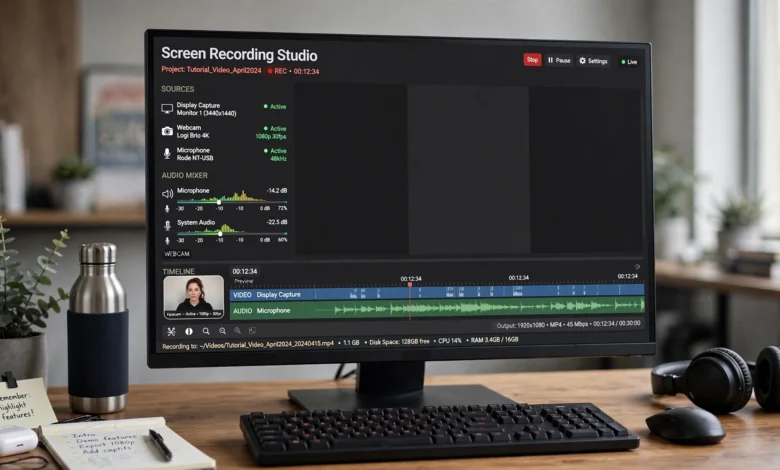
Screen recording software has quietly become one of the most-used tools in any modern workflow. Whether you’re reporting a bug, teaching a course, recording a gaming session, or replacing a 30-minute meeting with a 3-minute video, the right screen recorder saves you time and gets your point across faster than a wall of text ever could.
The problem is that there are dozens of options out there, and they’re not all built for the same job. Some are free but slap a watermark on everything you export. Some are powerful but have a learning curve steep enough to scare off a beginner. Others are polished and simple but charge a monthly fee that adds up fast if you’re a solo creator or a small team.
This guide breaks down the best screen recording software for 2026, split into free and paid categories, so you can pick a tool that actually fits how you work instead of settling for whatever shows up first in a search. I’ll cover what each tool does well, where it falls short, who it’s actually built for, and what it costs. By the end, you’ll know exactly which screen recorder deserves a spot on your computer.
What Makes Good Screen Recording Software?
Before comparing individual apps, it helps to know what separates a genuinely useful screen recording software tool from one that just looks good in a feature list. Here’s what actually matters day to day:
- Recording flexibility — the ability to capture your full screen, a single window, or a custom region, not just one option
- Audio capture — clean recording of both system audio and microphone input, ideally on separate tracks
- Webcam overlay — a picture-in-picture bubble for tutorials and demos where seeing a face builds trust
- Editing tools — at minimum, trimming and cutting; ideally captions, zoom effects, and basic annotations
- Export options — support for common formats like MP4, MOV, or GIF depending on where the video is headed
- Performance — low CPU and GPU overhead so the software doesn’t tank your frame rate mid-recording
- Pricing transparency — a free tier that’s actually usable, or a paid plan with a price that matches the value
Not every tool needs to check every box. A developer recording a quick bug report has very different needs than a course creator producing a 40-lesson curriculum. Keep your actual use case in mind as you read through the list.
Best Free Screen Recording Software
Free doesn’t have to mean limited. A few tools in this category go head-to-head with paid software and win.
1. OBS Studio — Best Overall Free Screen Recording Software
OBS Studio (Open Broadcaster Software) is the closest thing this category has to a gold standard. It’s open-source, completely free, and used by everyone from professional streamers to enterprise teams recording internal training videos.
What makes it stand out:
- No watermarks, no time limits, no locked features behind a paywall
- Supports multiple sources at once — screen capture, webcam, microphone, and even browser sources layered together
- Granular control over bitrate, resolution, and frame rate for exactly the file size and quality you need
- Works on Windows, Mac, and Linux
The trade-off is the learning curve. OBS was originally built for live streaming, so the interface leans technical, with scenes, sources, and audio mixers that can overwhelm a first-time user. If you just need to hit record and go, it’s overkill. If you want full control over your output, it’s hard to beat. You can download it directly from the official OBS Project site.

2. ShareX — Best Free Screen Recorder for Windows Power Users
ShareX is a free, open-source tool built specifically for Windows, and it does more than just record video. It handles screenshots, GIFs, and screen recordings, plus over 80 destinations to automatically upload and share your captures.
Strengths worth noting:
- No watermarks or recording limits
- Built-in image and video editing tools
- Automation features like hotkeys and workflows that trigger multiple actions from a single capture
- Completely free, forever
Like OBS, ShareX isn’t the friendliest tool for a first-time user. The settings menu is dense, and most of its power sits behind configuration screens rather than an obvious interface. But if you’re comfortable digging in, it’s one of the most capable free tools on Windows.
3. Xbox Game Bar — Best Built-In Option for Windows
If you’re on Windows 10 or 11 and don’t want to install anything, Xbox Game Bar is already sitting on your machine. Press Win + G to open it, then Win + Alt + R to start recording instantly.
It’s genuinely useful for quick captures:
- Zero installation, zero setup
- Captures both system audio and microphone
- Saves recordings automatically to your Videos > Captures folder
The catch is that Game Bar can only record individual application windows, not your full desktop, and sessions are capped at four hours. For quick clips or gameplay capture, it’s a solid no-fuss option. For anything involving your desktop or file explorer, you’ll need something else on this list.
4. QuickTime Player — Best Built-In Option for Mac
Mac users have a free screen recorder baked directly into macOS. QuickTime Player lets you record your full screen or a selected portion with a few clicks, and it’s genuinely reliable for simple captures.
To use it: open QuickTime Player, go to File > New Screen Recording, choose your capture area, and hit record. macOS also has a built-in screenshot toolbar you can trigger with Cmd + Shift + 5 for quick, no-install recordings. Apple documents both tools on its official macOS support page.
QuickTime won’t give you editing tools or annotations, but for a fast, dependable recording without downloading anything new, it does the job.
5. ScreenPal (Free Tier) — Best for Beginners Who Want Simplicity
ScreenPal, formerly known as Screencast-O-Matic, offers a genuinely usable free plan aimed at people who don’t want to touch a settings menu. Choose your recording area, toggle your mic and webcam, and click record.
The free tier includes:
- A clean, self-explanatory interface
- Recordings capped at 15 minutes, which covers most tutorials
- No watermark on the free plan
For longer recordings or a full editing suite, the paid plan starts at just a few dollars a month, making it one of the more affordable upgrades on this list if the free tier eventually feels limiting.
Best Paid Screen Recording Software
Paid tools earn their price tag through polish: better editing suites, cloud hosting, and features that save real time once you’re recording regularly.
6. Camtasia — Best Paid Screen Recording Software for Tutorials and Courses
Camtasia, made by TechSmith, is built for people who record and edit often — course creators, corporate trainers, and YouTubers producing polished tutorial content. The recording interface itself is simple: pick your capture area, toggle webcam and mic, and record. The real value is in the editor that comes after.
Camtasia’s editor includes:
- Drag-and-drop effects, transitions, and a library of royalty-free stock media
- Detailed properties panels for fine-tuning every element on your timeline
- Built-in quiz and interactivity tools for training content
It’s a one-time purchase or annual license rather than a per-month subscription trap, which makes it appealing for anyone who records consistently and wants to own the software outright. You can see current plans on TechSmith’s official Camtasia page.
7. Loom — Best Paid Screen Recording Software for Business Communication
Loom isn’t built for polished tutorials, it’s built for fast, async communication. Record your screen with a webcam bubble, and Loom automatically uploads it to the cloud and copies a shareable link to your clipboard. No file exports, no attachments.
Why teams like it:
- Instant cloud hosting and link sharing
- Viewers can leave timestamped comments directly on the video
- AI-generated transcripts and captions on paid plans
The free plan caps you at 25 videos and five-minute recordings, which is fine for occasional use but limiting for daily communication. The paid Business plan removes those caps and unlocks the full feature set. For replacing meetings and long email threads with a two-minute video, it’s one of the most efficient tools available.
8. ScreenFlow — Best Paid Screen Recording Software for Mac Creators
ScreenFlow is a Mac-exclusive tool that pairs high-quality screen capture with a genuinely capable video editor, all in one app. It’s a favorite among Mac-based YouTubers and course creators who want an all-in-one solution without juggling separate recording and editing software.
Notable features:
- Multi-track editing timeline
- Built-in stock media and animation library
- Simultaneous screen, webcam, and audio capture with independent tracks
It’s sold as a one-time purchase rather than a subscription, which appeals to creators who’d rather pay once than get billed monthly forever.
9. Bandicam — Best Paid Screen Recording Software for Gaming and Performance
Bandicam is built around one core strength: capturing high-quality footage with minimal strain on your system. That makes it a favorite for gamers and anyone recording resource-heavy applications where a laggy capture tool would ruin the footage.
Key advantages:
- Support for 4K recording at high frame rates
- Hardware acceleration support for NVIDIA, Intel, and AMD chips
- Lightweight footprint that won’t tank your frame rate mid-recording
The free version includes a watermark and a 10-minute cap, but the paid license removes both and is a one-time purchase rather than a subscription. For long gameplay sessions or demanding software demos, it’s one of the most stable options around.
10. CleanShot X — Best Paid Screen Recording Software for Simplicity on Mac
CleanShot X takes a minimalist approach: fast, clean recordings without a complicated interface. It supports scrolling screenshots, recording timers, and basic audio editing, and it’s designed for people who want a quick, no-friction workflow rather than a full production suite.
It’s not free, but the low-touch design and speed make it worth the price for Mac users who record often and don’t want to fight with settings every time.
Free vs. Paid Screen Recording Software: Which Should You Choose?
There’s no universal right answer here, but a few patterns make the decision easier:
- Choose free software if you record occasionally, don’t need advanced editing, and are comfortable with a slightly steeper learning curve (OBS, ShareX) or a time/feature cap (ScreenPal, Xbox Game Bar).
- Choose paid software if you record regularly, need a polished editor built in, or want cloud hosting and sharing baked into your workflow (Camtasia, Loom, ScreenFlow).
- Choose based on platform first. Some of the best tools, like ScreenFlow and CleanShot X, are Mac-only, while Bandicam and ShareX are Windows-focused. Don’t fall in love with a tool before confirming it runs on your system.
- Test before you commit. Nearly every paid tool on this list offers a free trial. Record the exact type of video you’ll actually be making before paying for a year-long license.
Best Screen Recording Software by Use Case
Different jobs call for different tools. Here’s a quick-reference breakdown:
- For gaming and high-performance capture: Bandicam or OBS Studio
- For business communication and async updates: Loom
- For online courses and tutorials: Camtasia or ScreenPal
- For quick, no-install recordings: Xbox Game Bar (Windows) or QuickTime Player (Mac)
- For Mac creators who want recording and editing in one app: ScreenFlow
- For minimalist, fast captures on Mac: CleanShot X
- For technical users who want full control for free: OBS Studio or ShareX
Frequently Asked Questions
What is the best free screen recording software?
OBS Studio is generally considered the best free option because it has no watermarks, no time limits, and works across Windows, Mac, and Linux. For Windows-only users who want something lighter, ShareX is a strong alternative.
Is screen recording software safe to use?
Reputable tools like the ones listed here are safe, but always download software directly from the official website rather than third-party download sites, which sometimes bundle unwanted extras. For privacy-sensitive recordings, tools that process everything locally, like OBS Studio, avoid uploading your footage to the cloud entirely.
Can I record my screen without downloading anything?
Yes. Both Windows and macOS include free, built-in tools. Windows users can use Xbox Game Bar (Win + G), and Mac users can use QuickTime Player or the screenshot toolbar (Cmd + Shift + 5). Several browser-based recorders also work without installation if you’d rather stay in-browser.
What screen recording software has no watermark on the free plan?
OBS Studio, ShareX, and Xbox Game Bar are all watermark-free on their free tiers. ScreenPal removed its watermark from the free plan as well, though it still limits recordings to 15 minutes.
Which screen recording software is best for a small business?
Loom is built specifically for business communication, with cloud hosting and shareable links that make it easy to send quick updates instead of scheduling meetings. For training material and internal documentation, ScreenPal or Camtasia offer more editing depth.
Conclusion
Choosing the right screen recording software comes down to matching the tool to how you actually work, not just picking whatever ranks first in a search. If you need full control and don’t mind a learning curve, OBS Studio is hard to beat and costs nothing. If you’re recording quick updates for a team, Loom saves you from endless meetings. If you’re building out a course or tutorial library, Camtasia’s editing suite pays for itself over time.
And if you’re gaming or capturing resource-heavy software, Bandicam keeps your footage smooth without dragging down your system. Test a couple of options from this list against your actual workflow, and you’ll know within a single recording session which one deserves a permanent spot on your computer.