How to Stay Safe on Public Wi-Fi
Public Wi-Fi safety made simple: 12 proven tips to protect your passwords, bank details, and devices from hackers at busy cafes, airports, and hotels.
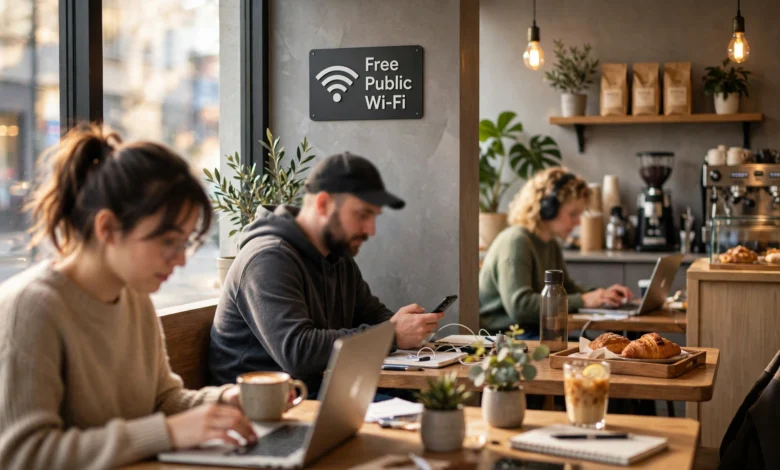
Public Wi-Fi is one of those things we all use without thinking twice. You sit down at a coffee shop, open your laptop, tap the free network, and you’re online in seconds. The same thing happens at airports, hotels, malls, train stations, and hospital waiting rooms. It’s convenient, it saves mobile data, and most of the time nothing bad happens.
The problem is the word “most.” A free Wi-Fi hotspot is shared with strangers, and you have no idea who set it up, how it’s configured, or who else is connected to it. Some of those strangers are there for the same reason you are. A few are not. With cheap equipment and free software, someone sitting three tables away can create a fake network, watch unprotected traffic, or push you toward a login page designed to steal your password.
The good news is that staying safe doesn’t require a computer science degree. A handful of habits will protect you from the vast majority of attacks that happen on public Wi-Fi networks. Some take ten seconds to set up once and then work in the background forever.
This guide explains what the real risks are, in plain language, and then walks through 12 practical steps you can use every time you connect. Whether you’re a student, a remote worker, or someone who travels often, you’ll finish this article knowing exactly how to use public Wi-Fi without putting your accounts, money, or privacy at risk.
Why Public Wi-Fi Is Risky in the First Place
Before getting into the tips, it helps to understand what you’re actually protecting yourself from. Public Wi-Fi security problems usually come down to one fact: you’re sharing a network with people you don’t know, run by someone you can’t verify.
On your home network, you control the router, you set the password, and you know every device connected to it. On public Wi-Fi, none of that is true. Here are the main threats.
Evil Twin Attacks
An evil twin attack is when a hacker creates a fake network with a name that looks legitimate. If the café’s real network is “BeanHouse_Guest,” the attacker might create “BeanHouse Guest” or “BeanHouse_Free.” Your phone sees a familiar-looking name and connects, and now every bit of your traffic passes through the attacker’s device.
This is one of the most common public Wi-Fi tricks because it’s cheap and easy. A small portable router or even a laptop can broadcast a fake hotspot. Hackers also like generic names such as “Free Airport WiFi” or “Hotel_Guest” because people connect to them without a second thought.
Man-in-the-Middle Attacks
A man-in-the-middle attack happens when someone secretly places themselves between your device and the website or service you’re using. They can read, collect, or sometimes change the data passing through. An evil twin network is one way to pull this off, but attackers can also do it on a real public Wi-Fi network by exploiting weaknesses in how devices on the same network talk to each other.
Snooping on Unencrypted Traffic
Many public Wi-Fi networks have no password at all, which means the connection between your device and the router isn’t encrypted. Anyone on the same network with the right tools can capture data that isn’t protected by other means. Thankfully, most websites now use HTTPS, which encrypts your traffic regardless of the network. But older sites, some apps, and certain background services may still send information in a readable form.
Exposed Devices and Malware
When you join a public Wi-Fi network, your device becomes visible to everyone else on it. If you have file sharing, printer sharing, or network discovery turned on, other users may be able to see or access parts of your system. Outdated devices with unpatched security holes are especially at risk, since attackers can use known flaws to install malware that stays on your device long after you leave.
Fake Login and Captive Portal Pages
Many public Wi-Fi hotspots show a sign-in page (called a captive portal) before letting you online. They might ask for your email, your room number, or a social media login. Attackers copy this idea. A fake portal might ask you to “sign in with Google” or enter a credit card for “premium access,” and whatever you type goes straight to the attacker.
12 Proven Tips for Public Wi-Fi Safety
Now for the practical part. You don’t need to do every single one of these every time, but the more you follow, the safer you’ll be. The first few matter most.
1. Confirm the Exact Network Name Before You Connect
This is the simplest step and one of the most effective for public Wi-Fi safety. Look for a sign, a card on the table, or ask a staff member for the exact network name and password. Then match it character for character.
Be suspicious of:
- Networks with small spelling differences from the official name
- Two networks with almost identical names
- Generic names like “Free WiFi” with no business attached
- Open networks at places that normally use a password
If something looks off, don’t connect. It takes five seconds to ask, and it defeats most evil twin setups.
2. Use a Trusted VPN on Public Wi-Fi
A VPN (virtual private network) creates an encrypted tunnel between your device and the VPN server. Even if you accidentally join a malicious public Wi-Fi network, the attacker sees scrambled data instead of your actual activity.
A few things to keep in mind when choosing one:
- Pick a reputable paid provider with a clear no-logs policy and independent audits. Many free VPNs make money by collecting and selling your data, which defeats the purpose.
- Turn on the “kill switch” feature if your VPN has one. It blocks internet access if the VPN connection drops, so your data never slips out unprotected.
- Set it to connect automatically on untrusted networks, so you don’t have to remember.
A VPN is not magic. It won’t stop you from typing your password into a phishing page or downloading malware. But it closes off a big chunk of the risks that come with public Wi-Fi.
If your company provides a work VPN, use it whenever you’re doing work on public Wi-Fi. That’s exactly what it’s for.
3. Stick to HTTPS Websites
HTTPS encrypts the data between your browser and the website, so even someone watching the network can’t read what you send. Look for “https://” at the start of the address and a padlock or settings icon in the address bar.
Most major sites use HTTPS by default now, which has made public Wi-Fi a lot safer than it was ten years ago. To close the remaining gaps:
- Turn on HTTPS-only mode in your browser (Chrome, Firefox, Edge, and Safari all offer some version of this)
- Never ignore a browser warning that says a connection isn’t private or a certificate is invalid, especially on public Wi-Fi
- Be careful with sites that ask for sensitive information but don’t use HTTPS
A certificate warning on a site that normally works fine is a red flag. It can be a sign that someone is intercepting your connection.
4. Turn Off Auto-Connect
Your phone and laptop remember networks you’ve joined before and reconnect automatically. That’s handy at home, but on the road it’s a weakness. If an attacker creates a network with the same name as one you’ve used before (say, “Airport_Free_WiFi”), your device might connect without asking you.
Here’s what to do:
- Go into your Wi-Fi settings and turn off auto-join for public Wi-Fi networks
- Remove (“forget”) old networks you no longer use, especially from hotels, airports, and cafés
- Consider turning Wi-Fi off entirely when you’re out and not using it
This forces you to choose each public Wi-Fi connection on purpose, which gives you a chance to check it first.
5. Disable File Sharing and Network Discovery
On a home network, sharing files and printers between devices is useful. On public Wi-Fi, it can expose your files to strangers.
- On Windows: When you connect, choose “Public network” as the network profile. This automatically hides your device and turns off sharing. You can check this in Settings under Network & Internet.
- On Mac: Go to System Settings, then General, then Sharing, and turn off file sharing, screen sharing, and other options you don’t need.
- On phones: Turn off AirDrop (set it to “Contacts Only” or “Receiving Off”) and nearby sharing features when you’re in public.
6. Keep Your Firewall Turned On
A firewall blocks unwanted incoming connections to your device. Both Windows and macOS include one, and it should be on at all times, but it matters most on public Wi-Fi.
On Windows, the firewall is usually on by default. On a Mac, it’s often off by default, so go to System Settings, then Network, then Firewall, and switch it on. It costs you nothing and adds a solid layer of protection.
7. Update Your Devices and Apps
Software updates often fix security holes that attackers already know about. An outdated phone or laptop on public Wi-Fi is an easy target because the attacker doesn’t need anything clever; they just use a known flaw.
Make these habits automatic:
- Turn on automatic updates for your operating system
- Keep your browser updated (most do this on their own)
- Update apps regularly, especially banking, email, and messaging apps
- Replace devices that no longer receive security updates
8. Turn On Two-Factor Authentication
Two-factor authentication (2FA) means a stolen password alone isn’t enough to get into your account. The attacker would also need a code from your phone, an authenticator app, or a physical security key.
This is one of the best protections you can have, on public Wi-Fi or anywhere else. If a hacker grabs your password through a fake login page, 2FA can stop them cold. Turn it on for:
- Email accounts (your email is the key to resetting everything else)
- Banking and payment apps
- Social media accounts
- Cloud storage like Google Drive, iCloud, or Dropbox
- Work accounts
Authenticator apps and security keys are more secure than text message codes, but any form of 2FA is far better than none.
9. Avoid Sensitive Tasks, or Use Mobile Data Instead
Even with a VPN and HTTPS, it’s smart to save your most sensitive activity for a network you trust. That includes:
- Online banking and money transfers
- Entering credit card details
- Filing taxes or accessing government accounts
- Logging into work systems that hold confidential data
If you really need to do one of these things while out, switch to your mobile data or use your personal hotspot. Cellular connections are encrypted and much harder to tamper with than open public Wi-Fi. Tethering your laptop to your phone uses some data, but for a quick banking task it’s a trivial amount.
10. Be Careful With Captive Portals and Pop-Ups
Treat any sign-in page on public Wi-Fi with a bit of suspicion. A legitimate captive portal might ask you to accept terms, enter a room number, or type a simple password. Be wary if it asks for:
- Your email password or a “sign in with Google/Microsoft” login you didn’t expect
- Credit card details for access that should be free
- Downloads of any kind, such as a “connection helper” or “security update”
Never download software from a Wi-Fi login page. That’s a classic way to get malware onto a device. If you must provide an email address, consider using a secondary one you don’t use for important accounts.
11. Use a Password Manager
A password manager helps with public Wi-Fi safety in a way people often overlook. Good password managers only autofill your login on the real website. If you land on a fake page that looks exactly like your bank but sits on a different web address, the password manager won’t fill anything in. That’s a strong warning sign.
It also means you can use long, unique passwords for every account. So if one password does leak, the damage stays limited to that single account.
12. Log Out and Forget the Network When You’re Done
When you finish using a public Wi-Fi hotspot, take a moment to clean up:
- Log out of any accounts you used, especially on shared or borrowed devices
- Disconnect from the network
- Tell your device to “forget” the network so it won’t reconnect later
- Turn Wi-Fi off if you don’t need it
This small habit keeps your device from quietly joining that network again next time, including a fake copy set up by someone else.
Quick Public Wi-Fi Safety Checklist
If you want a short version to remember, run through this list each time you connect to public Wi-Fi:
- Is this the exact network name the business gave me?
- Is my VPN on?
- Is my firewall on and sharing turned off?
- Am I only visiting HTTPS sites?
- Is what I’m about to do sensitive enough that I should use mobile data instead?
- Did I log out and forget the network when I finished?
It sounds like a lot at first, but after a week or two most of this becomes automatic, and much of it (VPN, firewall, updates, 2FA) only needs setting up once.
Public Wi-Fi Security on Phones vs. Laptops
People tend to think of public Wi-Fi security as a laptop problem, but phones face the same risks. In some ways they face more, since they auto-connect constantly and people use them for banking and shopping on the go.
Phones
- Turn off auto-join for public Wi-Fi networks in your Wi-Fi settings
- On iPhone, keep “Private Wi-Fi Address” enabled (it’s on by default) to reduce tracking
- On Android, use the randomized MAC address option, which is usually on by default
- Install apps only from official app stores
- Use your banking app rather than a browser, since official apps typically have extra protections built in
Laptops
- Always choose the “Public” network profile on Windows
- Keep the firewall on, especially on Macs where it’s often off by default
- Lock your screen whenever you step away, even briefly
- Use a privacy screen if you work with sensitive information in crowded places
That last point matters more than people think. Sometimes the biggest public Wi-Fi risk isn’t technical at all; it’s someone reading your screen over your shoulder.
Is It Safe to Use Public Wi-Fi for Online Banking?
This is one of the most searched questions about public Wi-Fi, and the honest answer is: it’s safer than it used to be, but still not ideal.
Banks use strong encryption, and most banking apps won’t work over a connection they detect has been tampered with. Combined with 2FA, that makes a successful attack less likely. The remaining risk comes mostly from fake networks, fake login pages, and malware on your device.
If you absolutely need to bank on public Wi-Fi, use your bank’s official app, make sure your VPN is on, and double-check you’re on the right network. Better yet, switch to mobile data for those few minutes. That’s the simplest way to remove most of the risk.
For more official guidance, the U.S. Federal Trade Commission offers a clear breakdown in its guide on whether public Wi-Fi networks are safe, and Kaspersky’s public Wi-Fi security tips explain how attackers use compromised accounts once they get access.
Frequently Asked Questions About Public Wi-Fi
Does a password-protected public Wi-Fi network make it safe?
Not really. A password keeps random people off the network, but if everyone in the café has the same password, anyone there can join, including an attacker. A password helps a little, but you should still treat password-protected public Wi-Fi as untrusted.
Can someone hack my phone just because I joined public Wi-Fi?
It’s uncommon on a fully updated phone, but it’s possible on outdated devices with known security flaws. Keeping your phone updated and avoiding downloads from login pages removes most of this risk.
Is incognito mode enough on public Wi-Fi?
No. Incognito or private browsing only stops your browser from saving history and cookies on your device. It doesn’t encrypt your traffic or hide anything from the network. It does nothing for public Wi-Fi security.
Are free VPNs good enough?
Some are fine for occasional use, but many free VPNs collect and sell user data, show ads, or have weak security. If you use public Wi-Fi often, a paid, audited VPN is worth the small monthly cost.
What should I do if I think I connected to a fake network?
Disconnect right away and forget the network. Then change the passwords for any accounts you logged into while connected, starting with your email. Check those accounts for unusual activity, and make sure 2FA is turned on.
Conclusion
Public Wi-Fi isn’t something you need to fear, but it is something you should respect. The real risks, such as evil twin networks, man-in-the-middle attacks, fake login pages, and exposed devices, are well known, and so are the fixes. Confirm the network name before you connect, use a trusted VPN, stick to HTTPS, turn off auto-connect and file sharing, keep your firewall and software updated, and protect your accounts with two-factor authentication and a password manager.
For banking and other sensitive tasks, your mobile data or personal hotspot is almost always the better choice, and when you’re finished, log out and forget the network. Most of these steps take only a few minutes to set up once, and together they turn public Wi-Fi safety from a guessing game into a simple routine you can follow anywhere.

