How to Back Up Your Data Without Losing Sleep
Learn how to back up your data the right way with a simple 3-2-1 backup rule, the best tools, and 7 steps that actually stop 3am panic.
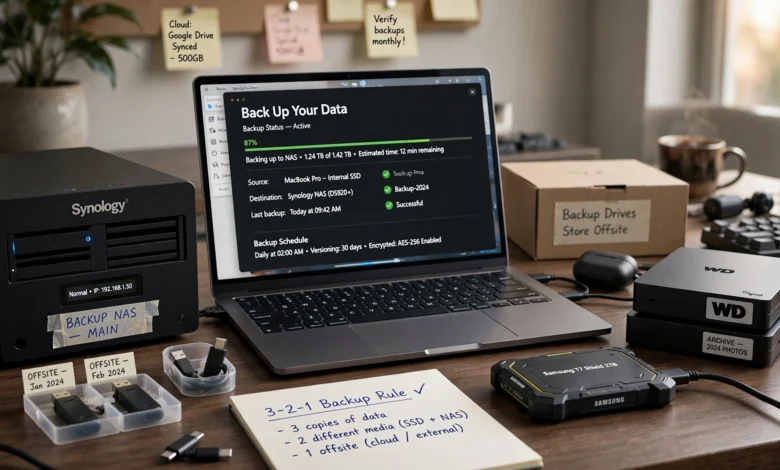
Most people don’t think about how to back up your data until the moment it’s already too late. A laptop takes a tumble, a hard drive clicks instead of spins, or a ransomware note pops up on the screen, and suddenly three years of photos, tax documents, or client files are gone. It’s a sick feeling, and it’s completely avoidable.
The good news is that data backup isn’t complicated once you understand the basic logic behind it. You don’t need to be an IT professional or spend hundreds of dollars a month. You need a simple system that runs quietly in the background and that you’ve actually tested, so you know it works before you need it to.
This guide walks through exactly how to back up your data without turning it into a part-time job. We’ll cover the classic 3-2-1 backup rule, how to pick the right mix of local and cloud storage, which mistakes trip up even careful people, and how to set things up once so you never have to think about it again. By the end, backing up your files will feel less like a chore and more like locking your front door: a five-second habit that lets you actually relax.
Why Backing Up Your Data Actually Matters
It’s easy to assume your data is safe just because nothing bad has happened yet. But data loss is far more common than most people realize, and it rarely announces itself in advance.
A few of the everyday ways data disappears:
- Hardware failure — hard drives and SSDs wear out, and most give little to no warning before they die
- Accidental deletion — a wrong click, an overwritten file, a folder dragged into the trash without noticing
- Theft or loss — laptops and phones get stolen or left behind more often than anyone likes to admit
- Ransomware and malware — attackers now specifically target backups, not just your main files, which is why how you back up matters as much as whether you do it
- Natural disasters — fire, flooding, and power surges can wipe out every device in a single room at once
If your only copy of something lives on one device, you don’t actually have a backup. You have a single point of failure with a due date you can’t see. A proper data backup strategy removes that risk entirely, and it costs far less in money and stress than recovering from a loss ever will.
The 3-2-1 Backup Rule (and Why It Still Works)
If you take one thing from this article, make it this: the 3-2-1 backup rule is the foundation almost every serious backup strategy is built on, whether you’re protecting a single laptop or an entire company. It’s been around since photographer Peter Krogh popularized it in the mid-2000s, and it has aged remarkably well.
Here’s the rule in plain terms:
- 3 copies of your data — the original plus two backups
- 2 different types of storage media — so a single technology failure can’t wipe out everything
- 1 copy stored off-site — away from your home or office, so a local disaster can’t take out every copy at once
What Counts as a Backup
Your working copy — the file open on your laptop right now — doesn’t count as one of your three copies. It’s the original. A real backup is a separate, independent copy that isn’t affected if something happens to your main device.

Two Different Media Types
This means not putting all your backups on, say, two external hard drives sitting next to each other. Mix it up: an internal drive plus an external drive, or a local backup plus a cloud backup. Different media types fail in different ways, so spreading your copies across them protects you from a single bad batch of hardware or a single vulnerability.
One Copy Off-Site
This is the part people skip, and it’s the part that actually saves you during a fire, flood, break-in, or serious ransomware attack. Cloud storage naturally satisfies this requirement, since your files live in a data center far from your desk. If you’d rather keep things physical, rotating an external drive to a relative’s house or a safe deposit box works too.
As threats have evolved, some organizations now extend this to 3-2-1-1-0, adding one immutable or air-gapped copy that ransomware can’t touch, plus a commitment to zero errors during recovery testing. For most individuals and small businesses, the classic 3-2-1 approach is still more than enough, but it’s worth knowing the upgraded version exists if you’re protecting something you truly can’t afford to lose.
Step-by-Step: How to Back Up Your Data Without Losing Sleep
Here’s how to actually put the 3-2-1 rule into practice, broken into steps you can knock out in an afternoon.
Step 1: Take Inventory of What You Actually Need to Protect
Before you buy anything or install any software, figure out what actually matters. Trying to back up everything on every device usually leads to a system so bulky that people quietly stop using it.
Focus on:
- Documents, spreadsheets, and tax or financial records
- Photos and videos you can’t recreate or redownload
- Work files, client data, and anything tied to your income
- Application settings or configurations that would take real time to rebuild
Skip anything easily replaceable, like downloaded software installers or media you already own on a streaming service. This keeps your backup strategy lean and your restores fast.
Step 2: Pick Your Local Backup Method
This is your second copy, and the one you’ll use most often for quick, everyday recovery, like undoing an accidental delete.
Common options:
- External hard drive or SSD — plug in, back up, done; affordable and simple
- Network-attached storage (NAS) — a small dedicated device on your home or office network that backs up multiple computers automatically
- A second internal drive — useful for desktops, though it won’t protect you from theft or fire on its own
For most individuals, a decent external SSD paired with built-in backup software (Time Machine on Mac, File History on Windows) covers this step completely.
Step 3: Add a Cloud Backup
This is your off-site copy, and it’s the one that actually protects you when something happens to your home or office. A cloud backup service continuously or automatically uploads your files to a remote data center, so even if your house burns down, your data doesn’t.
Look for a service that offers:
- Continuous or scheduled automatic backups, not manual uploads you have to remember
- Encryption both in transit and at rest
- Enough version history to recover a file from before it was corrupted or encrypted by malware
- Reasonable restore speed, since a backup that takes a week to retrieve isn’t much use in an emergency
Carnegie Mellon first formalized this guidance in a 2012 paper for the United States Computer Emergency Readiness Team, and it’s still echoed today by organizations like the US Chamber of Commerce, which recommends it as the baseline every small business backup plan should meet.
Step 4: Automate Everything
Manual backups fail for one simple reason: humans forget. The single biggest upgrade you can make to any backup strategy is removing yourself from the process entirely.
- Set your local backup software to run on a schedule (daily is a good default for anything you actively work on)
- Turn on continuous or hourly sync for your cloud backup
- Enable notifications so you’re alerted if a backup fails, rather than discovering it during a crisis
Once this is set up correctly, you shouldn’t have to think about backing up your data again until you get a failure alert, which should be rare.
Step 5: Encrypt Your Backups
A backup that anyone can open isn’t much better than no backup at all if the device or account ever falls into the wrong hands. Enable encryption on your external drives (most modern operating systems make this a checkbox) and confirm your cloud provider encrypts files both while they’re uploading and while they’re sitting in storage. This is especially important for anything containing financial, medical, or client information.
Step 6: Test Your Restores
This is the step almost everyone skips, and it’s the one that turns “I have a backup” into “I know my backup works.” A backup you’ve never restored from is a guess, not a safety net.
- Pick a handful of files and actually restore them somewhere new every few months
- Confirm the files open correctly and aren’t corrupted
- If you use versioned backups, practice restoring an older version, not just the most recent one
Set a recurring reminder for this. Quarterly is a reasonable cadence for most people, and it’s the single habit that separates a real data backup plan from a false sense of security.
Step 7: Protect Against Ransomware with Immutable Backups
Modern ransomware doesn’t just encrypt your live files anymore; it actively hunts for connected backup drives and cloud accounts to encrypt those too. This is why more backup services now offer immutable backups, meaning once a file is backed up, it can’t be altered or deleted for a set period, even by someone with the right password.
If your provider offers this (sometimes labeled as object lock, WORM, or a “ransomware protection” toggle), turn it on for at least one of your backup copies. It’s a small setting that can be the difference between a minor inconvenience and losing everything.
Don’t Forget Your Phone
When people picture data backup, they usually picture a laptop or desktop. But phones quietly become one of the most irreplaceable devices most of us own, holding years of photos, texts, and two-factor authentication access to everything from banking to email.
- iPhone: Turn on iCloud Backup, or plug into a computer and run a local encrypted backup through Finder or iTunes for a true off-cloud copy
- Android: Enable Google’s built-in backup for photos, contacts, and app data, and consider a manual backup to a computer for anything you can’t risk losing to a lost or reset device
- Either platform: Check that your photo backup setting is actually turned on, not just installed. It’s one of the most common gaps people discover only after losing a phone
Treat your phone like any other device in your backup strategy. If losing it would cost you sleep, it belongs in your plan.
How Much Does a Good Backup Setup Actually Cost
Cost is one of the biggest reasons people put off backing up their data, but a solid setup is cheaper than most people expect, especially compared to the cost of professional data recovery, which can run into the hundreds or thousands of dollars with no guarantee of success.
A reasonable budget looks something like this:
- External drive or SSD (one-time cost): A few dollars per gigabyte for a quality drive that will likely outlast your current computer
- Cloud backup subscription (monthly or yearly): Most consumer plans with unlimited storage cost less than a couple of streaming subscriptions combined
- NAS device (optional, one-time cost): A worthwhile upgrade for households or small offices backing up multiple computers, though not strictly necessary for a single-device setup
- Free options: Built-in tools like Time Machine and File History cost nothing beyond the price of an external drive, and many cloud providers include a small amount of free storage that’s enough for critical documents even if not your whole photo library
The point isn’t to spend as little as possible, it’s to spend enough that you actually trust the system and stop thinking about it. A cheap backup you don’t trust and constantly second-guess isn’t actually saving you any stress at all.
Backing Up Data for a Small Business
Everything above applies to individuals, but small business owners have a few extra things worth thinking about, since the stakes usually include more than personal memories.
- Compliance requirements. Depending on your industry, regulations like HIPAA or GDPR may dictate how long data must be retained and how it needs to be protected, which affects your backup strategy directly.
- Multiple devices and shared drives. A single external hard drive won’t cut it once you’re protecting several employees’ machines or a shared server. This is where NAS devices and centralized cloud backup tools earn their cost.
- Recovery time matters more. For a business, the question isn’t just “did we lose the file,” it’s “how many hours of downtime will restoring it cost us.” Look for providers who publish clear recovery time expectations rather than vague promises.
- Employee training. A backup plan is only as strong as the habits of the people using the systems it protects. Make sure staff know where sensitive files are supposed to live and how backups are triggered, so nothing important ends up sitting only on a personal laptop.
None of this changes the underlying logic. The 3-2-1 rule still applies, it just scales up with more devices and a bit more process around it.
Common Backup Mistakes That Keep People Up at Night
Even people who mean to back up their data regularly fall into a handful of predictable traps:
- Only backing up to one place. A single external drive is better than nothing, but it’s not a real backup plan; it’s a delay.
- Keeping the backup drive next to the computer. If both are in the same room, a fire, flood, or theft takes out both at once.
- Never checking whether backups actually completed. Failed backups can run silently for months without anyone noticing.
- Forgetting mobile devices. Phones hold years of photos and messages that people rarely think to back up separately.
- Backing up infected files without realizing it. If malware makes it into your backup rotation before you catch it, you can end up restoring the very problem you were trying to escape. This is exactly why testing restores and keeping some version history matters.
- Assuming cloud storage and cloud backup are the same thing. Syncing a folder to Dropbox or Google Drive is convenient, but it’s not a substitute for a real, versioned backup that protects against accidental overwrites or deletions syncing across every device.
Backup Tools Worth Considering
You don’t need to overthink this part. A handful of reliable tools cover the vast majority of situations well.
For Individuals
- Built-in OS tools — Time Machine (Mac) and File History (Windows) are free, simple, and handle your local backup without any extra software
- Cloud backup services — dedicated backup providers continuously back up your entire computer, not just a folder, and typically include unlimited storage tiers
- A rotating external drive — cheap insurance for a full off-network copy you can store at a second location
For Small Businesses
- NAS devices with cloud sync — protect multiple computers on-site while automatically pushing an off-site copy
- Managed backup software — handles scheduling, encryption, and versioning across every device in the office from one dashboard
- Immutable cloud storage — object storage with locking features (like Amazon S3 or similar S3-compatible platforms) that resists ransomware even if an attacker gets valid credentials
Whatever you choose, prioritize a provider that’s transparent about how its recovery testing process works and can prove your backups are complete and recoverable, rather than one that only markets storage space.
How Often Should You Back Up Your Data
There’s no single right answer here, it depends on how much you’d hate to lose a day, a week, or a month of work.
- Daily backups make sense for anything you actively work on: documents, ongoing projects, client files
- Continuous or real-time backups are worth it for business-critical data or anything changing constantly throughout the day
- Weekly backups are usually fine for personal photo libraries or archives that don’t change often
- Before major changes — always back up before a big software update, an operating system upgrade, or moving to a new device
If you’ve automated your backups in Step 4 above, this question mostly answers itself. The schedule just needs to match how painful it would be to lose whatever changed since the last backup ran.
Frequently Asked Questions
Is cloud storage the same as a backup? No. Cloud storage syncs a folder across devices, so a deleted or corrupted file often deletes or corrupts everywhere it’s synced. A true backup keeps independent, versioned copies you can roll back to.
How many backup copies do I really need? Three total, following the 3-2-1 rule: your original data plus two backups on different media, with at least one stored off-site.
Can I just back up to an external hard drive and call it done? You can, but it only protects you from device failure or accidental deletion, not from fire, theft, or anything that happens to the room your drive is sitting in. Pair it with a cloud copy for real protection.
What’s the biggest mistake people make with backups? Never testing them. A backup you haven’t restored from is an assumption, not a guarantee.
Conclusion
Backing up your data doesn’t need to be complicated, expensive, or something you only think about after a crash has already happened. Once you understand the logic behind the 3-2-1 backup rule, three copies, two types of media, one off-site, the rest is just picking tools and automating the process so it runs quietly in the background. Take inventory of what actually matters, set up a local and a cloud backup, encrypt everything, and test your restores a few times a year so you know your safety net actually holds.
Do that once, and you’ll never have to lie awake wondering what would happen if your laptop died tonight, because you’ll already know the answer: nothing much, since your data was never really at risk in the first place.