USB-C vs Thunderbolt: Key Differences Explained
USB-C vs Thunderbolt — they look identical, but they're not. Discover the 7 critical differences that affect speed, power, displays, and your next device purchase.
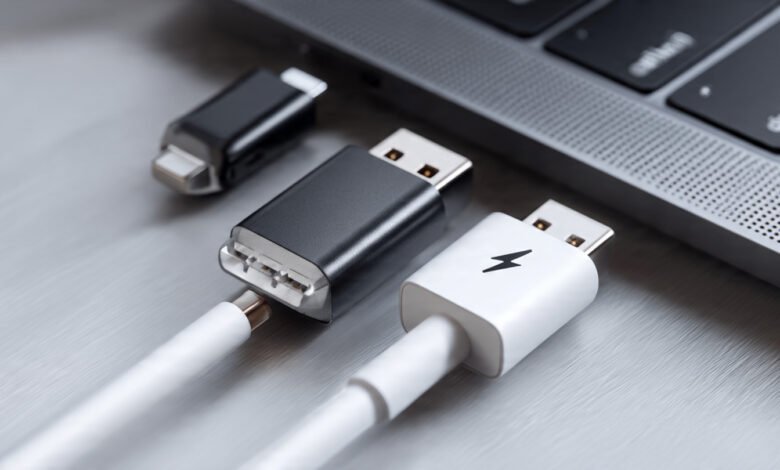
USB-C vs Thunderbolt is one of the most genuinely confusing debates in consumer tech today — and honestly, the confusion makes sense. Both ports look the same. Both use the same small, oval connector. Both can charge your laptop, transfer files, and push video to an external display. So when someone tells you there’s a meaningful difference between them, your first instinct might be to roll your eyes.
But the difference is real, and in certain situations, it matters quite a bit.
Think of it this way: a regular city road and a highway can both get you from point A to point B. But if you’re moving a full truck’s worth of cargo under a deadline, those roads are not interchangeable. That’s roughly the relationship between USB-C and Thunderbolt. One is a universal standard built for broad compatibility. The other is a premium, high-performance protocol built for professionals, power users, and anyone pushing serious data through a cable.
This guide breaks down everything you need to know — data speeds, power delivery, display support, daisy-chaining, backward compatibility, cost, and real-world use cases. Whether you’re buying a new laptop, picking out a docking station, or just trying to figure out which cable in your drawer is which, you’ll leave this article knowing exactly what sets these two technologies apart.
Let’s start at the beginning.
What Is USB-C? A Quick Baseline
Before diving into the USB-C vs Thunderbolt comparison, it helps to understand what USB-C actually is — because there’s a lot of conflation between the connector shape and the protocol.
USB-C is a connector format. It’s the small, reversible, oval-shaped plug you’ll find on virtually every modern laptop, smartphone, tablet, and peripheral made in the last several years. The “C” in USB-C refers to the connector type, not a specific speed standard.
What runs through that connector is a different story. The USB-C port on your phone may run USB 2.0 speeds (480 Mbps). The USB-C port on a mid-range laptop might support USB 3.2 Gen 2, which tops out at 10 Gbps. A high-end laptop might have a USB-C port running USB4, which can reach 40 Gbps. Same connector, wildly different performance.
Here’s how the USB-C speed spectrum stacks up:


- USB 2.0: Up to 480 Mbps
- USB 3.2 Gen 1: Up to 5 Gbps
- USB 3.2 Gen 2: Up to 10 Gbps
- USB 3.2 Gen 2×2: Up to 20 Gbps
- USB4 Gen 2×2: Up to 20 Gbps
- USB4 Gen 3×2: Up to 40 Gbps
Not every USB-C port supports video output, fast charging, or high-speed data. Whether it does depends on the protocol running underneath. This is exactly why knowing whether you have a plain USB-C port or a Thunderbolt port can make or break your setup.
What Is Thunderbolt? Understanding the Protocol
Thunderbolt is a hardware interface developed by Intel, originally in collaboration with Apple. It launched in 2011 and went through several generations before arriving at where it is today.
The key point: Thunderbolt is not a connector shape — it’s a protocol. Starting with Thunderbolt 3, it adopted the USB-C connector, which is why the two look absolutely identical. But Thunderbolt brings a much richer feature set along for the ride.
Here’s the generational breakdown:
- Thunderbolt 1: Up to 10 Gbps, used Mini DisplayPort connector
- Thunderbolt 2: Up to 20 Gbps, still Mini DisplayPort
- Thunderbolt 3: Up to 40 Gbps, switched to USB-C connector
- Thunderbolt 4: Up to 40 Gbps, tighter mandatory standards than TB3
- Thunderbolt 5: Up to 120 Gbps (with Bandwidth Boost), USB-C connector
The lightning bolt symbol (⚡) printed next to a port is the clearest way to identify a Thunderbolt port. If you don’t see it, assume you’re working with plain USB-C until you verify the specs in your device’s documentation.
USB-C vs Thunderbolt: The 7 Key Differences
1. Data Transfer Speed
This is the headline difference and the one most people care about.
USB-C in its most common form — USB 3.2 Gen 2 — maxes out at 10 Gbps. Even the faster USB 3.2 Gen 2×2 tops out at 20 Gbps. Only USB4, which is relatively new and not universally supported, can theoretically match Thunderbolt at 40 Gbps.
Thunderbolt 3 and Thunderbolt 4 both offer a guaranteed minimum bandwidth of 40 Gbps in each direction. Thunderbolt is capable of transferring data at rates up to 40 Gbps, compared to the 10 Gbps top speed of standard USB-C.
Thunderbolt 5, the newest generation, raises that ceiling significantly. With its Bandwidth Boost feature, it can deliver up to 120 Gbps for display output while maintaining 80 Gbps for data — a huge leap forward for 8K displays and next-generation external GPUs.
In practice, what does this mean? If you’re copying a 100GB video file from an external SSD:
- At USB 3.2 Gen 2 (10 Gbps): roughly 80–90 seconds
- At Thunderbolt 3/4 (40 Gbps): roughly 20–25 seconds
For a video editor, that’s not a minor inconvenience — that’s the difference between a smooth workflow and a frustrating afternoon.
Important caveat: You only get Thunderbolt speeds when you use a certified Thunderbolt cable and connect to a Thunderbolt port on both ends. These speeds are only possible when using a Thunderbolt cable with a Thunderbolt port, not a USB-C port. A Thunderbolt cable plugged into a standard USB-C port will only perform at USB-C speeds.
2. Power Delivery
Power delivery is actually an area where the two technologies are fairly close — but not identical in the details.
Both USB-C and Thunderbolt support the USB Power Delivery (USB PD) specification, which allows cables and ports to negotiate charging power intelligently. Under USB PD, both can theoretically deliver up to 100W, which is enough to charge most laptops.
Where they differ is in baseline behavior. Standard USB-C cables usually deliver around 2.5W of power by default, while Thunderbolt cables can reach up to 10W by default — though both can deliver up to 100W when used with Power Delivery-supported devices.
Thunderbolt 4 added a mandatory requirement: at least one Thunderbolt port on every compliant computer must support charging. This means that if you’re buying a laptop specifically marketed with Thunderbolt 4, you’re guaranteed a charging port — something that wasn’t always the case with USB-C implementations.
Thunderbolt 5 pushes power delivery further, with support for up to 240W via the updated USB PD 3.1 specification — enough to power the most demanding gaming laptops and workstations through a single cable.
3. Display Support
This is where Thunderbolt genuinely shines over standard USB-C.
A Thunderbolt 3 or Thunderbolt 4 port can support:
- Two external 4K monitors at 60Hz simultaneously
- One 8K monitor at 60Hz
- Multiple displays through a single Thunderbolt dock
Standard USB-C ports are more complicated. To support any external display, a USB-C port must support DisplayPort Alternate Mode (Alt Mode). Not all USB-C ports do. While USB-C can support external displays, the host device must support DisplayPort Alternate Mode if you intend to use an external display over USB-C.
Even among USB-C ports that do support DisplayPort Alt Mode, they typically max out at a single 4K display — not two.
Thunderbolt 5 escalates this further, with native support for dual 8K displays or a single 16K display when combined with DisplayPort 2.1 — territory that’s squarely aimed at high-end creative professionals and future-proofed workstation builds.
For everyday users running a single 1080p or 1440p monitor, the display difference probably won’t matter much. For someone building a dual 4K editing suite, Thunderbolt is the clear winner.
4. PCIe Support and eGPU Compatibility
One of the most significant — and least discussed — advantages of Thunderbolt is its support for PCI Express (PCIe).
Thunderbolt supports PCIe devices like fast external hard drives and external GPUs. USB-C cannot connect to these kinds of devices.
This matters enormously if you’re interested in an external GPU (eGPU). An eGPU lets you connect a full desktop graphics card to a laptop via a Thunderbolt port, dramatically boosting gaming or rendering performance without needing a desktop. This is technically impossible with standard USB-C, which doesn’t carry the PCIe protocol.
Thunderbolt 3 supports PCIe 3.0 x4 (about 16 Gbps of PCIe bandwidth). Thunderbolt 4 doubled this to PCIe 3.0 x8 (32 Gbps), making eGPU setups more practical. Thunderbolt 5 supports PCIe 4.0, which raises the ceiling even further.
If you ever want to run an eGPU, expand your system’s storage with NVMe enclosures, or use a high-speed RAID setup — you need Thunderbolt.
5. Daisy-Chaining
Daisy-chaining means connecting multiple devices in a chain, each linked to the next, all running back to a single port on your computer. This is a workspace cleanliness dream — one cable from your laptop, and everything else connects through it.
Thunderbolt supports daisy-chaining up to 6 compatible devices on one port, allowing you to connect multiple devices together for a clean, clutter-free workspace. With USB-C, these devices would each need their own USB-C port on the host device.
In practical terms, you could connect your laptop to a Thunderbolt dock, which connects to an external monitor, which connects to an external hard drive, which connects to another peripheral — all through a single Thunderbolt cable from your laptop. Standard USB-C simply doesn’t have this capability.
For professionals with complex desk setups, this is a feature that makes a real difference in daily usability.
6. Backward Compatibility
Backward compatibility is one area where Thunderbolt’s design team made a smart decision.
Thunderbolt ports are backward compatible with USB-C. If you plug a USB-C device into a Thunderbolt port, it will work — just at USB-C speeds, not Thunderbolt speeds. A Thunderbolt port will support any USB-C device by reverting to USB-C mode and supporting the device to the max of its USB-C capabilities.
The reverse is not true. A USB-C port cannot natively support a Thunderbolt device. If you plug a Thunderbolt device into a USB-C port, you’ll get basic USB-C functionality at best — or nothing at all, depending on what the device is trying to do.
Thunderbolt 4 is also backward compatible with Thunderbolt 3, and both Thunderbolt 3 and 4 are compatible with USB4. This layered compatibility is one of the reasons Thunderbolt has been gaining ground — buying into the ecosystem doesn’t mean abandoning your older cables and devices.
Thunderbolt 3, 4, and 5 ports on a computer host are compatible with all USB4, 3.2, 3.1, 3.0, and 2.0 cables and peripherals, running at the speed of the respective USB data standard.
7. Cost and Availability
This is where USB-C wins cleanly, and it’s not a close contest.
Because USB-C is an open standard, manufacturers don’t pay licensing fees to use it. This keeps device costs down and makes USB-C ports available across virtually every price tier — budget smartphones, entry-level laptops, cheap accessories, everything.
Thunderbolt is a proprietary Intel technology. While Intel made Thunderbolt royalty-free starting with Thunderbolt 3, the certification process still adds cost. Thunderbolt controllers, cables, and certified accessories cost significantly more to produce. Certified Thunderbolt 4 cables can cost several times what a quality USB-C cable costs. Thunderbolt docks typically run $150–$400+, while capable USB-C hubs can be had for $30–$80.
Thunderbolt ports are also more selective about where they appear. You’ll find them primarily on:
- MacBooks (all modern models)
- Intel Evo-certified laptops
- High-end Windows workstations
- iPad Pro models
Budget laptops, Chromebooks, and most Android devices don’t include Thunderbolt ports. For most everyday computing tasks, this is fine. But if you need Thunderbolt, you need to buy hardware that actually includes it — which usually means spending more money.
How to Tell If Your Port Is USB-C or Thunderbolt
This is a practical question that trips a lot of people up. Here’s how to figure it out:
- Look for the lightning bolt symbol. A small ⚡ icon next to a port indicates Thunderbolt. If the port is unmarked or shows a USB symbol, it’s standard USB-C.
- Check your device’s spec sheet. The manufacturer’s product page will list whether ports support Thunderbolt and which version.
- Look up your device’s model number. Intel’s website and third-party databases like notebookcheck.net list port specifications by model.
- Check System Information (Mac) or Device Manager (Windows). Both will show Thunderbolt controller information if the port is Thunderbolt-capable.
Thunderbolt ports often have a lightning bolt symbol next to the port. USB-C ports may be unmarked or show a symbol for power or DisplayPort.
USB-C vs Thunderbolt: Which One Do You Actually Need?
Here’s the honest answer: it depends entirely on what you’re doing.
You’re fine with USB-C if you:
- Use your laptop for browsing, documents, video calls, and streaming
- Connect a single external monitor (and your USB-C port supports DisplayPort Alt Mode)
- Charge your laptop with a USB-C power adapter
- Transfer files occasionally and aren’t moving large volumes daily
- Are working with a tight budget
You should look for Thunderbolt if you:
- Edit 4K or 8K video professionally and need fast external storage
- Run a multi-monitor setup with two or more 4K displays
- Use or plan to use an eGPU for gaming or GPU-accelerated rendering
- Want a Thunderbolt dock that consolidates all your peripherals into one cable
- Run bandwidth-intensive workflows — audio production, scientific computing, large-scale data analysis
- Are an Apple user (all modern Macs include Thunderbolt as standard)
For most people, an honest look at their workflow will reveal that USB-C is sufficient. Thunderbolt is a genuinely excellent technology, but it’s optimized for use cases that a large percentage of users never encounter.
Thunderbolt 4 vs Thunderbolt 5: A Quick Note on Where Things Are Heading
Thunderbolt 4, released in 2020, tightened the mandatory spec requirements compared to Thunderbolt 3. While both offer 40 Gbps speeds, Thunderbolt 4 guarantees:
- PCIe 32 Gbps bandwidth (double Thunderbolt 3’s minimum)
- Support for two 4K displays or one 8K display
- Mandatory USB Power Delivery charging on at least one port
- Intel VT-d-based DMA protection against physical memory attacks
- Wake-from-sleep via Thunderbolt hub connection
While Thunderbolt 4 is a later generation, its leap from Thunderbolt 3 isn’t as dramatic as the switch from Thunderbolt 1 and 2. Both newer versions use identical USB-C connectors and offer the same 40 Gbps top speed, but Thunderbolt 4 supports an impressive PCIe data rate of 32 Gbps compared to the 16 Gbps of Thunderbolt 3.
Thunderbolt 5, which began appearing in late 2023 and into 2024 and 2025, is the real generational leap. It offers:
- 80 Gbps bidirectional bandwidth (baseline)
- Up to 120 Gbps with Bandwidth Boost for display-heavy configurations
- PCIe 4.0 support
- USB PD up to 240W
- Support for dual 8K displays or a single 16K display
For anyone building a cutting-edge workstation in 2025 or beyond, Thunderbolt 5 is worth paying attention to — especially as the ecosystem of Thunderbolt 5 docks, cables, and peripherals continues to expand.
For deeper reading on the USB4 and Thunderbolt 5 relationship, the USB Implementers Forum’s official documentation is an authoritative reference. Intel’s Thunderbolt technology overview page also lays out the certified specifications clearly.
Common Misconceptions About USB-C and Thunderbolt
“All USB-C cables are the same.” They’re not. USB-C cables vary widely in what they support — some carry only charging (no data), some support USB 2.0 speeds, and some support full USB 3.2 or USB4. Always check the cable spec before assuming performance.
“A Thunderbolt cable will make my USB-C port faster.” No. The port determines the maximum capability, not the cable. A Thunderbolt cable in a USB-C port performs at USB-C speeds.
“If my laptop has USB-C, it probably has Thunderbolt.” Not necessarily. Many laptops — especially budget models — have USB-C ports that run only USB 3.2 or USB 2.0. Thunderbolt is a specific, certified protocol that must be explicitly included.
“USB4 and Thunderbolt 4 are the same thing.” Close, but not identical. USB4 Gen 3×2 and Thunderbolt 4 share the same 40 Gbps speed ceiling, and USB4 optionally supports Thunderbolt 3 compatibility. But Thunderbolt 4 has stricter mandatory standards — particularly around PCIe bandwidth and display support — meaning a Thunderbolt 4 port is guaranteed to meet requirements that a USB4 port might or might not.
Conclusion
USB-C vs Thunderbolt isn’t really a competition — it’s a matter of understanding where each technology fits. USB-C is the universal foundation, built into nearly every device on the planet and capable enough for the vast majority of everyday tasks. Thunderbolt builds on that foundation and raises the ceiling significantly, offering faster data transfers, multi-display support, PCIe connectivity, daisy-chaining, and guaranteed performance minimums that make it the right choice for creative professionals, power users, and anyone running a complex workstation.
The two are physically compatible — you can plug USB-C into Thunderbolt ports and vice versa — but their capabilities are not interchangeable. Knowing the difference means you can buy the right hardware, pick the right cable, and get every bit of performance your setup can deliver.