Best Monitors for Remote Work in 2026
Best monitors for remote work in 2026: 9 tested 4K, ultrawide, and USB-C picks for productivity, eye care, and a clutter-free home office.
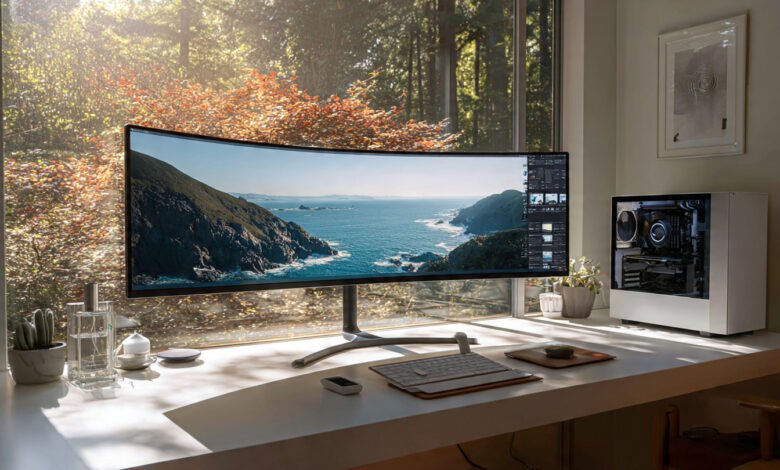
The best monitors for remote work in 2026 are not just bigger or sharper than what you bought three years ago. They have become the quiet hub of the modern home office: one cable to your laptop, power delivery, a built-in KVM switch, an Ethernet port, and a panel that no longer melts your eyes by 4 p.m. If you are still squinting at a 13-inch laptop screen during back-to-back video calls, you are leaving real productivity on the table.
I spent the last few weeks reading through the latest reviews from RTINGS, PCWorld, IT Pro, and a handful of independent testers, then cross-referenced them with current pricing and specs. The shortlist below covers nine displays that genuinely earn their spot in 2026, from a $240 4K budget pick to a 6K creative monster, plus the ultrawides and portable screens that solve very specific problems.
This guide is built around how people actually work from home today: long Zoom blocks, spreadsheets that never end, design files, code, and the occasional Slack avalanche. I will explain what specs matter, where to spend, where to save, and which mistakes to avoid before you click buy. By the end, you will know exactly which work from home monitor fits your desk, your laptop, and your wallet.
What Makes a Great Remote Work Monitor in 2026
Before the picks, it helps to understand what separates a forgettable office screen from one of the best monitors for remote work in 2026. The market has shifted fast over the last 24 months, and the spec sheet that mattered in 2023 is no longer the one to chase.
Resolution: 1440p, 4K, or 5K?
Resolution is the single biggest factor in how sharp your text looks and how many windows you can fit side by side.
- 1080p (Full HD) is fine on a 24-inch panel, but on anything larger it starts to look soft. Reserve it for budget builds or secondary screens.
- 1440p (QHD) is the productivity sweet spot on a 27-inch display. You get noticeably crisper text than 1080p without the scaling headaches that some apps still have at 4K.
- 4K (3840 x 2160) is now the default for serious remote work on 27-inch and 32-inch panels. Text is razor sharp, and you can fit two full-width documents side by side with room to breathe.
- 5K and 6K are reserved for designers, video editors, and developers who want Retina-level pixel density on a Mac or a high-end Windows workstation.
For most people, a 27-inch 4K monitor is the right answer in 2026. According to monitor testing site RTINGS.com, 4K at 27 inches has overtaken 1440p as the preferred resolution for office use.
Screen Size: How Big Is Too Big?
Bigger screens are not automatically better. Your desk depth, viewing distance, and whether you wear glasses all matter.
- 24 inches: Best for compact desks under 60 cm deep, single-task work, and writers who want fewer distractions.
- 27 inches: The all-around winner. Comfortable at standard viewing distances, easy to mount, and available at every price point.
- 32 inches: Ideal for spreadsheets, code editors with a side panel, and creative work. Needs at least 70 cm of desk depth.
- 34-inch ultrawide: Roughly equal to two 24-inch monitors with no bezel in the middle. Excellent for multi-window workflows.
- 49-inch super ultrawide: A statement piece. Replaces a dual monitor setup entirely but demands a deep desk and a strong neck.
Panel Type and Color Accuracy
In 2026, the panel debate basically comes down to three options: IPS, IPS Black, and OLED.
IPS panels are the safe default. They offer wide viewing angles and accurate colors at a reasonable price. IPS Black, pioneered by Dell and now widely adopted, doubles or triples the contrast ratio (up to 3000:1) so blacks look closer to true black than washed-out gray. OLED gives you perfect blacks and stunning HDR, but it costs more and carries a small risk of burn-in if you leave the same window open for months on end.

For most remote workers, an IPS or IPS Black panel with 100% sRGB coverage is more than enough. Designers should look for monitors with 99% DCI-P3 and a Delta E under 2 for accurate color reproduction.
Connectivity: USB-C, Thunderbolt 4, and the One-Cable Setup
This is where modern productivity monitors earn their keep. A good 2026 monitor can replace your $200 Thunderbolt dock entirely.
Look for these ports:
- USB-C with Power Delivery (90W to 140W): One cable from your laptop carries video, data, and charging.
- Thunderbolt 4: Higher bandwidth, daisy chaining, and faster data transfer than plain USB-C.
- Built-in USB hub: At least three or four USB-A and USB-C downstream ports.
- Ethernet (RJ45): Wired internet through a single cable. Hugely useful for video calls.
- KVM switch: Lets you use one keyboard and mouse across two computers (handy if you juggle a personal laptop and a work laptop).
If you remember nothing else from this section, remember this: a USB-C hub monitor with 90W or higher power delivery is the single best desk-decluttering upgrade you can make in 2026.
Eye Care and Ergonomics
Eight hours a day in front of a screen adds up. The American Optometric Association’s recommendations on digital eye strain include the well-known 20-20-20 rule (every 20 minutes, look at something 20 feet away for 20 seconds), but your monitor itself does a lot of the heavy lifting.
Features worth looking for include:
- Flicker-free backlight to reduce eye fatigue
- Low blue light mode for evening work
- Matte anti-glare coating so window light does not bounce into your face
- Ambient light sensor that automatically adjusts brightness as the room changes
- Full ergonomic stand with height, tilt, swivel, and pivot adjustment
- VESA mount compatibility in case you want a monitor arm later
The 9 Best Monitors for Remote Work in 2026
These are the displays I would actually recommend to a friend setting up a home office today. They are listed by use case, not by price, so you can jump straight to the one that fits.
1. Dell UltraSharp U2725QE: Best Overall Monitor for Remote Work
If you want the single best 27-inch 4K monitor for working from home in 2026, this is it. The U2725QE pairs Dell’s enhanced IPS Black panel with a 3000:1 contrast ratio, a 120Hz refresh rate, and a Thunderbolt 4 hub that delivers up to 140W of power to your laptop.
Key specs:
- 27-inch 4K (3840 x 2160) IPS Black panel
- 120Hz refresh rate, 5ms response time
- 100% sRGB, 99% DCI-P3 color coverage
- Thunderbolt 4 with 140W power delivery
- Built-in KVM switch and 2.5GbE Ethernet
- Pop-out USB-C and USB-A quick-access ports
- ComfortView Plus low blue light, ambient light sensor
Who it is for: Hybrid professionals who want one cable from their MacBook or Windows laptop and never want to think about a docking station again. At around $680, the U2725QE basically replaces a Thunderbolt dock and a regular home office monitor in one purchase.
The only real downside is a slightly slow 8ms native response time, which barely matters for office work but rules it out for serious gaming.
2. Dell P2725QE: Best Value 4K USB-C Hub Monitor
Most people do not need the U2725QE’s IPS Black contrast or 120Hz refresh rate. The Dell P2725QE drops both, keeps the USB-C hub with 90W power delivery, and comes in around $420. That is genuinely excellent value for a 27-inch 4K display with built-in Ethernet.
Why it works for remote work:
- Single-cable laptop docking
- Crisp 4K resolution for spreadsheets and documents
- Solid color accuracy out of the box
- Full ergonomic stand
- Three-year advance exchange warranty
For about 80% of remote workers, the P2725QE is the smarter buy than its premium sibling. You pay roughly $250 less and you barely notice the missing features in day-to-day work.
3. Samsung ViewFinity S80UD: Best Mid-Range All-Rounder
Samsung’s S80UD lives in the sweet spot between budget and premium. Around $450 gets you 4K resolution, 90W USB-C power delivery, a built-in KVM switch, and HDR10 support. It is one of the better values on the market right now if you want to avoid the Dell tax.
Standout features:
- 27-inch 4K IPS panel
- 90W USB-C charging
- KVM switch built in
- HDR10 support for occasional video viewing
- Adjustable stand with pivot
The trade-off versus the Dell P2725QE is fewer downstream USB ports. If you mostly plug in a webcam, an external SSD, and a charging cable, that will not bother you. If you have a mouse, keyboard, headset, dock, and webcam all running through the monitor, the Dell hub is more flexible.
4. ASUS ProArt PA279CRV: Best for Designers and Creatives
If your remote work involves Photoshop, Premiere Pro, or any kind of color-critical task, the ASUS ProArt PA279CRV is the obvious pick under $500.
Why it earns its spot:
- 27-inch 4K IPS panel
- 99% DCI-P3 and 99% Adobe RGB coverage
- Calman Verified factory calibration
- Delta E under 2 out of the box
- USB-C with 96W power delivery
- Hardware calibration support
You are essentially getting a professional creative display at a consumer price. Photographers, video editors, and UI designers who cannot justify a $1,200 BenQ PD2730S will find this one delivers 90% of the experience for half the cost.
5. Dell S2725QS: Best Budget 4K Monitor
For anyone whose company gave them a $300 stipend and said “go pick something,” the Dell S2725QS is the best 4K monitor for remote work you can get under $250.
What you get:
- 27-inch 4K (3840 x 2160) IPS panel
- 120Hz refresh rate
- 99% sRGB color coverage
- Solid Dell build quality
- HDMI and DisplayPort
What you give up: no USB-C hub, no power delivery, no KVM switch. You are getting a great panel without the dock features. If you have a separate Thunderbolt dock or your laptop already has plenty of ports, that is a non-issue.
6. LG 34WQ75C-B: Best Ultrawide Monitor on a Budget
If you live in multiple windows all day (developers, project managers, financial analysts), an ultrawide monitor will quietly change your life. The LG 34WQ75C-B at around $600 is the best entry point.
Highlights:
- 34-inch curved 3440 x 1440 IPS panel
- 90W USB-C power delivery
- 100% sRGB color coverage
- Picture-in-picture and picture-by-picture support
- Built-in KVM functionality
A 34-inch ultrawide gives you roughly the same horizontal space as two 24-inch 1080p monitors, but with no bezel gap in the middle. Once you have used one for a week, going back to a single 16:9 panel feels cramped.
7. Dell UltraSharp U3225QE: Best 32-Inch 4K Monitor
For spreadsheet warriors, coders, and anyone who wants more vertical space without going ultrawide, the 32-inch U3225QE is the natural upgrade from the 27-inch U2725QE. Same IPS Black panel, same Thunderbolt 4 hub, same 140W power delivery, just bigger.
Why size matters here:
- More vertical lines of code or rows in Excel
- Comfortable side-by-side document editing without scaling
- Easier on the eyes if you sit further back
- Same connectivity and KVM features as the 27-inch model
You will need a desk at least 70 cm deep to use it comfortably. At around $950, it is not cheap, but it is the most future-proof productivity display on this list.
8. ASUS ProArt PA32QCV: Best Premium Display for Power Users
If money is not the issue and you want the best productivity monitor RTINGS has tested for office work, the ASUS ProArt PA32QCV is currently sitting at the top of their list. 6K resolution on a 32-inch panel gives you Mac-grade pixel density, and the color accuracy is good enough for professional video work.
Specs that matter:
- 32-inch 6K (6016 x 3384) IPS panel
- 98% DCI-P3 coverage
- Hardware calibration with included colorimeter compatibility
- Thunderbolt 4 with 96W power delivery
- Full ergonomic stand
This is overkill for spreadsheets and email. It is exactly right for remote film editors, photographers, and 3D artists who need every pixel they can get.
9. ASUS ZenScreen MB16ACV: Best Portable Monitor for Travel
Not every remote worker is at home. If you split time between a coffee shop, a co-working space, and the kitchen table, a portable monitor is the most underrated upgrade you can make.
Why this one:
- 15.6-inch 1080p IPS panel
- USB-C with DisplayPort Alt Mode
- Lightweight (around 780g) and slim
- Smart cover doubles as a stand
- Hybrid signal works with USB-A on older laptops
It will not replace a desktop display, but it solves the “I am stuck on a 13-inch laptop screen” problem instantly. Pair it with your laptop and you double your usable workspace anywhere you go.
4K vs. Ultrawide: Which Layout Wins for Remote Work?
This is the most common question I get from people setting up a home office, and the honest answer is: it depends on how you work.
A 27-inch 4K monitor is better for:
- Reading, writing, and document-heavy work
- Color-sensitive tasks like photo and video editing
- Pixel-dense work where text clarity matters most
- Anyone with a smaller desk or limited budget
An ultrawide monitor (34-inch and up) is better for:
- Multi-window workflows (code editor plus terminal plus browser)
- Project management and dashboards with lots of side-by-side data
- Video calls where you want a Zoom window on one side and notes on the other
- Replacing a dual monitor setup with a single seamless screen
If you spend most of your day in one or two apps, go 4K. If your screen is always cluttered with five different windows, go ultrawide.
Single Monitor vs. Dual Monitor Setup
The classic productivity question. A dual monitor setup has been the home office standard for over a decade, and it still works well. But the math has changed in 2026.
A single 27-inch 4K display now offers enough pixels to fit two full documents side by side. A 34-inch ultrawide gives you even more. You no longer need two monitors to multitask comfortably.
Choose a single large monitor when:
- Desk space is limited
- You want a cleaner look with one cable
- You hate the bezel gap that splits your view
- You work mostly in two windows at once
Choose a dual monitor setup when:
- You need one screen for video calls and another for actual work
- You have to monitor different content types (code on one, logs on another)
- You want a vertical secondary screen for long documents
- You already own one good monitor and want to expand cheaply
The most popular dual monitor setup right now is a 27-inch 1440p or 4K primary paired with a 24-inch 1080p secondary. It is balanced, affordable, and fits on most desks.
Why Eye Care and Ergonomics Matter More Than Specs
You can buy the most expensive monitor on this list and still end up with neck pain and tired eyes if your setup is wrong. This is the part of the buying decision most people skip, and it has more impact on your day than refresh rate or color gamut.
A few rules I keep coming back to:
- Top of the screen at eye level. Use the monitor’s built-in stand or a monitor arm to get there. Looking down at a screen all day causes neck strain.
- Arm’s length away. Roughly 50 to 70 cm from your eyes for a 27-inch panel.
- Match brightness to the room. A monitor with an ambient light sensor handles this automatically. Otherwise, drop brightness to around 120 cd/m² in a normal office.
- Use the 20-20-20 rule. Every 20 minutes, look at something 20 feet away for 20 seconds.
- Anti-glare coating beats a glossy panel for most home offices, especially if you have a window behind you.
A solid ergonomic stand with height, tilt, swivel, and pivot adjustment matters more than an extra 100 nits of brightness. Every monitor on this list has one.
USB-C, Thunderbolt 4, and the One-Cable Dream
The single biggest shift in work from home monitors over the past two years is connectivity. Modern laptops, especially MacBooks and ultrabooks, have very few ports. A good USB-C hub monitor solves that problem in one purchase.
Here is what to look for:
| Feature | Why It Matters |
|---|---|
| USB-C with 90W+ Power Delivery | Charges most laptops over the same cable that carries video |
| Thunderbolt 4 | Higher bandwidth, daisy-chain a second monitor, faster external drives |
| Downstream USB-A and USB-C ports | Plug your webcam, mouse, keyboard, and SSD into the monitor |
| RJ45 Ethernet | Wired internet for stable video calls without a separate adapter |
| KVM switch | One keyboard and mouse across a personal and work laptop |
| DisplayPort out | Daisy-chain a second monitor with one extra cable |
If your laptop is a MacBook Pro or a modern Dell XPS, prioritize 140W power delivery so you can run the laptop at full performance without a separate charger. For lighter ultrabooks, 65W to 90W is plenty.
Common Mistakes to Avoid When Buying a Monitor
A few patterns I see again and again from people who end up regretting their purchase:
- Buying based on screen size alone. A 32-inch panel sounds great until you sit 50 cm from it and feel like you are at an IMAX.
- Ignoring the panel type. A cheap TN panel will save you $50 and ruin your viewing angles.
- Skimping on the stand. A monitor without height adjustment will mess up your posture. Either buy one with a good stand or budget for a separate monitor arm.
- Forgetting USB-C. If your laptop has USB-C, get a monitor with USB-C. Cable clutter compounds.
- Chasing high refresh rates for office work. 60Hz is fine. 120Hz feels nicer to scroll. Anything above is for gamers.
- Buying glossy panels for sunny rooms. Anti-glare matte coatings exist for a reason.
- Picking a 4K monitor without checking laptop specs. Older laptops with weak integrated graphics may struggle to drive 4K at 60Hz, especially on multiple displays.
FAQs About Choosing a Remote Work Monitor
What size monitor is best for working from home in 2026?
For most people, a 27-inch monitor at 4K or 1440p is the productivity sweet spot. It fits on standard desks, gives you enough room for side-by-side windows, and works at a comfortable viewing distance.
Is 4K worth it for remote work?
Yes, especially in 2026. 4K monitors have come down in price (the Dell S2725QS is around $240), and the sharper text genuinely reduces eye strain over long workdays.
Should I get one big monitor or two smaller ones?
A single 27-inch 4K or 34-inch ultrawide replaces most dual monitor setups in 2026. Stick with two screens only if you genuinely need separate workspaces for different content types.
Do I need USB-C on my monitor?
If your laptop has USB-C or Thunderbolt, yes. A USB-C hub monitor declutters your desk, charges your laptop, and connects all your peripherals through one cable. It is the single biggest quality-of-life improvement you can make.
What is the best monitor for video calls?
Any 27-inch 4K IPS monitor with a good webcam mounted on top. Built-in webcams in monitors are still mostly mediocre, so plan to use an external one. Look for a panel with at least 350 cd/m² brightness so your face is well-lit on calls.
Are curved monitors better for productivity?
For 34-inch ultrawides and larger, yes. The curve keeps the edges of the screen at a roughly equal viewing distance from your eyes, which reduces strain. For 27-inch and smaller flat panels, the curve does not matter much.
Final Verdict and Conclusion
The best monitors for remote work in 2026 all share the same basic DNA: a sharp 4K or 1440p IPS panel, USB-C with power delivery, a solid ergonomic stand, and enough downstream ports to replace your dock. The Dell UltraSharp U2725QE is the best overall pick if budget allows, the LG 34WQ75C-B is the ultrawide entry point most people should buy, and the Dell S2725QS is the budget 4K winner.
Whichever one you choose, the upgrade from a laptop screen to a proper external display is the single biggest productivity boost a remote worker can make this year. Match the monitor to how you actually work, get the ergonomics right, and the rest takes care of itself.