Best External Hard Drives for Backup
Best external hard drives for backup in 2026. Tested picks from WD, Seagate & Samsung to protect your data and find the right drive for any budget.
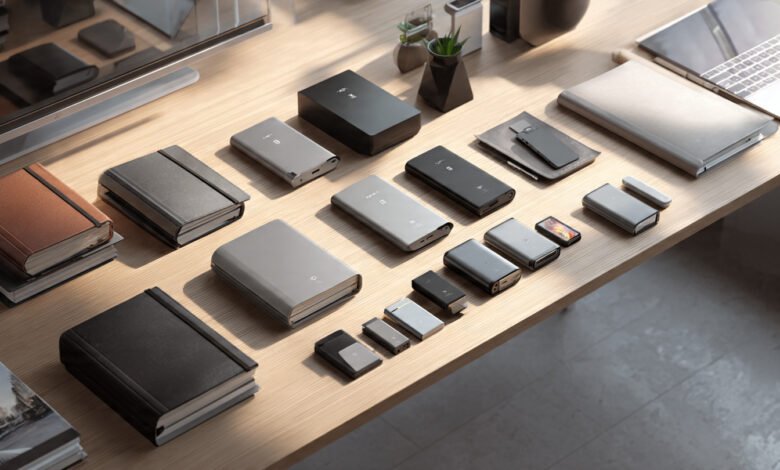
Best external hard drives for backup are one of the most practical investments you can make for your digital life. Hard drives fail. Laptops get dropped. Ransomware happens. And when it does, the only thing standing between you and losing everything is whether you made a backup copy before it happened.
The problem is that there are hundreds of drives on the market right now, all promising to be the best. Some deliver. A lot don’t. This article cuts through the noise by looking at what actually matters: real-world transfer speeds, storage capacity, build quality, compatibility, and long-term data protection.
Whether you’re a student protecting three years of coursework, a photographer with thousands of RAW files, a freelancer who cannot afford to lose client work, or just someone who wants to back up family photos before they disappear, there is a drive in this guide built for your situation.
We’ve analyzed what the top-rated drives offer in 2026, compared specs from brands like WD, Seagate, Samsung, LaCie, Toshiba, and SanDisk, and structured this guide so you can find your best match in under five minutes. Let’s get into it.
Why You Still Need an External Hard Drive for Backup
Cloud storage is convenient, but it has limits. Monthly fees add up, upload speeds can bottleneck large files, and what happens when your internet goes down the night before a big deadline?
An external hard drive backup gives you something cloud storage cannot: a local, physical copy of your data that you own outright, accessible anytime, no subscription required.
The well-known 3-2-1 backup rule says it best: keep three copies of your data, stored on two different types of media, with one copy stored offsite or in the cloud. A reliable external drive covers at least two of those bases on its own.
Beyond that, external backup drives are getting better and cheaper every year. You can now get 5TB of portable storage for under $100, which simply wasn’t possible a few years ago. There has never been a better time to get your backup habit sorted.
What to Look for in the Best External Hard Drives for Backup
Before jumping into recommendations, here are the key specs that actually matter when shopping for an external hard drive for data backup.

Storage Capacity
For most people, 2TB to 5TB is the sweet spot. Two terabytes holds roughly 500,000 photos or 500 hours of HD video. If you’re a content creator working with 4K footage, you’ll want 8TB or more. Desktop drives offer more capacity at a lower cost per gigabyte, while portable drives trade raw size for convenience.
Transfer Speed and Interface
Speed depends on two things: the drive type (HDD vs SSD) and the port it uses.
- USB 3.0 drives typically hit 100-130 MB/s for HDDs
- USB 3.2 Gen 2 drives reach 500-1,000 MB/s
- USB4 / Thunderbolt SSDs can hit 2,000-3,000 MB/s
For straightforward file backup, USB 3.0 speeds are more than sufficient. If you’re editing video directly from the drive, you’ll want USB 3.2 Gen 2 or better.
HDD vs SSD
- HDDs cost less per terabyte, come in larger capacities (up to 36TB for desktop), and are better for long-term archival storage. However, they have moving parts and are sensitive to drops and shocks.
- SSDs are faster, more durable, lighter, and more portable, but cost significantly more per gigabyte and aren’t ideal for archival storage where data sits untouched for years.
For most backup use cases, a high-capacity HDD is the most practical and affordable choice.
Durability and Build Quality
If your drive lives on a desk, build quality is less critical. If it travels with you, look for shock resistance, IP-rated dust and water protection, and rugged casing. Drives like the LaCie Rugged and SanDisk Extreme are built specifically for this.
Security Features
Look for 256-bit AES hardware encryption and password protection if you’re storing sensitive work files or personal documents. WD My Passport and Seagate Backup Plus Ultra Touch both offer this.
Compatibility
Most drives work out of the box with both Windows and Mac, though some come pre-formatted for one OS. Always check before buying. Drives that support USB-C connectivity are ideal for modern laptops.
Warranty
Look for at least a 2-3 year warranty. Both WD and Seagate offer 3-year warranties on most of their consumer portable drives.
Best External Hard Drives for Backup in 2026
Here are the 10 best options available right now, covering every budget and use case.
1. WD My Passport 5TB — Best Overall External Hard Drive for Backup
The WD My Passport is the most consistently recommended portable external hard drive in this category, and for good reason. It packs strong security features into a compact, lightweight form factor that fits in a jacket pocket.
Key specs:
- Capacity: 1TB, 2TB, 4TB, 5TB
- Interface: USB 3.0 / USB-C (USB 3.2 Gen 1)
- Speed: 105-130 MB/s read
- 256-bit AES hardware encryption with password protection
- WD Backup software included
- Available in six color options
- 3-year warranty
The 5TB version is the best value in the lineup. It gives you enough room for multiple full backups plus versioned copies of your most important folders. WD Backup software lets you set automatic backup schedules, so you’re not relying on remembering to plug in the drive.
The one complaint users consistently raise is the Micro-B USB connector, which feels dated compared to more modern USB-C designs. That said, an adapter is included, and it doesn’t affect performance.
Best for: Most home users who want a reliable, secure, and portable everyday backup drive.
2. Seagate Backup Plus Slim 2TB — Best for Slim Portability
The Seagate Backup Plus Slim is exactly what the name suggests: it’s one of the thinnest portable backup drives on the market at just 0.48 inches thick. If you’re carrying a drive in a slim laptop bag every day, this one slides in and out without taking up much room at all.
Key specs:
- Capacity: 1TB, 2TB
- Interface: USB 3.0
- Speed: up to 120 MB/s
- Seagate Dashboard backup software
- Mobile backup app (iOS and Android)
- 3-year warranty
The software bundle is genuinely useful. Seagate’s Dashboard lets you back up your PC and your phone simultaneously when the drive is connected. The mobile app backs up your contacts, photos, and messages over Wi-Fi.
One thing to watch: the USB port on some units can develop wobble over time with heavy use, so handle it carefully when plugging and unplugging.
Best for: Students and commuters who want the slimmest possible form factor without sacrificing backup features.
3. Samsung Portable SSD T7 — Best External SSD for Backup
If you want speed alongside your backup routine, the Samsung T7 is the clear winner in the SSD category at a reasonable price point. It’s bus-powered, fits in a shirt pocket, and transfers files three to five times faster than a typical HDD.
Key specs:
- Capacity: 500GB, 1TB, 2TB
- Interface: USB 3.2 Gen 2 (10 Gbps)
- Speed: up to 1,050 MB/s read / 1,000 MB/s write
- AES 256-bit hardware encryption
- Shock resistant (no moving parts)
- 3-year warranty
The T7 is especially good if you’re running backup software that verifies files after writing, since faster speeds mean your backup window is much shorter. It’s also significantly more durable than any HDD since there’s nothing inside to break.
The trade-off is price per terabyte. You’ll pay roughly three to four times more per gigabyte compared to a comparable HDD. For most people, the 1TB model hits the right balance between cost and storage.
Best for: Anyone who needs fast, durable, portable backup and doesn’t need more than 2TB of storage space.
4. LaCie Rugged Mini — Best Rugged External Drive for Backup
The LaCie Rugged Mini is the gold standard for people who work outdoors, on construction sites, in studios, or anywhere a regular drive would be at risk. The bright orange rubberized bumper is iconic at this point, and it’s not just for show.
Key specs:
- Capacity: 1TB, 2TB, 5TB
- Interface: USB 3.0 / USB-C
- Speed: up to 130 MB/s
- Drop resistant up to 2 meters
- IP54 dust and splash resistant
- Pressure resistant up to 1 ton
- 3-year warranty
Real-world durability is where this drive earns its premium. Seagate (which owns LaCie) builds these to take serious punishment. For field photographers, videographers, and anyone who travels in unpredictable conditions, the Rugged is worth every extra dollar.
The 5TB version added in recent years gives you more room without sacrificing the rugged form factor.
Best for: Photographers, videographers, construction professionals, or anyone working in harsh environments.
5. WD Elements Desktop 8TB — Best High-Capacity Desktop Backup Drive
When you need serious storage at an honest price, the WD Elements Desktop is hard to beat. It’s a 3.5-inch desktop drive, so it needs its own power supply, but what you get in return is massive storage capacity at a very low cost per terabyte.
Key specs:
- Capacity: 3TB, 4TB, 6TB, 8TB, 10TB, 12TB, 14TB, 16TB
- Interface: USB 3.0
- Speed: up to 130 MB/s
- Plug-and-play, compatible with Windows and Mac
- 3-year warranty
This is the drive you want if you’re backing up an entire household’s worth of photos and videos, running a small business backup, or archiving large media libraries. The 8TB version sits in a sweet spot for price, and the drive is formatted NTFS out of the box for Windows (Mac users will need to reformat or use a third-party NTFS driver).
Best for: Home users and small business owners who need maximum storage capacity and don’t need portability.
6. Toshiba Canvio Flex 2TB — Best Cross-Platform External Drive
The Toshiba Canvio Flex deserves more attention than it gets. It’s one of the few portable drives that includes both USB-A and USB-C cables in the box, and it works with Windows, Mac, and tablets right out of the box without reformatting.
Key specs:
- Capacity: 1TB, 2TB, 4TB
- Interface: USB 3.2 Gen 1 (USB-C)
- Speed: up to 120 MB/s
- Compatible with PC, Mac, and USB-C tablets
- Silver aluminum finish
- 3-year warranty
The design is understated and professional-looking, which is a nice change from the plastic-heavy competition. If you’re using the same drive across a Mac at home and a Windows machine at work, the Flex saves you the formatting headache.
Best for: Users who switch between Mac and Windows, or who use tablets for work alongside a laptop.
7. SanDisk Extreme Portable SSD — Best for Travel Backup
The SanDisk Extreme Portable SSD is built for people constantly on the move. It’s IP65-rated for water and dust resistance, has a carabiner loop built into the design, and delivers read speeds up to 1,050 MB/s.
Key specs:
- Capacity: 500GB, 1TB, 2TB, 4TB
- Interface: USB 3.2 Gen 2
- Speed: up to 1,050 MB/s read / 1,000 MB/s write
- IP65 water and dust resistant
- 256-bit AES hardware encryption
- Built-in carabiner attachment point
- 5-year warranty
The 5-year warranty is notably longer than most competitors. For a travel backup drive, that extra assurance matters a lot. SanDisk also makes a Pro version with USB4 speeds up to 2,000 MB/s for those who need even faster data transfer speeds.
Best for: Digital nomads, travel photographers, and anyone who needs fast, rugged, portable backup on the go.
8. Seagate Expansion Desktop 8TB — Best Budget High-Capacity Drive
If the WD Elements Desktop is a touch over budget, the Seagate Expansion Desktop gives you very similar performance for less money. It’s no-frills storage: plug it in, it shows up, you drag your files over.
Key specs:
- Capacity: 2TB, 4TB, 6TB, 8TB, 10TB, 16TB
- Interface: USB 3.0
- Speed: up to 130 MB/s
- Simple plug-and-play setup
- 3-year warranty
There’s no backup software bundle, no encryption, and no fancy features. That’s fine for users who just want a large, reliable place to put their files. For straightforward data backup of large photo and video archives, this drive does the job without charging you for features you’ll never use.
Best for: Budget-conscious users who need a large desktop backup drive without any frills.
9. G-Drive ArmorATD 2TB — Best Rugged Drive for Mac Users
Made by SanDisk Professional (formerly G-Technology), the G-Drive ArmorATD is specifically designed with Mac users in mind. It comes pre-formatted for Mac, is Time Machine compatible, and has a rugged aluminum-and-rubber build that can take a beating.
Key specs:
- Capacity: 1TB, 2TB, 4TB
- Interface: USB-C (USB 3.1 Gen 1)
- Speed: up to 130 MB/s
- Time Machine compatible
- Drop resistant, dust/water resistant
- 3-year warranty
If you’re a Mac user running Time Machine backups, this drive integrates more cleanly than most. The USB-C port works natively with modern MacBooks without needing an adapter, and the pre-formatted HFS+ filesystem means you can start your first backup within seconds of unboxing.
Best for: Mac users who want a rugged, no-setup portable backup drive that works seamlessly with Time Machine.
10. Seagate Portable 5TB — Best Budget Portable Drive
The Seagate Portable 5TB is Amazon’s top-selling external hard drive in the backup category, and it’s easy to see why. It costs less than most 2TB drives from a few years ago and fits in your pocket.
Key specs:
- Capacity: 1TB, 2TB, 4TB, 5TB
- Interface: USB 3.0
- Speed: up to 120 MB/s
- Bus-powered (no separate power cable needed)
- Compatible with PC, Mac, and consoles
- 3-year warranty
The drive is notably simple. There’s no encryption, no bundled software beyond Seagate’s basic Toolkit, and no special features. But if your goal is maximum storage capacity at the lowest possible price for a portable drive, this is your best option right now.
Best for: Anyone who needs a large, affordable, plug-and-play backup drive without complicated setup.
HDD vs SSD: Which Is Better for Backup?
This comes up constantly, and the honest answer is: it depends on what kind of backup you’re doing.
Go with an HDD if:
- You need more than 2TB of storage
- You want the lowest possible cost per gigabyte
- You’re archiving data for long-term storage (photos, videos, documents)
- The drive will mostly sit on your desk
Go with an SSD if:
- You need fast transfers and work directly from the drive
- The drive will travel with you frequently
- You want maximum durability against drops and shocks
- You’re backing up 1-2TB or less
One important note on long-term archival: for archival storage of data that sits unused for years, HDDs like the WD 8TB Elements Desktop are recommended over SSDs, because flash memory in SSDs can lose charge over extended periods without power. If you’re setting up a backup that you won’t touch for 12-24 months, go HDD.
How to Back Up Your Data with an External Hard Drive
On Windows
Windows has a built-in backup tool called File History (Windows 10/11). Here’s how to set it up:
- Plug in your external drive
- Go to Settings > Update & Security > Backup
- Click Add a drive and select your external drive
- Turn on Automatically back up my files
- Choose how often backups run and how long to keep versions
For a full system image backup, use Windows Backup (also built into Windows 11), which creates a complete snapshot of your entire system.
On Mac (Time Machine)
Time Machine is Apple’s built-in backup system, and it’s one of the best consumer backup tools available:
- Plug in your external drive
- macOS will ask if you want to use the drive for Time Machine — click Use as Backup Disk
- If not prompted, go to System Settings > General > Time Machine
- Click Add Backup Disk and select your drive
Time Machine creates hourly backups for the past 24 hours, daily backups for the past month, and weekly backups for all previous months, automatically deleting old backups when the drive fills up.
The 3-2-1 Backup Rule: Why One Drive Isn’t Always Enough
A single external backup drive is better than no backup, but it has limits. A house fire, theft, or flood can take your laptop and your backup drive at the same time.
The 3-2-1 backup rule recommends keeping three copies of your data, on two different media types, with one copy stored offsite. A local external drive combined with cloud backup covers most users’ needs.
In practice, this means:
- Copy 1: Your main working copy (on your laptop or desktop)
- Copy 2: A local external hard drive backup
- Copy 3: A cloud backup service (Backblaze, Google Drive, iCloud, or similar)
Backblaze Personal Backup, for example, runs at $9/month and backs up unlimited data from your computer automatically. For a deep dive on cloud backup options, Wirecutter’s guide to cloud backup services is a thorough, regularly updated resource worth bookmarking.
Common Mistakes to Avoid When Backing Up Data
Not testing your backup. A backup that you never verify might not work when you need it most. Restore a file or two every few months just to confirm everything is working.
Only keeping one backup. As the 3-2-1 rule explains, one copy is not a backup strategy. It’s just moving your risk.
Forgetting to include all important folders. Make sure your backup software includes your Desktop, Documents, Downloads, and any external locations where you store important files.
Keeping the backup drive in the same bag as your laptop. If your bag gets stolen, you lose both. Store your backup drive separately, or at a different location.
Choosing SMR drives for frequent writes. SMR (Shingled Magnetic Recording) drives are slower for repeated write operations. For RAID setups and performance-heavy workloads, choose CMR (Conventional Magnetic Recording) drives for better reliability. For pure backup purposes where you write once and rarely update, SMR drives are acceptable.
Frequently Asked Questions
How much storage do I need for backup?
A good rule of thumb is to get at least twice the storage of your current computer’s hard drive. If your laptop has a 512GB drive, a 2TB external backup drive gives you plenty of room for multiple backup versions and room to grow.
Can I use an external hard drive for both storage and backup?
You can, but it’s not ideal. Mixing your active working files with your backup data means losing the drive takes everything down at once. Ideally, keep your backup drive separate and dedicated to backup only.
How long does an external hard drive last?
Most external HDDs are rated for three to five years of regular use, though many last much longer. Backblaze data analyzing more than 100,000 drives shows WD with a 1.07% annual failure rate versus Seagate’s 1.21%. Both are very reliable in practice, but drives can fail at any time, which is exactly why you need more than one backup.
Is a USB-C external hard drive faster than USB-A?
The cable type (USB-A vs USB-C) determines shape, not speed. What matters is the USB generation: USB 3.0, USB 3.2 Gen 1, USB 3.2 Gen 2, USB4. A USB-C cable on a USB 3.0 drive is no faster than a USB-A cable on the same drive. Always check the drive’s rated speed, not just its connector.
Can I use an external hard drive with a gaming console?
Yes. Most modern external drives work with PS5 (for media storage), PS4, and Xbox Series X/S. Some drives like the Seagate Portable include console compatibility as a listed feature.
For more detailed buying advice, PCWorld’s updated external drive guide is updated regularly with hands-on test results.
Quick Comparison: Best External Hard Drives for Backup at a Glance
| Drive | Capacity | Type | Best For | Price Range |
|---|---|---|---|---|
| WD My Passport 5TB | Up to 5TB | HDD | Best overall | $$ |
| Seagate Backup Plus Slim | Up to 2TB | HDD | Slim portability | $ |
| Samsung T7 | Up to 2TB | SSD | Speed + durability | $$$ |
| LaCie Rugged Mini | Up to 5TB | HDD | Rugged use | $$$ |
| WD Elements Desktop 8TB | Up to 16TB | HDD | High capacity | $$ |
| Toshiba Canvio Flex | Up to 4TB | HDD | Mac + Windows | $$ |
| SanDisk Extreme Portable | Up to 4TB | SSD | Travel backup | $$$ |
| Seagate Expansion Desktop | Up to 16TB | HDD | Budget high capacity | $ |
| G-Drive ArmorATD | Up to 4TB | HDD | Mac + Time Machine | $$ |
| Seagate Portable 5TB | Up to 5TB | HDD | Best budget portable | $ |
Conclusion
The best external hard drives for backup in 2026 range from slim, pocket-sized portables to high-capacity desktop drives built to store your entire digital life, and the right choice depends on how much data you have, how often you need to access it, and whether you need the drive to travel with you. For most home users, the WD My Passport 5TB covers all the bases, with strong security features, solid software, and enough storage for multiple full backups.
Budget shoppers get excellent value from the Seagate Portable 5TB, while speed-focused users and frequent travelers should look at the Samsung T7 or SanDisk Extreme Portable SSD. Whatever drive you choose, pair it with a cloud backup service and follow the 3-2-1 rule. The cost of a good external backup drive is trivial compared to the cost of losing your data, and the best time to set yours up is before you need it.