How to Extend Your Phone Battery Life
Discover 15 proven tips to extend your phone battery life, boost battery health, and stop worrying about running out of charge before the day ends.
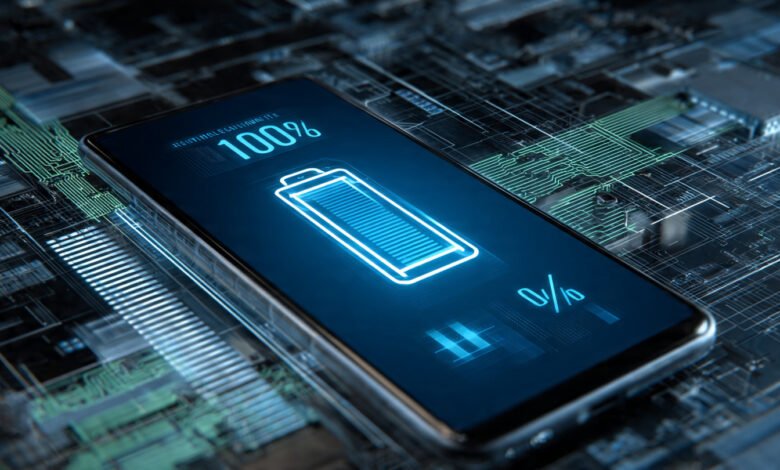
Extend your phone battery life is something almost every smartphone user thinks about at least once a day. You leave home at 100%, and by noon you are hunting for an outlet. Sound familiar? You are not imagining it. Modern smartphones pack bigger screens, faster processors, and more always-on features than ever before, and all of that comes at a cost to your battery.
The good news is that you have far more control over your battery performance than most people realize. You do not need to buy a new phone, carry a power bank everywhere, or become a tech expert. Most of the best solutions come down to adjusting a handful of settings and changing a few habits.
Lithium-ion batteries, the type inside virtually every smartphone today, are not designed to last forever. They degrade with every charge cycle. But how fast they degrade depends almost entirely on how you treat them. Poor charging habits, extreme temperatures, and apps running unchecked in the background can cut your battery life in half over just a year.
This guide walks you through 15 practical, research-backed strategies to get more hours out of every charge and extend the overall lifespan of your battery. Whether you use an iPhone or Android, these tips work. Let’s get into it.
Understanding How Your Phone Battery Actually Works
Before jumping into the tips, it helps to understand what you are dealing with. Smartphone batteries are lithium-ion cells that store energy through a chemical reaction. Every time you charge from 0% to 100%, that counts as one full charge cycle. Most phone batteries are rated for around 300 to 500 full charge cycles before they start losing noticeable capacity, which translates to roughly 12 to 18 months of daily charging before you start seeing the effects.
The key thing to understand is that battery degradation is not just about how often you charge. It is about how you charge. High heat, charging to full capacity overnight, and letting the battery drain to zero repeatedly all accelerate the chemical breakdown inside the cell. The goal is to minimize that stress wherever you can.
What Causes Battery Drain Day to Day?
On any given day, your battery drain is driven by a handful of main culprits:
- Screen brightness and screen-on time
- Background apps syncing, refreshing, and running location services
- Wireless radios like Wi-Fi, Bluetooth, and cellular signals
- Push notifications and email fetch intervals
- Graphics-heavy games and video streaming
Understanding these helps you target the right fixes.
How to Extend Your Phone Battery Life With Screen Settings
Your display is the single biggest consumer of power in your phone. A bright screen on full blast is essentially a flashlight that never turns off. Fixing this is the fastest win available.


Lower Your Screen Brightness
This one sounds obvious, but most people ignore it. Dropping your brightness from 100% to 50% can meaningfully reduce battery consumption throughout the day. You do not need maximum brightness indoors. Most phones have an auto-brightness feature that adjusts based on ambient light, and turning that on is one of the simplest things you can do.
Enable Dark Mode on OLED Screens
If your phone has an OLED or AMOLED display (most flagship Android phones and iPhones from the 11 onwards), enabling dark mode saves real power. On OLED screens, black pixels are literally turned off, meaning the darker your interface, the less power the screen draws. Switching to dark mode across your apps, especially ones you spend a lot of time in, adds up.
Reduce Your Screen Timeout
Your screen staying on when you set your phone down is silent battery theft. Set your screen timeout to 30 seconds or one minute. It seems like a small thing but it adds up to significant savings over a full day.
Lower the Refresh Rate
Many modern phones offer 90Hz or 120Hz high refresh rate displays. These look smoother but consume more battery. If you are not gaming or scrolling quickly, dropping to 60Hz on tasks like reading email or browsing news is an easy win. On Samsung devices, you can find this under Display settings. On iPhone, you can manage this through ProMotion settings on supported models.
Managing Background Apps to Improve Battery Life
Apps running in the background are often the invisible drain you never see coming. They are syncing data, checking for updates, refreshing content, and pinging location services even when your phone is sitting face-down on a table.
Check Your Battery Usage Stats
Both iOS and Android have built-in tools to show you exactly which apps are eating your battery. On Android, go to Settings > Battery > Battery Usage. On iPhone, go to Settings > Battery. Give this a look. You might be shocked to find a social media app you barely use is responsible for a huge chunk of your daily drain.
Restrict Background App Activity
Once you know the culprits, restrict them.
- On Android: Go to Settings > Apps, select the app, and set background activity to restricted.
- On iPhone: Go to Settings > General > Background App Refresh and turn it off for apps that do not need it.
Social media apps are the biggest offenders here. Platforms like Instagram, TikTok, and Facebook are built to constantly refresh in the background. Disabling this for apps you check manually anyway can save up to 15% of daily battery life, according to testing done by smartphone battery researchers.
Use Adaptive Battery on Android
Android’s Adaptive Battery feature uses machine learning to predict which apps you will use and limits background activity for the ones you rarely open. Turn it on under Settings > Battery > Adaptive Battery. It works quietly and gets smarter over time.
Smart Charging Habits That Protect Battery Health
This is where long-term battery health is won or lost. Your daily charging routine has a bigger impact on how your battery ages than almost anything else.
Follow the 20-80 Rule
The most important charging habit you can adopt is keeping your battery level between 20% and 80%. Lithium-ion batteries experience the most stress at the extremes. Charging to 100% and staying there, or draining all the way to 0% regularly, accelerates the breakdown of the battery’s internal chemistry.
Every 0.1V reduction in the maximum charge voltage can roughly double the number of charge cycles the battery can handle before significant capacity loss. In practical terms, stopping your charge at 80% instead of 100% consistently can dramatically extend your battery’s usable lifespan over two to three years.
Avoid Overnight Charging
Leaving your phone plugged in overnight keeps it at 100% for hours at a time, which places constant stress on the lithium-ion cells. Over time, this accelerates capacity loss.
If overnight charging is unavoidable, use your phone’s optimized charging features:
- On iPhone: Go to Settings > Battery > Battery Health & Charging and enable Optimized Battery Charging. Your iPhone learns your routine and pauses charging above 80% until just before you typically wake up.
- On Samsung: Settings > Battery and device care > Battery > Battery protection limits charging to 85%.
- On Xiaomi: Settings > Battery > Battery Preservation works similarly.
Avoid Fast Charging When You Do Not Need It
Fast charging is convenient, but it generates more heat than standard charging, and heat is the enemy of battery longevity. If you are not in a rush, use a regular charger. Save the 65W or 100W brick for when you genuinely need a quick top-up before heading out.
Charge in Short Sessions
Instead of one big charge from 5% to 100%, shorter top-up charges throughout the day are actually better for your battery. Plugging in for 20 minutes here and there while keeping the battery percentage in that healthy middle range is preferable to a full deep cycle.
Temperature Management and Battery Longevity
Heat is the number one enemy of lithium-ion battery health. The chemistry inside your battery is highly sensitive to temperature, and pushing it beyond comfortable ranges accelerates degradation in ways that are not reversible.
Keep Your Phone Out of Direct Sunlight
A phone left on a car dashboard on a sunny day can reach temperatures well above 40°C (104°F). At that range, battery capacity loss accelerates dramatically. A battery kept at high temperatures while regularly charged to 100% can lose more than a third of its capacity within a single year, compared to a battery kept at moderate temperatures with sensible charging habits.
Do not leave your phone in:
- A hot car dashboard or glove box
- Direct sunlight for extended periods
- Your pocket during intense physical activity with no ventilation
Remove Your Case While Charging
Some phone cases trap heat during charging. If your phone gets noticeably warm while charging inside a thick case, removing it during charging sessions allows heat to dissipate more effectively. This is especially true for rubber and leather cases that insulate rather than dissipate heat.
Avoid Cold Extremes Too
Cold weather temporarily reduces battery performance and can cause the reported battery percentage to drop faster than expected. While cold does not cause the same long-term degradation as heat, it can make an already aging battery behave unpredictably. Keep your phone in a pocket close to your body in freezing conditions.
Connectivity Settings That Drain Your Battery
Your phone’s wireless radios are constantly searching, scanning, and transmitting. Turning off the ones you are not using is one of the quickest ways to reduce battery drain.
Turn Off Bluetooth When Not in Use
Bluetooth uses relatively little power, but leaving it on when you are not connected to anything keeps it scanning. If you do not use wireless earbuds or a smartwatch, turn it off. If you do use them regularly, leaving Bluetooth on is fine, but be aware that streaming audio over Bluetooth does add to your daily consumption.
Use Wi-Fi Instead of Mobile Data
Wi-Fi consumes significantly less power than a cellular data connection, particularly in areas with weak signal. When you have a strong Wi-Fi connection available, your phone uses less energy than it would pulling data through LTE or 5G. That said, if you are in a location with no Wi-Fi and a weak cellular signal, your phone burns through battery aggressively trying to maintain a connection.
Disable Location Services for Non-Essential Apps
GPS is one of the most power-hungry features on your phone. Plenty of apps request location access and then use it far more than they need to. Go through your location permissions and restrict them:
- Set apps to “Only while using” instead of “Always”
- Disable location entirely for apps that have no reason to know where you are
On iPhone: Settings > Privacy & Security > Location Services On Android: Settings > Location > App permissions
Consider Airplane Mode in Low-Signal Areas
When your phone has one bar of signal, it cranks up the radio transmitter to stay connected, which burns battery fast. If you are in a low-signal area and do not need connectivity, switching to airplane mode prevents this constant high-power searching and can make a significant difference.
Software and System Settings That Affect Battery Life
Beyond the big obvious settings, there are several system-level adjustments that quietly improve your smartphone battery life over the course of a day.
Keep Your Phone Software Updated
Manufacturers regularly release updates that include battery optimizations, bug fixes for power-hungry processes, and efficiency improvements. Skipping updates means missing out on free performance gains. Both Apple and Google push software improvements specifically targeting battery efficiency with every major OS release.
Enable Battery Saver Mode Earlier
Do not wait until you are at 5% to turn on Battery Saver. Enabling it at 30% or even 40% when you know you will not be near a charger gives you meaningful extra hours. Battery Saver on both iOS and Android limits background activity, reduces sync frequency, and lowers performance thresholds to stretch your remaining charge.
Apple’s Low Power Mode, available since iOS 9, reduces display brightness, optimizes device performance, and minimizes system animations. Apps like Mail will not download content in the background, and features like AirDrop and iCloud sync are paused until charging resumes.
Reduce Push Notifications and Email Fetch
Every ping your phone receives wakes it up briefly. If you get a lot of notifications, each one is a tiny battery draw. Audit your notification settings and disable them for apps that are not genuinely important. For email, switching from push delivery to manual fetch or a longer polling interval reduces background activity significantly.
Disable Vibration for Notifications
Vibration motors actually use more power than ringtones do. If you are in a quiet environment, switching from vibration to a low-volume tone or just a visual notification saves small but consistent amounts of power throughout the day.
How to Check Your Battery Health
Knowing the state of your battery health tells you whether these tips will have a significant impact or whether a battery replacement is the more practical next step.
Checking Battery Health on iPhone
Go to Settings > Battery > Battery Health & Charging. Apple shows you a maximum capacity percentage relative to when the battery was new. Most manufacturers agree that when battery health drops below 80%, it is time to consider replacement, as you will likely notice a significant drop in daily performance.
Checking Battery Health on Android
Android does not display a single battery health percentage as cleanly as iPhone does. On Samsung, go to Settings > Battery and device care to see basic health status. For a more detailed reading, you can dial ##4636## to access the phone information menu on many Android devices, or use a third-party diagnostic app.
Some manufacturer apps like Samsung’s Device Care or OnePlus’s built-in battery tools give you more granular information about your battery capacity and cycle count.
Extend Phone Battery Life With Hardware Choices
Sometimes the software side only gets you so far. A few hardware-related decisions can make a big difference.
Use Certified Chargers and Cables
Non-certified, off-brand chargers may deliver inconsistent voltage, which can stress your battery and potentially cause overheating. Stick to chargers certified by your phone’s manufacturer or reputable third-party brands that are MFi certified (for iPhone) or carry proper safety certifications for Android.
According to Google’s Android support documentation, other power adapters and chargers can charge slowly or damage your phone or battery, and using the correct charger for your device is recommended.
Consider a Battery Case for Frequent Travelers
If you consistently run out of charge before the end of the day, a battery case or portable power bank is a practical solution. These are not just emergency tools. Using a battery case that charges at a lower voltage and stops at 80% can actually be gentler on your phone’s internal battery than standard wall charging.
Long-Term Battery Preservation Strategies
Beyond daily habits, there are things you can do to preserve battery health over months and years.
Avoid Full Discharge Before Storage
If you are putting a phone in a drawer for a few weeks, Apple recommends not fully charging or fully discharging the battery before storage. Charge it to around 50%, power down the device, and store it in a cool, dry environment below 32°C (90°F). If storing for longer than six months, charge it to 50% every six months.
Replace the Battery When Health Drops Below 80%
No amount of optimization will compensate for a battery that has genuinely degraded. Once your battery capacity drops below 80%, day-to-day performance drops noticeably. Official battery replacement services from Apple or your Android manufacturer are worth the cost. They give your phone a second life for a fraction of the price of a new device.
Specific Tips for iPhone Users
iPhone users have some unique tools available worth highlighting.
- Enable Optimized Battery Charging in Settings > Battery > Battery Health & Charging
- Use Low Power Mode proactively, not just in emergencies
- Turn off Always-On Display if you have a model with one
- Reduce motion effects under Settings > Accessibility > Motion > Reduce Motion
- Disable Background App Refresh for social media apps specifically
Specific Tips for Android Users
Android gives you more granular control over battery management, which is both a benefit and a responsibility.
- Enable Adaptive Battery in Settings > Battery
- Use Battery Saver and schedule it to activate at a set percentage
- Check the Battery Usage timeline regularly for unusual drain
- Restrict background data for specific apps in Settings > Apps
- Enable Dark Theme system-wide in Settings > Display
- Lower your screen refresh rate to 60Hz in display settings when not needed
Bonus: Quick-Reference Battery-Saving Checklist
Here is a fast list of changes you can make right now:
- Lower screen brightness to 50% or enable auto-brightness
- Enable dark mode if you have an OLED screen
- Set screen timeout to 30 or 60 seconds
- Turn off Bluetooth when not actively using it
- Restrict background activity for social media apps
- Enable Optimized Battery Charging (iPhone) or Battery Protection (Samsung)
- Stop charging at 80% when possible
- Avoid using your phone while it is charging
- Keep the phone out of direct sunlight and extreme heat
- Update your phone’s operating system regularly
Conclusion
Extending your phone battery life does not require technical expertise or expensive accessories. It comes down to managing your screen, taming background apps, adopting smarter charging habits, keeping your phone at reasonable temperatures, and using the built-in battery management tools your phone already has. By keeping your lithium-ion battery in the healthy 20-80% charge range, enabling Battery Saver proactively, turning off radios you are not using, and checking your battery health periodically, you can dramatically reduce daily drain and add months or even years to the useful life of your device. Small changes made consistently make a big difference, and after reading this guide, you have everything you need to get started today.